Page 2 - Table of Contents; Installation Guide; Thermostat Overview
2 Compatibility Thermostat InstallationInitial SetupAdvanced SettingsTroubleshootingWiring Diagrams 46 11202325 Table of Contents Thermostat Main ScreenIconsTemperature Setpoints Installation Guide BCC100 Device User Manual 31 3234 BCC App User Manual Additional Features BCC AppApp Main Screen Overv...
Page 3 - Meet the Bosch Connected Control
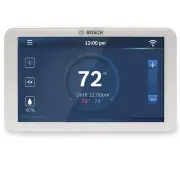
3 The Bosch Connected Control BCC100 Thermostat is compatible with the majority of 24V heating and cooling equipment to help you save energy and money. Easily control your home's temperature from the full color 5” touchscreen display, the Bosch Connected Control smartphone app or your voice with the...
Page 4 - Compatibility; The thermostat cannot support; Professional installation is recommended
4 Compatibility u A C-wire (common wire) is required to power the unit Two wire systems are not supported. If a C-wire is not readily available, we recommend you seek professional support from your local contractor. u The Bosch Connected Control BCC100 Wi-Fi Thermostat works with most 24V systems, i...
Page 5 - Installation Overview; Once you have everything you need, let’s get started!
5 Included in the box u BCC100 Wi-Fi Thermostat u Screws (2) and Anchors (2) u Flathead Screwdriver u Wire Labels u Jumper Wire u User Guide u Customer Support Card Tools you will need u Medium Phillips screwdriver (for attaching the Wall Plate to the wall) u Smartphone (for taking pictures of the e...
Page 6 - Thermostat Installation; Does Not Contain
6 Thermostat Installation Turn OFF power Turn off all power to your HVAC (Heating, Ventilation, and Air Conditioning) system by using the master equipment switch or circuit breaker box. Confirm that your system is off One way to do this is to try to adjust the temperature on your old thermostat. If ...
Page 8 - LEVEL
8 Drill and insert wall anchors (if necessary) Drill two 7/32” holes where you marked the location of the mounting screws and then insert the wall anchors provided into these mounting holes. Check if the wall plate is level and insert screws Make sure your new BCC100 wall plate is level and insert t...
Page 11 - Initial Setup; User Account Setup
11 Initial Setup User Account Setup 1. After downloading the Bosch Connected Control app, open the app on your smartphone and click the Register button to create a new account. 2. Read and accept the Terms and Conditions and Privacy policy, and press continue in the top right hand corner. 3. Follow ...
Page 12 - If you have a dual fuel system; If you have a furnace; If you have a heat pump; If you have a boiler; Unit Configuration; Select your heat type
12 Initial Setup If you have a dual fuel system 1. Select Dual Fuel and click the Next Arrow at the top right corner of the screen. 2. Then follow the on-screen instructions to configure the fossil fuel fan control settings 3. Click Next Arrow at the top right corner of the screen. Then follow the o...
Page 14 - On Device
14 Initial Setup Date & Time Follow the on-screen instructions to set the date and time of BCC100 Thermostat and then click Next Arrow at the top right corner of the screen. On Device Enter your location’s current date and time; after the device is registered or linked to a user account, the dat...
Page 15 - Manual Entry
Manual Entry If you are trying to connect to a hidden network, press the SSID button to bring up the SSID screen. Enter your SSID into the text box, then follow the on-screen instruction to complete the Wi-Fi setup. Note: If this is a first time installation, follow the instructions in the App Setup...
Page 16 - Schedule; Auto Reconnect
16 Schedule Choose the schedule you would like to modify, or select No Schedule if you do not wish to set up a schedule at this time, and click the Setup button or Next arrow. Note: Home is the default schedule for your BCC100. If you wish to add a different schedule, use the Bosch Connected Control...
Page 18 - Review
18 Review In the final step, the BCC100 provides a summary review of information that you have entered into the thermostat. You will be able to go back to different parts of the Initial Setup guide by pressing the different sections on the left pane or using the Previous arrow. If you have completed...
Page 19 - Choose Comfort
Page 20 - FOR CONTRACTORS ONLY:; Installer Access; Advanced Settings
20 Advanced Settings allow HVAC professionals the ability to modify specific thermostat settings for better control of the heating and cooling appliance(s). In order to access the Advanced Settings of the BCC100 Thermostat, your thermostat must be connected to Wi-Fi. The Advanced Settings section is...
Page 21 - Title
21 Advanced Settings Heating & Cooling u To access the Heating and Cooling, select Advanced Settings from the Menu, then select Heating and Cooling. u Enter the Professional Access Code and select a parameter to modify the default value. From this menu you can adjust: Title Default Max Min Descr...
Page 22 - Device Log; Functions
22 Advanced Settings Device Log u To access the Device Log, click Log on the Advanced Settings screen and enter the Professional Access Code. u The Device Log stores up to 90 days’ worth of thermostat activity. To view historical data, select the time period you would like to view. Then select the f...
Page 23 - Troubleshooting & Frequently Asked Questions
23 Troubleshooting & Frequently Asked Questions Wi-Fi Can the BCC100 be used without Wi-Fi? We strongly encourage everyone to use the Wi-Fi capabilities of the thermostat, as it will improve the user experience. However, it is functional without the use of Wi-Fi after the Initial Setup has been ...
Page 24 - Bosch Connected Control App (Android and iOS); How many accounts can be associated with the thermostat at once?; Thermostat; Not Finding the Answer to Your Question?
24 Bosch Connected Control App (Android and iOS) What is the name of the smartphone app in the App Store and Google Play Store? The name of the app is Bosch Connected Control. Bosch Control is a different Wi-Fi thermostat app used with Bosch Boilers. How many accounts can be associated with the ther...
Page 25 - Two Stage Heat – Furnace; Ensure the system has a C-wire
25 Wiring Diagrams Single Stage Heat – Furnace Example: Bosch 80% AFUE Gas Furnace - BGS80 ▶ Ensure the system has a C-wire ▶ Ensure the pre-installed jumper wire remains between RH and RC ▶ Connect the R, C, W1 and G wires from the Furnace to R/RC, C, W/E and G terminals on the wall plate, respecti...
Page 26 - Single Stage Heat – Boiler; Combined Single Stage Heat Furnace and; Wiring Diagrams
26 Single Stage Heat – Boiler Example: Bosch Greenstar Gas Condensing Boilers* ▶ Ensure the system has a C-wire ▶ Ensure the pre-installed jumper wire remains between RH and RC ▶ Remove the jumper from the thermostat connection on the boiler and connect the two terminals to RH and W/E on the thermos...
Page 27 - Single Stage Heat Pump; Heat pump systems
27 Single Stage Heat Pump Example: Bosch Inverter Ducted Split ▶ Ensure the system has a C-wire ▶ Ensure the pre-installed jumper wire remains between RH and R/RC ▶ Connect the R, C, Y1, O/B and G wires from the heat pump to R/RC, C, Y, O/B and G terminals on the wall plate, respectively Single Stag...
Page 28 - Single Stage Cool – Air Conditioner
28 Two Stage Heat Pump with One Stage Emergency Heat ▶ Ensure the system has a C-wire ▶ Ensure the pre-installed jumper wire remains between RH and R/RC ▶ Connect the R, C, W1, Y1, Y2, O/B and G wires from the heat pump to R/RC, C, W/E, Y, Y2, O/B and G terminals on the wall plate, respectively Sing...
Page 29 - Combined Single Stage Heat Pump and Single; Humidifier or Dehumidifier Accessory; Ensure that the accessory is externally powered
29 Combined Single Stage Heat Pump and Single Stage Furnace (Dual Fuel) ▶ Ensure the system has a C-wire ▶ Ensure the pre-installed jumper wire remains between RH and R/RC ▶ Connect the R, C, W1 and G wires from the Furnace to R/RC, C, W/E and G terminals on the wall plate, respectively ▶ Connect th...
Page 31 - Main Screen
31 Main Screen System Mode Main Menu Fan Status Wifi / Cloud Access Indicator Current Room Humidity Current Room Temperature Current Schedule Adjust Temperature Set-Points
Page 32 - Thermostat and App Icons; Basic Icons
32 Thermostat and App Icons Menu Exit / Save Settings Back Schedule Device Settings System Settings Advanced Setting Weather Fossil Fuel Heat Pump Dual Fuel Electric Basic Icons Heating Types Fan Modes Accessory System Modes Heat Mode Cool Mode Auto Mode Emergency Heat Mode Off Auto On Circulation H...
Page 33 - Unit Operation; System Connectivity
33 Unit Operation 1 2 1 2 1 2 1 2 Heat Mode Heating on (1st stage) & (2nd stage) Cool Mode Cooling on (1st stage) & (2nd stage) Auto Mode Heating on (1st stage) & (2nd stage) Auto Mode Cooling on (1st stage) & (2nd stage) Fan on/running (Fan Auto Mode) Emergency heat on (1st stage) &...
Page 35 - Unit Operating Mode; Fan Operation
35 Thermostat Overview Unit Operating Mode Heat: The thermostat cycles your heating appliance to maintain your scheduled heating set point. Cool: The thermostat cycles your cooling appliance to maintain your scheduled cooling set point. Auto: The thermostat cycles your heating/cooling appliance to m...
Page 36 - Humidifier & Dehumidifier Operating Mode; Run Time
36 Thermostat Overview Humidifier & Dehumidifier Operating Mode You can enable automatic humidity control if the correct humidifier or dehumidifier accessory was correctly wired and configured during the thermostat’s initial setup. Based on the setup, the thermostat turns on the humidifier durin...
Page 37 - Device Information; Factory Reset; Weather Forecast; Screen Options; Additional Information
37 Device Information Device information will contain all the relevant Account and System information. Account: Change or remove the account associated with the thermostat. System: Displays the current hardware and software information. This screen can also be used to update the firmware. Factory Re...
Page 39 - Bosch Connected Control App
39 Pull Thermostat Wires Through The Hole in the Center of the BCC50 Wall Plate and Mark the Location of the Mounting Screws It is recommended to use the BCC50 Wall Plate as a reference guide to mark the mounting holes and ensure that all holes and unpainted surfaces are covered. If the new Wall Pla...
Page 40 - App Screen Overview
40 App Screen Overview Actual Room Temperature Cooling Setpoint Heating Setpoint Accessory Menu Thermostat Screen Lock Refresh / Sync Time Current Schedule Period Current Time System Mode Fan Back Actual Room Relative Humidity Cancel Schedule Override Hold
Page 41 - No Schedule; Adjusting Temperature Setpoint(s) on the App
41 No Schedule From the Main Screen, tap the current temperature and use your finger to scroll up or down to change the temperature setpoint. Stop on the value you want for your new setpoint and wait a few seconds for the setpoint to update. You will see the update reflected on the app and on the th...
Page 42 - Schedule Overview; Add a New Period
42 Schedule Overview Schedule u To add a new Schedule, use the ‘+’ button in the top right hand corner, name your schedule and click OK. u To modify an existing Schedule, select a Schedule from the list. Add a New Period To add a new Period to a given day, click the Add Period button in the middle o...
Page 43 - Delete an Existing Period
43 Schedule Overview Delete an Existing Period To delete an existing period, swipe left on the existing period and click delete. Copy a Schedule To copy a schedule to other days of the week, click the lettered days at the bottom of the screen until all days you would like to copy in the existing sch...
Page 44 - Mode; App Menu Overview; Device Messages
44 Mode Similar to the BCC100 Thermostat, use the Mode screens to remotely adjust the System Mode, Fan Mode and Accessory Mode. App Menu Overview Device Messages Alert messages regarding your specific thermostat can be read and deleted from this section of the app. Temperature Follow the on-screen i...
Page 46 - Additional Features; Control Your BCC100 with Amazon Alexa
46 Additional Features Control Your BCC100 with Amazon Alexa Bosch offers one Smart Home Skill for integrating your BCC100 with Alexa’s voice controls. Using the Bosch Connected Control Skill from the Skills section of the Amazon Alexa App. Device Name The Device Name is the name assigned to your de...
Page 47 - Connecting Your BCC100 to Amazon Alexa
47 Connecting Your BCC100 to Amazon Alexa 1. Download the BCC App, create an account, and register your app to the BCC thermostat. 2. Download the Amazon Alexa app and set up your Alexa-enabled device. 3. In the Amazon Alexa app, click on the Menu button in the top left corner. 4. Click on the Skill...
Page 48 - Control Your BCC100 with Google Assistant
48 Additional Features Control Your BCC100 with Google Assistant Once installed and connected to the app, Bosch offers one Smart Home link for integrating your BCC100 with Google Assistant’s voice controls. After setting up your thermostat as a new device in the Google Home app: Device Name The Devi...
Page 49 - Connecting Your BCC100 to Google Assistant
49 Connecting Your BCC100 to Google Assistant 1. Download the BCC app, create an account, and register your app to the BCC100 thermostat. You must have a registered BCC account to set up and use your thermostat with Google Assistant. 2. Download the Google Home app and set up your Google-enabled dev...
Page 50 - Warranty
50 MODELS COVERED This limited warranty is provided by Bosch Thermotechnology Corp. (“Bosch”) and covers the Bosch Connected Control (BCC100) Wi-Fi Thermostat (hereinafter referred to as “Product”). This warranty is provided to the original purchaser of the Product as long as the Product remains ins...
Page 52 - Bosch Thermotechnology Corp.
52 Bosch Thermotechnology Corp. Watertown, MA • Londonderry, NH • Ft. Lauderdale, FLGeneral Inquiries: 1-800-283-3787 www.boschheatingandcooling.com 76H993390F 5/20Copyright © 2020 Bosch Thermotechnology Corp. All rights reserved. Subject to change without notice.