Page 2 - Bob PetHair Plus; O W N E R ’ S M A N U A L
Bob PetHair Plus O W N E R ’ S M A N U A L Model WPP56002, WPP56003, and WPP56004 Manual Version 2020.1
Page 3 - Congratulations; your service. To see Bob at his best, please read the Quick Start
Congratulations ! Congratulations on your new intelligent floor cleaner! Bob is now at your service. To see Bob at his best, please read the Quick Start Guide and this manual thoroughly. Welcome to the bObsweep family and Happy Sweeping! If you have any questions or concerns, feel free to contact ou...
Page 5 - Declaration of Conformity; Warranty
Declaration of Conformity This device complies with Part 15 of the FCC rules. Operation is subject to the following two conditions: (1) this device may not cause harmful interference, and (2) this device must accept any interference received, including interference that may cause undesired operation...
Page 6 - Table of; Contents
Table of Contents Charging 28. Charging Bob 30. Charging Station 32. Syncing the Charging Station 34 FullCommand™ Remote 36. Remote Buttons 38. Syncing the Remote 40. Navigating Bob 42 Cleaning Schedule 44. Setting the Current Time and Day 46. Setting the Cleaning Schedule 48. Auto-Resume Mode 50 Ma...
Page 7 - Getting Started
Getting Started 6 Box Contents 8 Bob’s Anatomy 12 Get to Know Bob 14 Get Bob Started Let’s start at the very beginning. We’ll walk you through the basics and help you get Bob started for the very first time. 4
Page 8 - Quick Start; Getting; Box Contents
1 FullCommand™ Remote 2 Charging Adapter 3 Charging Station 4 Mop Attachment 5 Microfiber Mopping Cloths (2) 6 blOck Plus™ 7 Flat Head Screwdriver 8 Set of Bumper Stickers 9 Screws (1 Main Brush Screw, 2 Side Brush Screws) 10 Cleaning Tool 11 Filters (2) 12 Main Brush 13 Side Brushes (2) 14 Owner’s ...
Page 9 - Bob’s Anatomy
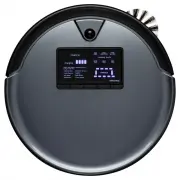
Top View Bottom View Quick Start Getting Started Bob’s Anatomy R L Edge SensorsCharging Plates BatteryUV Lamp Main Brush Left Wheel Dustbin Side Brush Front Wheel Power Switch BumperTransmitter Display Screen 1 2 3 4 5 Cover Buttons 1 GO! - Sends Bob to clean. 2 CLEANING MODE - Cycles through Bob’s ...
Page 10 - Get to Know Bob
Who is Bob? Bob is an autonomous robotic vacuum cleaner, at your service! He can vacuum, sweep, and mop all the same time — and at the end of his cleaning session, he automatically returns to his charging station for a power nap. Set Bob to clean on a schedule and he’ll clean on his own even when yo...
Page 11 - Navigating Difficult Obstacles
Unique Furniture Bob is designed to maneuver around furniture of most shapes and sizes, but he may find it difficult to clean under chairs with narrow legs or around furniture that is too low for his bumper sensors to detect. Specialty furniture, such as desk chairs with wheels or stools with circul...
Page 12 - Step 1: Install Bob’s Side Brush
Step 1: Install Bob’s Side Brush Install Bob’s side brush to help him reach the corners and edges of rooms. Quick Start Getting Started Get Bob Started: Bob will be ready to clean in just 3 easy steps. R L 1. Flip Bob over onto a flat surface. Place the side brush over the empty socket on Bob’s unde...
Page 14 - Step 3: Sync Bob’s Remote
1. Hold down the OK/SYNC button on Bob’s remote. 2. While still holding down the OK/SYNC button, flip Bob’s power switch ON. Step 3: Sync Bob’s Remote Sync Bob to his remote so that he can respond to its commands. Quick Start Getting Started Get Bob Started: Bob will be ready to clean in just 3 easy...
Page 15 - Bob is now ready to clean!
Bob is now ready to clean! Quick Start Getting Started Get Bob Started: Bob will be ready to clean in just 3 easy steps. check up charging Oops! I feel there’s something funny going on with my:Edge Sensors Touch Sensors Left Wheel Main Brush Obstacle Sensors Dustbin Right Wheel Power System cleaning...
Page 17 - Cleaning; Selecting a Cleaning Mode
Select the cleaning mode that best suits your needs. Bob automatically returns to his charging station after he completes a cycle in each mode. Quick Start Cleaning Modes Selecting a Cleaning Mode check up charging Oops! I feel there’s something funny going on with my:Edge Sensors Touch Sensors Left...
Page 18 - Charging
Charging 28 Charging Bob 30 Charging Station 32 Syncing the Charging Station Bob automatically returns to his charging station when low on battery. To maximize Bob’s chance of finding his station, it’s best to place it in an easily accessible location with plenty of space around it. If Bob continues...
Page 19 - The battery bars flash and the word “charging” is lit.; When Bob Is Fully Charged:; The battery bars remain still and the word “charging”; Sending Bob to His Charging Station; Charging Bob
Quick Start Charging Charging Bob Charging Bob Using the Charging Station Place Bob on his charging station with the metal plates on his underside sitting on top of the nodes on his station. Make sure the station is plugged in and the station’s red power light is on. When Bob Is Charging: The batter...
Page 20 - Charging Station
Quick Start Charging Station Position the charging station against a wall on a hard, flat surface. Make sure there is at least 10 feet (3 m) of open space to the front and 2 feet (0.6 m) of open space to the sides of the station. Charging Charging Station 2 feet (0.6 m) 10 feet (3 m) 2 feet (0.6 m) ...
Page 21 - Syncing the Charging Station
Quick Start check up charging Oops! I feel there’s something funny going on with my:Edge Sensors Touch Sensors Left Wheel Main Brush Obstacle Sensors Dustbin Right Wheel Power System cleaning cleaning mode deep clean quick clean (30M) touch up (15M) waffle track spiral track wall track Syncing the C...
Page 22 - FullCommand; Remote
FullCommand ™ Remote 36 Remote Buttons 38 Syncing the Remote 40 Navigating Bob You can set Bob’s cleaning schedule, select his cleaning modes, and control his movements all from his FullCommand™ remote. 34
Page 23 - FullCommandTM; Remote Buttons
Remote Buttons Quick Start FullCommand™ Remote Remote Buttons 1 GO! Sends Bob to clean. 2 Charge Sends Bob to his charging station. 3 UV Light Activates or deactivates the UV light. 4 Cleaning Mode Cycles through Bob’s cleaning modes. 5 Wake/Sleep Puts Bob in and out of standby mode. 6 Mute Mutes or...
Page 24 - Syncing the Remote
Quick Start FullCommand™ Remote Syncing the Remote Syncing the Remote Bob must be synced to his FullCommand™ remote before he is able to obey its commands. 1. Hold down the OK/SYNC button on Bob’s remote. 2. While still holding down the OK/SYNC button, flip Bob’s power switch ON. Parts You’ll Need: ...
Page 25 - Navigating Bob
Quick Start FullCommand™ Remote Navigating Bob Bob’s edge sensors are located along his front, not along his back. Do not reverse Bob towards edges, as he will fall. Navigating Bob Hold down a navigational button on the remote to keep Bob moving in the desired direction. Release the button when you ...
Page 26 - Setting the Current Time and Day
Cleaning Schedule 44 Setting the Current Time and Day 46 Setting the Cleaning Schedule 48 Auto-Resume Mode Bob can be programmed to clean at the same time on multiple days of the week through his FullCommand™ remote. The remote works on a 24- hour clock, so adjust accordingly. 42
Page 28 - Setting the Cleaning Schedule
Quick Start Cleaning Schedule Setting the Cleaning Schedule Setting the Cleaning Schedule Bob can be programmed to clean at the same time on multiple days of the week through his FullCommand™ remote. After setting the current time and day on Bob’s remote, you may set his cleaning schedule. Make sure...
Page 29 - Disabling Auto-Resume
Quick Start Cleaning Schedule Auto-Resume Mode Enabling Auto-Resume Auto-Resume Mode On auto-resume mode, Bob leaves his charging station after every recharge to perform “back-to-back” cleaning cycles. To enable auto-resume, make sure Bob is turned ON and synced to his FullCommand™ remote. 1. Press ...
Page 30 - Maintenance
52 Dustbin 54 Filter 56 Main Brush 58 Side Brush 60 Sensors Maintenance To maximize Bob’s efficiency, it is best to clean his dustbin, filters, brushes, and sensors about once a week. 50
Page 31 - Dustbin; Emptying Bob’s Dustbin
Quick Start Maintenance Dustbin Dustbin To maximize Bob’s efficiency, it is best to empty his dustbin about once a week, or about once every 6 cleaning cycles. Emptying Bob’s Dustbin 1. Push the button on Bob’s back and slide the dustbin out. 2. Carefully open the plastic gate and dump out the conte...
Page 32 - Filters; Cleaning Bob’s Filters
Quick Start Maintenance Filters Mesh Filter (Filter Frame) For larger particles High-Efficiency Filter For fine particles Electrostatic Filter For smaller particles Filters To maximize Bob’s efficiency, it is best to clean his filters about once a week and replace them about once every 6 months. 3 f...
Page 33 - Main Brush; Cleaning Bob’s Main Brush
Quick Start Maintenance Main Brush Main Brush To maximize Bob’s efficiency, it is best to clean his main brush about once a week. Parts You’ll Need: Flat Head Cleaning Tool Screwdriver Cleaning Bob’s Main Brush 1. Remove the screw on the main brush using a flat head screwdriver. 2. Clean the brush a...
Page 34 - Side Brush; Cleaning Bob’s Side Brush
Quick Start Maintenance Side Brush Side Brush To maximize Bob’s efficiency, it is best to clean his side brush about once a week. 1. Remove the screw on the side brush using a flat head screwdriver. 3. When done, replace the side brush and screw. 2. Clean the brush and the brush socket using Bob’s c...
Page 35 - Sensors; Cleaning Bob’s Sensors
Quick Start Maintenance Sensors Sensors To maximize Bob’s efficiency, it is best to clean his sensors about once a week. Bob’s obstacle/wall sensors are located along his bumper; his edge sensors are located along the front of his underside. Cleaning Bob’s Sensors 1. Wipe the obstacle/wall and edge ...
Page 37 - Parts; blOck PlusTM; blOck PlusTM Buttons; Power Light
Quick Start Parts and Accessories blOck Plus™ blOck Plus™ You can use blOck Plus™ to create digital barriers that Bob will not cross. blOck Plus™ emits 10 foot barriers from its front and left sides. You may use the front barrier or both barriers depending on your preference. As with Bob’s remote, y...
Page 38 - Syncing blOck PlusTM
Quick Start Parts and Accessories Syncing blOck Plus™ Syncing blOck Plus™ As with Bob’s remote, you will need to sync blOck Plus™ before using it for the first time. 1. Press the button. Wait for the red light on the front side of the block Plus™ to start slowly blinking before proceeding. 3. Hold d...
Page 39 - Using blOck PlusTM
Quick Start Parts and Accessories Using blOck Plus™ Using blOck Plus™ You can use blOck Plus™ to create digital barriers that Bob will not cross. blOck Plus™ emits 10 foot barriers from its front and left sides. You may use the front barrier or both barriers depending on your preference. 1. Press th...
Page 40 - Mop; Installing Bob’s Mop Attachment
Quick Start Parts and Accessories Mop Mop Bob’s mop attachment allows him to mop as he vacuums and sweeps. Installing Bob’s Mop Attachment Removing Bob’s Mop Attachment Do not let Bob climb onto carpet or rugs when he is mopping. You may use blOck Plus™ to keep him away from carpet or rugs. Quick Ti...
Page 41 - Edge Sensors; Deactivating Bob’s Edge Sensors
Quick Start Parts and Accessories Edge Sensors Edge Sensors If Bob repeatedly backs up or displays a trouble message while cleaning dark-colored carpet, then you’ll need to deactivate the edge sensors. Make sure Bob is turned ON before proceeding. Deactivating Bob’s Edge Sensors Reactivating Bob’s E...
Page 42 - Battery
Quick Start Parts and Accessories Battery Battery On his default Deep Clean mode, Bob’s battery lasts about 45 – 90 minutes per charge. Bob’s battery has a 2-year warranty. Replacement batteries can be purchased at www.bobsweep.com/shop. 1. Remove the 2 screws on the battery cover using a Phillips h...
Page 43 - Troubleshooting; Front Wheel
Troubleshooting 78 Edge Sensors 80 Touch Sensors 82 Obstacle Sensors 84 Main Brush 86 Left Wheel 88 Right Wheel 90 Dustbin 92 Power System 94 (No Part Name) Front Wheel If Bob is having a problem with one of his parts, a trouble message will light up on his screen saying, “Oops! I feel there’s somet...
Page 44 - Troubleshooting: Edge Sensors; Oops! I feel there’s something funny going on
Quick Start Troubleshooting Troubleshooting: Edge Sensors Oops! I feel there’s something funny going on with my: Edge Sensors Parts You’ll Need: Cloth (not included) What to do: Wipe the edge sensors with a soft cloth slightly dampened with cold water or alcohol. If problems persist, deactivate the ...
Page 45 - Troubleshooting: Touch Sensors; Touch Sensors
Quick Start Troubleshooting Troubleshooting: Touch Sensors Oops! I feel there’s something funny going on with my: Touch Sensors What to do: Gently tap the bumper and use compressed air to clean underneath the bumper. Press each end of the bumper until you hear a tiny “click.” If the bumper is not cl...
Page 46 - Troubleshooting: Obstacle Sensors; Obstacle Sensors
Quick Start Troubleshooting Troubleshooting: Obstacle Sensors Oops! I feel there’s something funny going on with my: Obstacle Sensors Parts You’ll Need: Cloth Compressed Air (not included) (not included) What to do: Wipe the obstacle/wall sensors with a soft cloth slightly dampened with cold water o...
Page 47 - Troubleshooting: Main Brush
Quick Start Troubleshooting Troubleshooting: Main Brush Oops! I feel there’s something funny going on with my: Main Brush What to do: Remove the screw on the main brush using a flat head screwdriver. Clean the brush and the brush compartment from end to end using Bob’s cleaning tool. When done, repl...
Page 48 - Troubleshooting: Left Wheel; Left Wheel
Quick Start Troubleshooting Troubleshooting: Left Wheel Oops! I feel there’s something funny going on with my: Left Wheel What to do: Use the cleaning tool or compressed air to remove debris jamming the left wheel. Parts You’ll Need: Cleaning Tool Compressed Air (not included) 1. 86 85
Page 49 - Troubleshooting: Right Wheel; Right Wheel
Quick Start Troubleshooting Troubleshooting: Right Wheel Oops! I feel there’s something funny going on with my: Right Wheel What to do: Use the cleaning tool or compressed air to remove debris jamming the right wheel. Parts You’ll Need: Cleaning Tool Compressed Air (not included) 1. 88 87
Page 50 - Troubleshooting: Dustbin
Quick Start Troubleshooting Troubleshooting: Dustbin Oops! I feel there’s something funny going on with my: Dustbin Parts You’ll Need: Cloth (not included) What to do: Remove Bob’s dustbin and empty it. Gently wipe the two metal connectors on the bottom of the dustbin with a dry cloth. If the two me...
Page 51 - Troubleshooting: Power System; Power System
Quick Start Troubleshooting Troubleshooting: Power System Oops! I feel there’s something funny going on with my: Power System What to do: Place Bob on his charging station and allow him to fully charge. If Bob is unable to charge on his station, charge him directly by plugging the charging adapter i...
Page 53 - If Bob is not performing as well as he
Home Checkup Test If Bob is not performing as well as he should, you can diagnose the problem with a simple home checkup test. 98 Putting Bob in Checkup Mode 100 Edge Sensors, Obstacle / Wall Sensors, Touch Sensors, and Charging Station 102 blOck Plus™, Display Screen, Brush / Suction Power, and UV ...
Page 54 - Home; Putting Bob in Checkup Mode
Quick Start Home Checkup Test Putting Bob in Checkup Mode Putting Bob in Checkup Mode While in checkup mode, the word “bObsweep” will flash on Bob’s screen. 1. Flip Bob’s power switch OFF. 2. While holding down the CHECKUP button on Bob’s cover, flip Bob’s power switch ON. If Bob fails any part of t...
Page 55 - Home Checkup Test: Steps 1 to 4
The 4 bars above the word “checkup” should be lit. Lift Bob about 6 inches (15 cm) off the ground and the 4 bars should turn off. Step 1: Edge Sensors Drag a thick, flat, and light-colored surface around Bob’s bumper. The 5 bars below the word “checkup” should light up one at a time as you move your...
Page 56 - UV Light and Wheels; Home Checkup Test: Steps 5 to 8
blOck Plus™ must be synced for this step. Unplug the charging station so its signal does not interfere with this test. Turn both barriers on. Place blOck Plus™ so its front barrier directly faces Bob’s front. The word “deep clean” should light up on Bob’s screen. Now rotate blOck Plus™ so its left b...
Page 57 - FAQs; Still have questions that we haven’t
FAQs Still have questions that we haven’t answered? Contact our helpful support team at [email protected] or 1-888-549-8847. Our business hours are Monday – Friday, 9 a.m. – 5 p.m. Pacific Time. 104