Page 2 - BLACKVUE; For manuals, customer support and FAQs go to
BLACKVUE DR750X-2CH For manuals, customer support and FAQs go to www.blackvue.com Руководства, служба технической поддержки и часто задаваемые вопросы представлены на сайте www.blackvue.com
Page 3 - Important safety information; The data can be damaged or malfunctions may occur.
Important safety information For user safety and to avoid property damage, read through this manual and follow these safety instructions to use the product correctly. y Do not disassemble, repair, or modify the product yourself. Doing so may cause fire, electric shock, or malfunction. For internal i...
Page 4 - FCC Compliance Information; Reorient or relocate the receiving antenna.
FCC Compliance Information This equipment has been tested and found to comply with the limits for a Class B digital device, pursuant to Part 15 of the FCC Rules. These limits are designed to provide reasonable protections against harmful interference in a residential installation. This equipment gen...
Page 5 - All elec trical and elec tronic produc ts should be disposed of
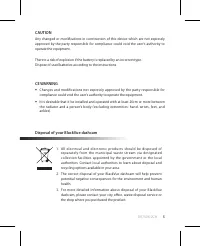
CAUTION Any changed or modifications in construction of this device which are not expressly approved by the party responsible for compliance could void the user’s authority to operate the equipment. There is a risk of explosion if the battery is replaced by an incorrect type.Dispose of used batterie...
Page 6 - ICC Compliance; undesired operation of the device.
ICC Compliance This Class [B] digital apparatus complies with Canadian ICES-003. This radio transmitter has been approved by Industry Canada to operate with the antenna types listed below with the maximum permissible gain and required antenna impedance for each antenna type indicated. Antenna types ...
Page 7 - In the box
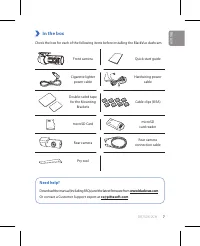
DR750X-2CH 7 In the box Check the box for each of the following items before installing the BlackVue dashcam. Front camera Quick start guide Cigarette lighter power cable Hardwiring power cable Double-sided tape for the Mounting Brackets Cable clips (8 EA) microSD Card microSD card reader Rear camer...
Page 8 - At a glance; The following diagrams explain each part of the BlackVue dashcam.; Front camera
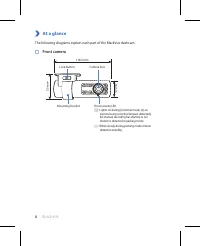
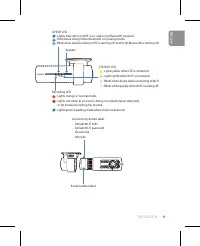
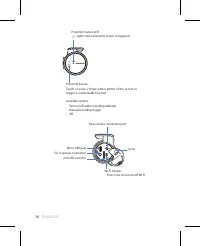
8 BLACKVUE At a glance The following diagrams explain each part of the BlackVue dashcam. Front camera 36 mm Camera lens Mounting bracket Front security LED : Lights on during (i) normal mode, (ii) an event is being recorded (impact detected), (iii) manual recording has started, or (iv) motion is det...
Page 11 - Rear camera
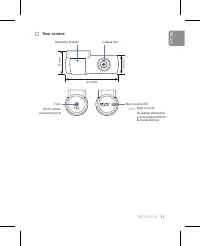
DR750X-2CH 11 Rear camera Rear security LED : Stays on in all recordings modes but can be turned off from firmware settings. V out (Front camera connection port) Mounting bracket Camera lens 31 mm 67.4 mm 25 mm ENGLISH
Page 12 - Install and power up; Warning
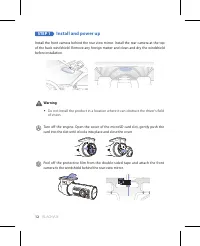
12 BLACKVUE STEP 1 Install and power up Install the front camera behind the rear view mirror. Install the rear camera at the top of the back windshield. Remove any foreign matter and clean and dry the windshield before installation. Warning y Do not install the product in a location where it can obs...
Page 14 - Locate the fuse box to connect the hardwiring power cable.; Note
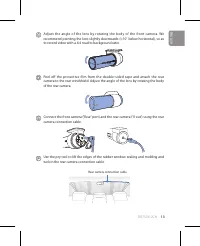
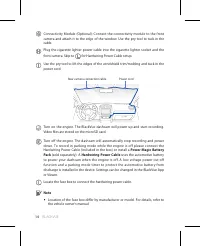
14 BLACKVUE Connectivity Module (Optional): Connect the connectivity module to the front camera and attach it to the edge of the window. Use the pry tool to tuck in the cable. Plug the cigarette lighter power cable into the cigarette lighter socket and the front camera. Skip to for Hardwiring Power ...
Page 15 - Connect the GND cable to metal ground bolt.
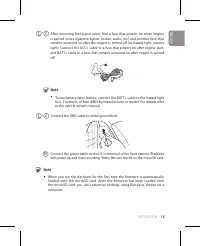
DR750X-2CH 15 - 1 After removing fuse panel cover, find a fuse that powers on when engine is turned on(ex.cigarette lighter socket, audio, etc) and another fuse that remains powered on after the engine is turned off (ex.hazard light, interior light). Connect the ACC+ cable to a fuse that powers on a...
Page 16 - Playback; Playing video files on your; smartphone; “Pair” your smartphone with the BlackVue dashcam via direct Wi-Fi:
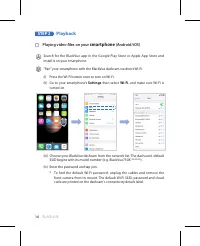
16 BLACKVUE STEP 2 Playback Playing video files on your smartphone (Android/iOS) Search for the BlackVue app in the Google Play Store or Apple App Store and install it on your smartphone. “Pair” your smartphone with the BlackVue dashcam via direct Wi-Fi: (i) Press the Wi-Fi button once to turn on Wi...
Page 17 - Select the video file you want to play from the video list.
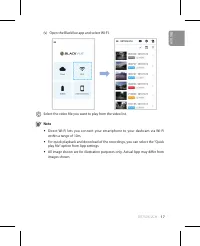
DR750X-2CH 17 (v) Open the BlackVue app and select WI-FI. Select the video file you want to play from the video list. Note y Direct Wi-Fi lets you connect your smartphone to your dashcam via Wi-Fi within a range of 10m. y For quick playback and download of the recordings, you can select the “Quick p...
Page 18 - computer; Remove the microSD card from the dashcam.
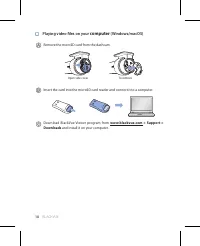
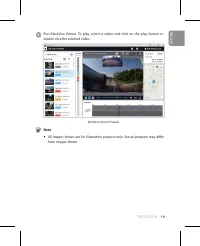
18 BLACKVUE Playing video files on your computer (Windows/macOS) Remove the microSD card from the dashcam. Open side cover To remove Insert the card into the microSD card reader and connect it to a computer. Download BlackVue Viewer program from www.blackvue.com > Support > Downloads and insta...
Page 20 - date manually after enabling Manual time setting.
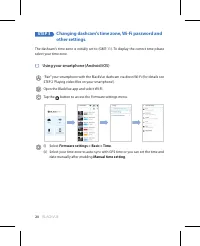
20 BLACKVUE STEP 3 Changing dashcam's time zone, Wi-Fi password and other settings. The dashcam's time zone is initially set to (GMT-11). To display the correct time please select your time zone. Using your smartphone (Android/iOS) “Pair” your smartphone with the BlackVue dashcam via direct Wi-Fi (f...
Page 22 - button to open the BlackVue settings panel.
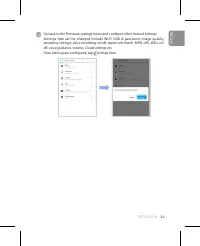
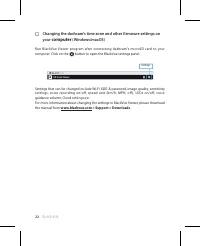
22 BLACKVUE Changing the dashcam's time zone and other firmware settings on your computer (Windows/macOS) Run BlackVue Viewer program after connecting dashcam's microSD card to your computer. Click on the button to open the BlackVue settings panel. Settings Settings that can be changed include Wi-Fi...
Page 25 - The BlackVue DR750X dashcam is not compatible with 5GHz wireless
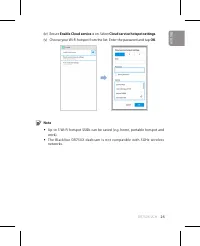
DR750X-2CH 25 (iv) Ensure Enable Cloud service is on. Select Cloud service hotspot settings.(v) Choose your Wi-Fi hotspot from the list. Enter the password and tap OK. Note y Up to 3 Wi-Fi hotspot SSIDs can be saved (e.g. home, portable hotspot and work). y The BlackVue DR750X dashcam is not compati...
Page 27 - menu to use BlackVue Cloud features.; Internet access via LTE network.
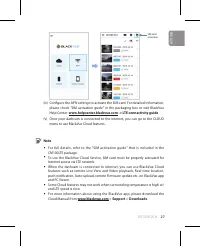
DR750X-2CH 27 SIM card activation (iv) Configure the APN settings to activate the SIM card. For detailed information, please check "SIM activation guide" in the packaging box or visit BlackVue Help Center: www.helpcenter.blackvue.com -> LTE connectivity guide. (v) Once your dashcam is con...
Page 28 - Tips for optimal performance; Customer Support
28 BLACKVUE Tips for optimal performance For stable operation of the dashcam, it is recommended to format the microSD card once a month. Format using BlackVue Viewer (Windows): Download BlackVue Windows Viewer from www.blackvue.com > Support > Downloads and install it on your computer. Insert ...
Page 29 - Product specifications:; trigger parking mode.
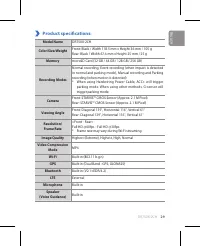
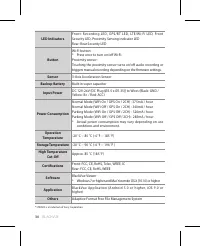
DR750X-2CH 29 Product specifications: Model Name DR750X-2CH Color/Size/Weight Front: Black / Width 118.5 mm x Height 36 mm / 105 gRear: Black / Width 67.4 mm x Height 25 mm / 25 g Memory microSD Card (32 GB / 64 GB / 128 GB / 256 GB) Recording Modes Normal recording, Event recording (when impact is ...
Page 31 - Комплектация изделия; В помощь пользователю
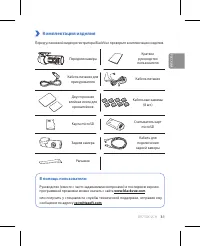
DR750X-2CH 31 Комплектация изделия Перед установкой видеорегистратора BlackVue проверьте комплектацию изделия. Передняя камера Краткое руководство пользователя Кабель питания для прикуривателя Кабель питания Двусторонняя клейкая лента для кронштейнов Кабельные зажимы (8 шт.) Карта microSD Считывател...
Page 32 - Внешний вид; Передняя камера
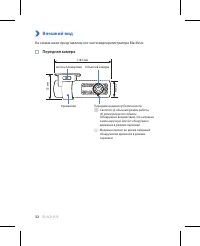
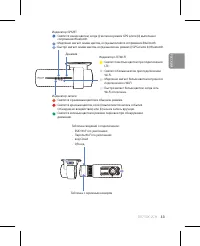
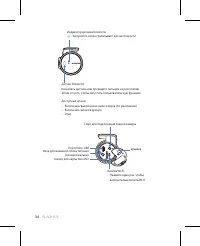
32 BLACKVUE Внешний вид На схемах ниже представлены все части видеорегистратора BlackVue. Передняя камера 36 мм Объектив камеры Кронштейн Передний индикатор безопасности : Светится: (i) обычный режим работы, (ii) регистрируется событие (обнаружено воздействие), (iii) запущена запись вручную или (iv)...
Page 35 - Задняя камера
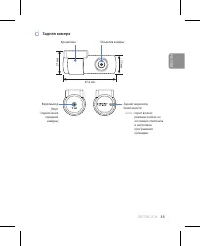
DR750X-2CH 35 Задняя камера Задний индикатор безопасности : горит во всех режимах записи, но его можно отключить в настройках программной прошивки. Видеовыход (Порт подключения передней камеры) Кронштейн Объектив камеры 31 мм 67,4 мм 25 мм РУ ССКИЙ
Page 36 - Установка и подключение питания; Внимание
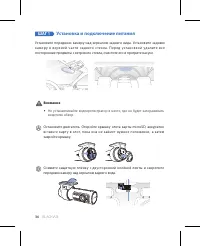
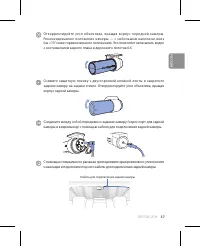
36 BLACKVUE ШАГ 1 Установка и подключение питания Установите переднюю камеру над зеркалом заднего вида. Установите заднюю к а м е р у в в е рх н е й ч а с т и з а д н е го с те к л а . П е р е д у с та н о в к о й уд а л и те в с е посторонние предметы с ветрового стекла, очистите его и протрите нас...
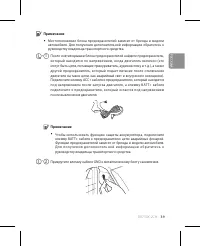
Page 40 - Примечание; П р и п е р в о м з а пус ке в и де о р е ги с тр ато р а п р о гр а м м н а я п р о ш и в к а
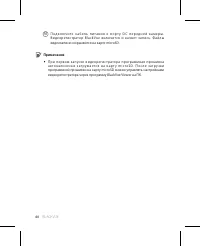
40 BLACKVUE M П о д к л ю ч и т е к а б е л ь п и т а н и я к п о р т у D C п е р е д н е й к а м е р ы . В и д е о р е ги с тр ато р B l a c k Vu e в к л юч и тс я и н ач н е т з а п и с ь . Ф а й л ы видеозаписи сохраняются на карте microSD. Примечание y П р и п е р в о м з а пус ке в и де о р е г...
Page 41 - Воспроизведение; Воспроизведение файлов видеозаписи на; смартфоне; (iii) В ы б е р и т е в и д е о р е г и с т р а т о р B l a c k V u e в с п и с к е с е т е й . S S I D
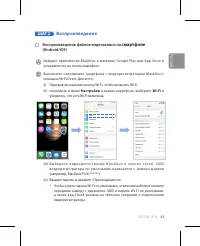
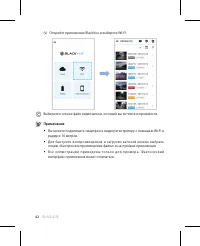
DR750X-2CH 41 ШАГ 2 Воспроизведение Воспроизведение файлов видеозаписи на смартфоне (Android/iOS) Найдите приложение BlackVue в магазине Google Play или App Store и установите его на своем смартфоне. Выполните сопряжение смартфона с видеорегис тратором BlackVue с помощью Wi-Fi Direct. Для этого:(i) ...
Page 43 - Воспроизведение видеозаписей на; ПК; Извлеките карту microSD из видеорегистратора.
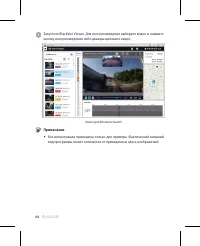
DR750X-2CH 43 Воспроизведение видеозаписей на ПК (Windows/Mac) Извлеките карту microSD из видеорегистратора. Откройте боковую крышку Извлечение карты Вставьте карту в устройство для считывания карт microSD и подключите устройство к ПК. Загрузите программу BlackVue Viewer по адресу www.blackvue.com &...
Page 45 - Изменение часового пояса видеорегистратора,; Откройте приложение BlackVue и выберите WI-FI.
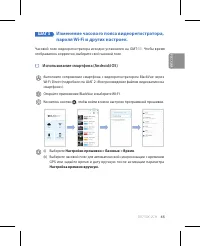
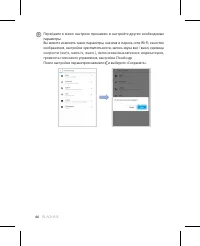
DR750X-2CH 45 ШАГ 3 Изменение часового пояса видеорегистратора, пароля Wi-Fi и других настроек. Часовой пояс видеорегистратора исходно установлен на GMT-11. Чтобы время отображалось корректно, выберите свой часовой пояс. Использование смартфона (Android/iOS) Выполните сопряжение смартфона с видеорег...
Page 47 - компьютере; , чтобы открыть панель
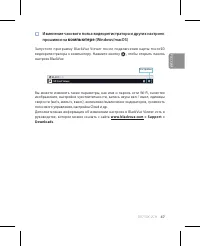
DR750X-2CH 47 Изменение часового пояса видеорегистратора и других настроек прошивки на компьютере (Windows/macOS) Запус тите программу BlackVue Viewer пос ле подк лючени я к арты microSD видеорегистратора к компьютеру. Нажмите кнопку , чтобы открыть панель настроек BlackVue. Настройки Вы можете изме...
Page 48 - Подключение к BLACKVUE CLOUD (опционально); Создание учетной записи; в в е рх н е м л е в о м у гл у э к р а н а и в ы б е р и те; Повторно введите пароль и нажмите кнопку Регистрация.; сообщении, чтобы завершить создание учетной записи.
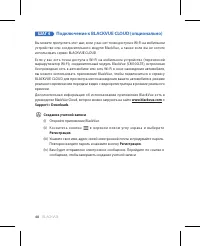
48 BLACKVUE ШАГ 4 Подключение к BLACKVUE CLOUD (опционально) Вы можете пропустить этот шаг, если у вас нет точки доступа к Wi-Fi на мобильном устройстве или соединительного модуля BlackVue, а также если вы не хотите использовать сервис BLACKVUE CLOUD.Если у вас есть точка доступа к Wi-Fi на мобильно...
Page 50 - точки подключения к Cloud.
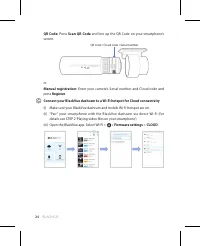
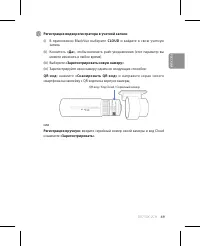
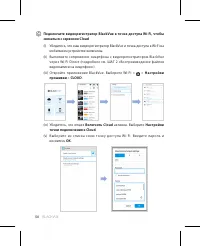
50 BLACKVUE Подключите видеорегистратор BlackVue к точке доступа Wi-Fi, чтобы связаться с сервисом Cloud (i) Убедитесь, что ваш видеорегистратор BlackVue и точка доступа к Wi-Fi на мобильном устройстве включены. (ii) Выполните сопряжение смартфона с видеорегистратором BlackVue через Wi-Fi Direct (по...
Page 51 - (vi) В е р н ите с ь в м е н ю н а с тр о е к п р о ш и в к и , ко с н ите с ь и в ы б е р ите; вы предпочитаете соединение LTE, вы можете в любое время удалить
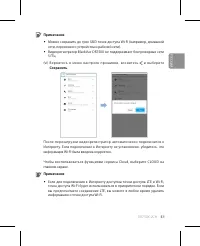
DR750X-2CH 51 Примечание y Можно сохранить до трех SSID точек доступа Wi-Fi (например, домашней сети, переносного устройства и рабочей сети). y Видеорегистратор BlackVue DR750X не поддерживает беспроводные сети 5 ГГц. (vi) В е р н ите с ь в м е н ю н а с тр о е к п р о ш и в к и , ко с н ите с ь и в...
Page 52 - (iv) Н а с т р о й те п а р а м е т р ы A P N , ч то б ы а к т и в и р о в а т ь S I M - к а р т у. Д л я
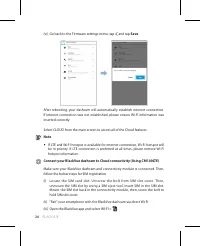
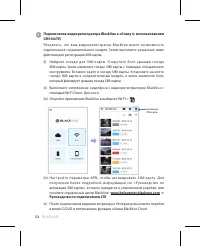
52 BLACKVUE Подключение видеорегистратора BlackVue к облаку (с использованием CM100LTE)Уб е д ите с ь , что в а ш в и де о р е ги с тр ато р B l a c k Vu e и м е ет в о з м ож н о с ть подключения соединительного модуля. Затем выполните указанные ниже действия для регистрации SIM-карты. (i) Н а й д ...
Page 54 - Советы по оптимизации производительности; , выберите устройство для считывания карт и нажмите OK.; Техническая поддержка
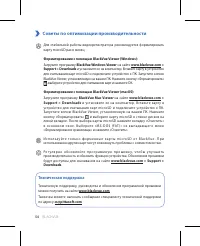
54 BLACKVUE Советы по оптимизации производительности Для стабильной работы видеорегистратора рекомендуется форматировать карту microSD раз в месяц. Форматирование с помощью BlackVue Viewer (Windows):Загрузите программу BlackVue Windows Viewer на сайте www.blackvue.com > Support > Downloads и у...
Page 55 - Технические характеристики устройства:; включает режим парковки. При использовании других
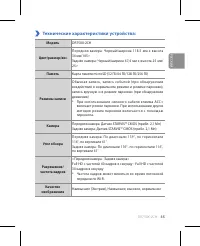
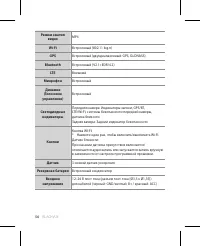
DR750X-2CH 55 Технические характеристики устройства: Модель DR750X-2CH Цвет/размер/вес Передняя камера: Черный/ширина 118,5 мм x высота 36 мм/105 гЗадняя камера: Черный/ширина 67,4 мм x высота 25 мм/ 25 г Память Карта памяти microSD (32 ГБ/64 ГБ/128 ГБ/256 ГБ) Режимы записи Обычная запись, запись со...
Page 57 - в зависимости от условий использования и
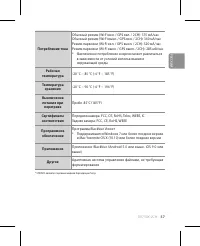
DR750X-2CH 57 Потребление тока Обычный режим (Wi-Fi вкл. / GPS вкл. / 2CH): 375 мА/часОбычный режим (Wi-Fi выкл. / GPS вкл. / 2CH): 340 мА/часРежим парковки (Wi-Fi вкл. / GPS выкл. / 2CH): 320 мА/часРежим парковки (Wi-Fi выкл. / GPS выкл. / 2CH): 285 мА/час* Фактическое потребление энергии может раз...
Page 58 - Product Warranty
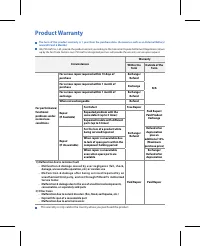
Product Warranty The term of this product warranty is 1 year from the purchase date. (Accessories such as an External Battery/ microSD Card: 6 Months) We, PittaSoft Co., Ltd., provide the product warranty according to the Consumer Dispute Settlement Regulations (drawn up by the Fair Trade Commission...
Page 59 - Гарантия
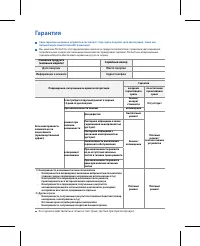
Гарантия Срок гарантии на данное устройство составляет 1 год с даты покупки. (для аксессуаров, таких как батарея/карта памяти microSD: 6 месяцев) Мы, компания PittaSoft Co., Ltd, предоставляем гарантию на продукт в соответствии с правилами урегулирования потребительских споров (составленными Комисси...
Page 60 - Address
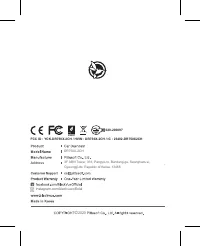
DR750X-2CH © 2020 DR750X-2CH instagram.com/blackvueofficial Address FCC ID : YCK-DR750X-2CH / HVIN : DR750X-2CH / IC : 23402-DR750X2CH 4F ABN Tower, 331, Pangyo-ro, Bundang-gu, Seongnam-si, Gyeonggi-do, Republic of Korea, 13488 020-200097