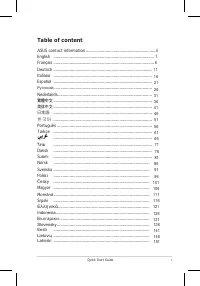
Page 2 - Table of contents; How to reconfigure; Specifications
ii Copyright © 2022 ASUSTeK COMPUTER INC. All Rights Reserved.No part of this manual, including the products and software described in it, may be reproduced, transmitted, transcribed, stored in a retrieval system, or translated into any language in any form or by any means, except documentation kept...
Page 3 - Notices; Federal Communications Commission Statement; regulations. Changes or modifications to this unit not expressly
iii Notices Federal Communications Commission Statement This device complies with Part 15 of the FCC Rules. Operation is subject to the following two conditions: • This device may not cause harmful interference.• This device must accept any interference received including interference that may cause...
Page 4 - Canadian Department of Communications Statement; Safety information
iv Canadian Department of Communications Statement This digital apparatus does not exceed the Class B limits for radio noise emissions from digital apparatus set out in the Radio Interference Regulations of the Canadian Department of Communications.This class B digital apparatus complies with Canadi...
Page 5 - WARNING
v • Never push objects or spill liquid of any kind into the slots on the monitor cabinet. • To ensure satisfactory operation, use the monitor only with UL listed computers which have appropriate configured receptacles marked between 100 ~ 240V AC. • The socket-outlet shall be installed near the equi...
Page 7 - Disposal of waste equipment by user in private; equipment for recycling, please contact your local city office,
vii Disposal of waste equipment by user in private household in the European Union This symbol on the product or on its packaging indicates that this product must not be disposed of with your other household waste. Instead, it is your responsibility to dispose of your waste equipment by handing it o...
Page 8 - Prevent Tipping
viii Prevent Tipping When using the display, fasten the LCD to a wall using a cord or chain that can support the weight of the monitor in order to prevent the monitor from falling. Cord or chain 1 2 M4 or M6 Screw Cord • Display design may differ from those illustrated.• Installing must be done by a...
Page 9 - AEEE yönetmeliğine uygundur
ix Care & Cleaning • Before you lift or reposition your monitor, it is better to disconnect the cables and power cord. Follow the correct lifting techniques when positioning the monitor. When lifting or carrying the monitor, grasp the edges of the monitor. Do not lift the display by the stand or...
Page 10 - Where to find more information; and software updates.; Optional documentation; have been added by your dealer. These documents are not part of
x Where to find more information Refer to the following sources for additional information and for product and software updates. 1. ASUS websites The ASUS websites worldwide provide updated information on ASUS hardware and software products. Refer to https://www.asus.com 2. Optional documentation Yo...
Page 11 - Package contents
1-1 ASUS LCD Monitor XG Series 1.1 Welcome Thank you for purchasing the ASUS ® LCD monitor! The latest widescreen LCD monitor from ASUS provides a crisper, broader, and brighter display, plus a host of features that enhance your viewing experience.With these features, you can enjoy the convenience a...
Page 12 - Assembling the monitor; To assemble the monitor; • While assembling the monitor arm/base, we recommend; Gently attach the neck to the VESA mount area. Use a screwdriver
1-2 Chapter 1: Product Introduction 1.3 Assembling the monitor To assemble the monitor : • While assembling the monitor arm/base, we recommend that you keep the monitor inside its EPS (Expanded Polystyrene) packaging. 1. Gently attach the neck to the VESA mount area. Use a screwdriver to tighten the...
Page 13 - Connect cables; Rear of the LCD monitor; Earphone Jack
1-3 ASUS LCD Monitor XG Series 1.4 Connect cables 1.4.1 Rear of the LCD monitor HDMI-2 HDMI-1 DCIN 1 2 3 4 5 6 7 8 9 1. DC-IN Port2. USB3.2 Upstream Port3. USB3.2 Downstream Port4. USB3.2 Downstream Port5. HDMI2.1 Port6. HDMI2.1 Port7. DisplayPort8. Earphone Jack 9. Kensington Lock
Page 14 - Monitor introduction; Using the Controls button; Status
1-4 Chapter 1: Product Introduction 1.5 Monitor introduction 1.5.1 Using the Controls button Use the control button on the back of the monitor to adjust the monitor settings. 2 1 3 4 5 6 32 4 5 6 1. Power Indicator: • The color definition of the power indicator is as the below table. Status Descript...
Page 15 - GamePlus
1-5 ASUS LCD Monitor XG Series • Press GamePlus Button to enter the GamePlus main menu. • Activate Crosshair, Timer, FPS Counter, Sniper, Stopwatch or Display Alignment function. • Move the button up/down to select and press to confirm the function needed. Press to go off, and exit. • Crosshair/Time...
Page 16 - Adjusting the monitor; You can adjust the monitor’s angle from -5 ̊ to 20 ̊ and it allows 25 ̊
2-1 Chapter 2: Setup 2.1 Adjusting the monitor • For optimal viewing, we recommend that you look at the full face of the monitor, then adjust the monitor to the angle that is most comfortable for you. • Hold the stand to prevent the monitor from falling when you change its angle. • You can adjust th...
Page 17 - Outline dimension
2-2 ASUS LCD Monitor XG Series 2.2 Outline dimension Unit: mm [inch] 728.18 [28.7] 9.85 [.4] 9.85 [.4] 9.16 [.4] 428.52 [16.9] 20.84 [.8] 3.4 [.1] 84.03 [3.3] 87.12 [3.4] 100 [3.9] 314.09 [12.4] 314.09 [12.4] 158.42 [6.2] 111.35 [4.4] 131.4 [5.2] 609.36 [24.0] 279.93 [11.0] 100 [3.9] 170.1 [6.7]
Page 18 - To detach the arm/stand; Disconnect power and signal cables. Carefully put the monitor
2-3 Chapter 2: Setup 2.3 Detaching the arm/stand (for VESA wall mount) • Avoid damaging the monitor surface. While detaching the monitor stand, always keep the monitor inside its EPS packaging. The detachable stand of this monitor is specially designed for VESA wall mount. To detach the arm/stand 1....
Page 19 - When you move from one icon to another, the option name is
3-1 ASUS LCD Monitor XG Series 3.1 OSD (On-Screen Display) menu 3.1.1 How to reconfigure Overclocking Variable OD Adaptive-Sync ELMB/ELMB SYNC GamePlus GameVisual Shadow Boost MOVE/ENTER BACK EXIT Image Input Select System Setup MyFavorite Color Gaming PIP/PBP Setup DisplayPort 3840x2160@144Hz Racin...
Page 20 - OSD Function Introduction; • Overclocking
3-2 Chapter 3: General Instruction 3.1.2 OSD Function Introduction 1. Gaming Overclocking Variable OD Adaptive-Sync ELMB/ELMB SYNC GamePlus GameVisual Shadow Boost MOVE/ENTER BACK EXIT Image Input Select System Setup MyFavorite Color Gaming PIP/PBP Setup DisplayPort 3840x2160@144Hz Racing Mode ROG S...
Page 23 - Select the image color you like from this function.; • Display Color Space; : Contains three preset color modes; Wide Gamut; Select the input source:
3-5 ASUS LCD Monitor XG Series 3. Color Select the image color you like from this function. Color Temp. Gamma Saturation MOVE/ENTER BACK EXIT Display Color Space Image Input Select System Setup MyFavorite Color Gaming DisplayPort 3840x2160@144Hz Racing Mode ROG Strix XG32UQ HDR OFF PIP/PBP Setup • D...
Page 24 - from any video source.; • Color Setting; • To turn on PIP/PBP function will disable FreeSync Premium
3-6 Chapter 3: General Instruction 5. PIP/PBP Setup The PIP/PBP Setup allows you to open up sub-window(s) connected from any video source. MOVE/ENTER BACK PIP/PBP Mode Color Setting PIP Size PIP/PBP Source EXIT Image Input Select System Setup MyFavorite Color Gaming PIP/PBP Setup DisplayPort 3840x21...
Page 25 - Adjusts the system configuration.
3-7 ASUS LCD Monitor XG Series • Shortcut: User can select from “GamePlus, GameVisual, Variable OD, Brightness, Mute, Shadow Boost, Contrast, Input Select, HDR Setting, Blue Light Filter, Volume (Earphone Out), Customized Setting-1 (Load), Customized Setting-2 (Load)” and set as shortcut key. • Cust...
Page 27 - Model
3-9 ASUS LCD Monitor XG Series 3.2 Specifications Model XG32UQ Panel Size 32” W (81.3 cm) Max. Resolution 3840x2160@160Hz Brightness (Typ.) 450 nits(Typ.), 600 nits(HDR) Intrinsic Contrast Ratio (Typ.) 1000:1 Viewing Angle (CR>10) 178°(V) /178°(H) Display Colors 1073.7M Response Time 1 ms GtG Sou...
Page 28 - Problem
3-10 Chapter 3: General Instruction 3.3 Troubleshooting (FAQ) Problem Possible Solution Power LED is not ON • Press the button to check if the monitor is in the ON mode. • Check if the power cord is properly connected to the monitor and the power outlet. • Check Power Indicator function in main menu...
Page 29 - Supported Timing List
3-11 ASUS LCD Monitor XG Series 3.4 Supported Timing List Timing H Pixels V Pixels Frame Rate Display Port HDMI1 HDMI2 PC Timing 640 480 60 O O O PC Timing 640 480 67 O O O PC Timing 640 480 72 O O O PC Timing 640 480 75 O O O PC Timing 720 400 70 O O O PC Timing 800 600 56 O O O PC Timing 800 600 6...
Page 30 - * The modes not listed in the above tables may not be supported. For
3-12 Chapter 3: General Instruction Video Timing 1920 1080P 50 O O O Video Timing 1920 1080P 59.94/60 O O O Video Timing 1920 1080P 100 O O O Video Timing 1920 1080 119.88/120 O O O Video Timing 3840 2160P 24 O O O Video Timing 3840 2160P 25 O O O Video Timing 3840 2160P 30 O O O Video Timing 3840 2...