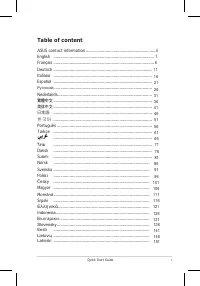
Page 2 - Table of contents; How to reconfigure; Specifications
ii Copyright © 2020 ASUSTeK COMPUTER INC. All Rights Reserved.No part of this manual, including the products and software described in it, may be reproduced, transmitted, transcribed, stored in a retrieval system, or translated into any language in any form or by any means, except documentation kept...
Page 3 - iii; Notices; Federal Communications Commission Statement; This product qualifies for ENERGY STAR® in the factory
iii Notices Federal Communications Commission Statement This device complies with Part 15 of the FCC Rules. Operation is subject to the following two conditions: • This device may not cause harmful interference, and• This device must accept any interference received including interference that may c...
Page 4 - iv; Declaration of Conformity; This device complies with the requirements set out in the Council; WEEE Symbol Statement; AEEE yönetmeliğine uygundur
iv Declaration of Conformity This device complies with the requirements set out in the Council Directive on the Approximation of the Laws of the Member States relating to Electromagnetic Compatibility (2014/30/EU), Low-voltage Directive (2014/35/EU), ErP Directive (2009/125/EC) and RoHS directive (2...
Page 5 - Safety information; WARNING
v Safety information • Before setting up this Portable Monitor, carefully read all the documentation that came with the package. • To prevent fire or shock hazard, never expose this Portable Monitor to rain or moisture. • Never try to open this Portable Monitor cabinet. • Before using this Portable ...
Page 6 - Optional documentation
vi Care & cleaning • Cleaning. Turn your monitor off and unplug the cable. Clean the monitor surface with a lint-free, non-abrasive cloth. Stubborn stains may be removed with a cloth dampened with mild cleaner. • Avoid using a cleaner containing alcohol or acetone. Use a cleaner intended for use...
Page 7 - ASUS Portable Monitor MB249C; Takeback services; for detail; Product information for EU energy label
1-1 ASUS Portable Monitor MB249C Takeback services ASUS recycling and takeback programs come from our commitment to the highest standards for protecting our environment. We believe in providing solutions for our customers to be able to responsibly recycle our products, batteries and other components...
Page 8 - Chapter 1: Product Introduction; Package contents
1-2 Chapter 1: Product Introduction 1.1 Welcome! Thank you for purchasing the ASUS ® Portable Monitor! The latest ASUS Portable Monitor provides great portability and simplicity to your daily life, enhancing both of your viewing experience and style. 1.2 Package contents Check your package for the f...
Page 9 - Monitor introduction
1-3 ASUS Portable Monitor MB249C 1.3 Monitor introduction 4 3 2 1 1. HDMI port2. USB Type-C port3. Earphone - out Port4. DC-IN Port
Page 10 - Adjusting the monitor; Using of handle; Adjust the hook and screw, and then lock it to the baffle.
1-4 Chapter 1: Product Introduction 2.1 Adjusting the monitor 2.1.1 Using of handle • You can adjust the monitor to the best Angle for you.• The monitor’s Angle is between 12 and 60 degrees. 12° ~60° 36° ~125° 2.1.2 Using of hooks 1. Adjust the hook and screw, and then lock it to the baffle. 2. Hang...
Page 11 - Locking bracket; Secure the head of the support using an L-shaped screwdriver. And
2-1 ASUS Portable Monitor MB249C 2.1.3 Locking bracket 1. Secure the head of the support using an L-shaped screwdriver. And you can adjust the height by pinching the switch. 2. Attach the bracket to the desktop.3. Attach the tripod to the head of the bracket. 2 1
Page 12 - Assembly bracket; Adjust the monitor follow the pictures for the most comfortable
2-2 Chapter 2: Setup 2.1.4 Assembly bracket • For optimal viewing, we recommend that you look at the full face of the monitor, then adjust the monitor to the angle that is most comfortable for you. 1. Hold the stand to prevent the monitor from falling when you change its angle. 2. Adjust the monitor...
Page 13 - Outline dimension
3-1 ASUS Portable Monitor MB249C 2.2 Outline dimension Unit: mm [inch]
Page 14 - To detach the arm/stand; Remove the four screws and tripod from the rear cover to mount the; MENU; • Use only the UL Listed Wall Mount Bracket with minimum weight/load
3-2 Chapter 2: Setup 2.3 Detaching the arm/stand (for VESA wall mount) • Avoid damaging the monitor surface. While detaching the monitor stand, always keep the monitor inside its paper packaging. The detachable stand of this monitor is specially designed for VESA wall mount. To detach the arm/stand ...
Page 16 - Chapter 3: General Instruction; OSD Function Introduction; Contrast and ASCR functions are not user-configurable.
3-4 Chapter 3: General Instruction 3.1.2 OSD Function Introduction 1. Splendid This function contains eight sub-functions that you can select for your preference. Reading ModeDarkroom Mode Splendid Standard ModesRGB Mode Game ModeNight View Mode Scenery Mode ASUS MB249 Scenery Mode HDMI 1080p 60Hz T...
Page 17 - Adjust the energy level of blue light emitted from LED backlight.; • Blue Light Filter; : In this function, you can adjust the blue light filter from; • When the user adjusts blue light filter bar to maximum level.
3-5 ASUS Portable Monitor MB249C 2. Blue Light Filter Adjust the energy level of blue light emitted from LED backlight. Blue Light Filter S MAX 0 ASUS MB249 Scenery Mode HDMI 1080p 60Hz • Blue Light Filter : In this function, you can adjust the blue light filter from Min to max. Min: no changes ; Ma...
Page 18 - Select the image color you like from this function.; Color; and
3-6 Chapter 3: General Instruction 3. Color Select the image color you like from this function. Color S Brightness Contrast Saturation Color Temp.Skin Tone ASUS MB249 Scenery Mode HDMI 1080p 60Hz • Brightness : The adjusting range is from 0 to 100. • Contrast : The adjusting range is from 0 to 100. ...
Page 20 - Select the input source from HDMI or USB Type-C input signal.; Adjusts the system configuration.
3-8 Chapter 3: General Instruction 5. Input Select Select the input source from HDMI or USB Type-C input signal. S USB Type-C HDMI Input Select ASUS MB249 Scenery Mode HDMI 1080p 60Hz 6. System Setup Adjusts the system configuration. S ECO Mode Volume OSD SetupLanguageMore GamePlusQuickFit Splendid ...
Page 21 - • Splendid Demo Mode; GamePlus main menu; • QuickFit; acilitates designers and users to organize
3-9 ASUS Portable Monitor MB249C • Splendid Demo Mode : Activate the demo mode for the Splendid function. • Volume: Adjusts the output volume level. • GamePlus : The GamePlus Function provides a toolkit and creates a better gaming environment for users when playing different types of games. Particul...
Page 22 - Letter; accurately view and edit their photos in real size on the
3-10 Chapter 3: General Instruction 2. Paper size: Provides users to view their documents in real size on the screen. B5 Letter B5 EXIT Letter EXIT 3. Photo size: Provides photographers and other users to accurately view and edit their photos in real size on the screen. 8x10 5x7 3x5 2x2 4x6 • ECO Mo...
Page 23 - Selecting this option allows you to set shortcut key.; • Shortcut; : User can select from “Blue Light Filter” “Splendid”,
3-11 ASUS Portable Monitor MB249C 7. Shortcut Selecting this option allows you to set shortcut key. S Blue Light Filter Splendid Brightness Contrast Color Temp.VolumeQuickFitGamePlus Shortcut ASUS MB249 Scenery Mode HDMI 1080p 60Hz • Shortcut : User can select from “Blue Light Filter” “Splendid”, “B...
Page 24 - Model; Panel Size
3-12 Chapter 3: General Instruction 3.2 Specifications Model MB249C Panel Size 23.8” (16:9, 60.45cm) wide screen Resolution 1920 x 1080 Brightness (Typ.) 250 nits Contrast (Typ.) 1000:1 Display Colors 16.7 M Digital Input DisplayPort™ Alt Mode for USB Type-C™ HDMI Colors Black Power Consumption < 13...
Page 25 - Problem
3-13 ASUS Portable Monitor MB249C 3.3 Troubleshooting (FAQ) Problem Possible Solution Power LED is not ON • Press the button to check if the monitor is in the ON mode. • Check if the Type-C and HDMI port connected to source of signal. • Check if the signal source is ON. The power LED lights white an...
Page 26 - Supported Timing List; PC Supported Primary Timing; Resolution
3-14 Chapter 3: General Instruction 3.4 Supported Timing List PC Supported Primary Timing Resolution H(KHz) V(Hz) Pixel(MHz) 640x350, 70Hz 31.469 70.087 25.175 640x480, 60Hz 31.469 59.94 25.175 640x480, 67Hz 35 66.667 30.24 640x480,72Hz 37.861 72.809 31.5 640x480,75Hz 37.5 75 31.5 720x400, 70Hz 31.4...