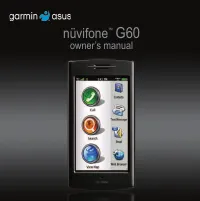
Page 3 - Table of Contents; Understand the Home Screen
nüvifone G60 owner’s manual iii Table of Contents Table of Contents Set Up Your nüvifone ......... 1 Look at Your nüvifone ................ 1 Understand the Home Screen Icons ....................................... 2 Understand the Scrolling Screen Icons ....................................... 3 Und...
Page 4 - Find Locations with Local; View Trafic; About Trafic
iv nüvifone G60 owner’s manual Table of Contents Search for Locations ........ 18 Find an Address....................... 18 Use the Location Page ............ 19 Find a Point of Interest ............ 19 Call a Location ......................... 19 Navigate to a Contact .............. 20 Set a Home L...
Page 5 - Assign a Location to an Existing; Use SMS/Text Messaging; Add Location Information to a
nüvifone G60 owner’s manual v Table of Contents Work with Contacts .......... 34 Add a Contact .......................... 34 Edit a Contact .......................... 34 Assign a Picture to a Contact .. 34 Assign a Location to an Existing Contact .................................. 35 Work with the S...
Page 6 - Set Your Browser Home
vi nüvifone G60 owner’s manual Table of Contents Browse the Web ................ 42 Enter a URL ............................. 42 Use the Browser ...................... 42 Set Your Browser Home Page ...................................... 43 Save Bookmarks ..................... 43 Clear Your History.....
Page 7 - Change SIM Card Security
nüvifone G60 owner’s manual vii Table of Contents Connect to Other Devices .............................. 56 About Bluetooth Technology .... 56 Synchronize Your nüvifone ...... 58 Transfer Files ........................... 58 Set Up a Wi-Fi Connection ...... 59 Use the Tools .................... 61 ...
Page 9 - Set Up Your nüvifone; Look at Your nüvifone
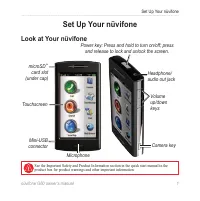
nüvifone G60 owner’s manual Set Up Your nüvifone Set Up Your nüvifone Look at Your nüvifone Volume up/down keys Camera key Headphone/ audio out jack Power key: Press and hold to turn on/off; press and release to lock and unlock the screen. microSD ™ card slot (under cap) Mini-USB connector Touchscre...
Page 10 - Main Icons; Call Icons
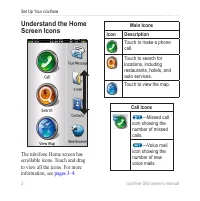
nüvifone G60 owner’s manual Set Up Your nüvifone Understand the Home Screen Icons The nüvifone Home screen has scrollable icons. Touch and drag to view all the icons. For more information, see pages 3–4 . Main Icons Icon Description Touch to make a phone call. Touch to search for locations, includin...
Page 11 - Understand the Scrolling Screen Icons; Scrolling Icons; Tips and Shortcuts; Touch
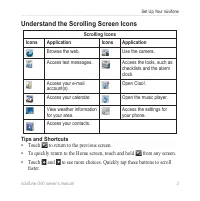
nüvifone G60 owner’s manual Set Up Your nüvifone Understand the Scrolling Screen Icons Scrolling Icons Icons Application Icons Application Browse the web. Use the camera. Access text messages. Access the tools, such as checklists and the alarm clock. Access your e-mail account(s). Open Ciao!. Access...
Page 12 - Understand the Status Bar Icons; Icon
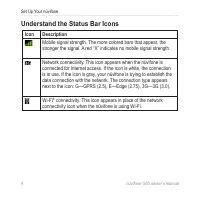
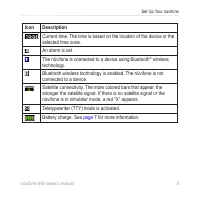
nüvifone G60 owner’s manual Set Up Your nüvifone Understand the Status Bar Icons Icon Description Mobile signal strength. The more colored bars that appear, the stronger the signal. A red “X” indicates no mobile signal strength. Network connectivity. This icon appears when the nüvifone is connected ...
Page 15 - Charge the Battery; Alternate Charging Methods; Meaning
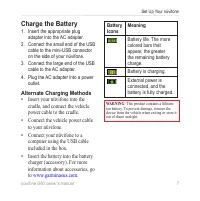
nüvifone G60 owner’s manual Set Up Your nüvifone Charge the Battery 1. Insert the appropriate plug adapter into the AC adapter. 2. Connect the small end of the USB cable to the mini-USB connector on the side of your nüvifone. 3. Connect the large end of the USB cable to the AC adapter. 4. Plug the A...
Page 16 - Install the microSD Card
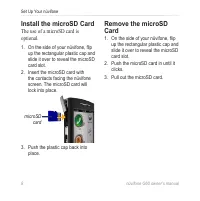
nüvifone G60 owner’s manual Set Up Your nüvifone Install the microSD Card The use of a microSD card is optional. 1. On the side of your nüvifone, lip up the rectangular plastic cap and slide it over to reveal the microSD card slot. 2. Insert the microSD card with the contacts facing the nüvifone scr...
Page 17 - Orient the Screen; Touch and slide your inger to; Lock the Screen; Power; key and
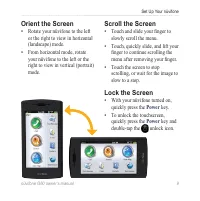
nüvifone G60 owner’s manual Set Up Your nüvifone Orient the Screen Rotate your nüvifone to the left or the right to view in horizontal (landscape) mode. From horizontal mode, rotate your nüvifone to the left or the right to view in vertical (portrait) mode. • • Scroll the Screen Touch and slide your...
Page 18 - Mount Your nüvifone
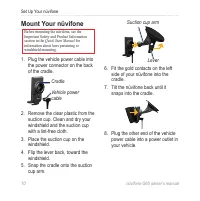
0 nüvifone G60 owner’s manual Set Up Your nüvifone Mount Your nüvifone Before mounting the nüvifone, see the Important Safety and Product Information section in the Quick Start Manual for information about laws pertaining to windshield mounting. 1. Plug the vehicle power cable into the power connect...
Page 19 - Acquire Satellites; satellite icon
nüvifone G60 owner’s manual Set Up Your nüvifone Acquire Satellites 1. Go outdoors to an open area, away from tall buildings and trees. 2. Turn on your nüvifone. Acquiring satellite signals can take a few minutes. The satellite icon indicates satellite strength. When at least one of the lines is gre...
Page 20 - Use Your Phone; Dial a Number; The irst time you touch the; Call a Contact
nüvifone G60 owner’s manual Use Your Phone Use Your Phone Dial a Number The irst time you touch the call icon, the nüvifone opens the Dial page. 1. From the Home screen, touch Call (> Dial ). 2. Enter the phone number using the touch keypad. 3. Touch to dial the phone number. Call a Contact 1. Fr...
Page 21 - Use Call History; Delete All Calls
nüvifone G60 owner’s manual Use Your Phone Use Call History 1. From the Home screen, touch Call > Call History . Calls are organized into four categories: —Dialed call —Received call —Missed call —Voice mail 2. Select a call. 3. Select an option: Call —call the number. Text —send a text message. ...
Page 22 - Do a Reverse Lookup; Speaker; —activate the; Mute; —silence the audio input; add; —select a number to add to; Hold; —place the current call on; End Call; —end the current call.
nüvifone G60 owner’s manual Use Your Phone Do a Reverse Lookup This service is available as a paid subscription. Reverse lookup is not available in all areas. A reverse lookup allows you to search for the address of a phone number that called you. 1. From the Home screen, touch Call > Call Histor...
Page 23 - —open a numeric keypad for; on the Home screen or touch; End a Call; Redial a Number; Call; Set Your Ringtones; on transferring music iles to your
nüvifone G60 owner’s manual Use Your Phone —open a numeric keypad for automated systems that require numeric entries. To return to the In-Call page, touch Call on the Home screen or touch (when available). End a Call During a call, your nüvifone dims and goes into sleep mode to prevent accidental ta...
Page 24 - Set a Default Ringtone; Forward a Call
6 nüvifone G60 owner’s manual Use Your Phone Set a Default Ringtone 1. From the Home screen, touch Settings > Audio > Sounds . 2. Touch the button under Phone . 3. Touch Ringtones . 4. Select a ringtone, and touch OK . Set a Ringtone for a Contact 1. From the Home screen, touch Call > Conta...
Page 25 - Use Call Waiting; The Conference Call page appears.
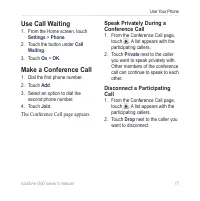
nüvifone G60 owner’s manual Use Your Phone Use Call Waiting 1. From the Home screen, touch Settings > Phone . 2. Touch the button under Call Waiting . 3. Touch On > OK . Make a Conference Call 1. Dial the irst phone number. 2. Touch Add . 3. Select an option to dial the second phone number. 4....
Page 26 - Search for Locations; Use the Search menu to ind; Find an Address; Depending on the version of
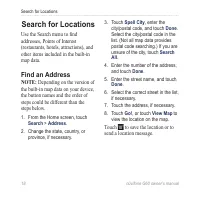
nüvifone G60 owner’s manual Search for Locations Search for Locations Use the Search menu to ind addresses, Points of Interest (restaurants, hotels, attractions), and other items included in the built-in map data. Find an Address nOTE: Depending on the version of the built-in map data on your device...
Page 27 - Use the Location Page; —touch to call the location.; View Map; —touch to view the; Find a Point of Interest; Call a Location; Search
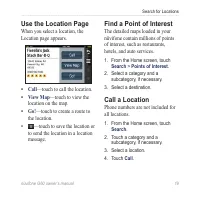
nüvifone G60 owner’s manual Search for Locations Use the Location Page When you select a location, the Location page appears. Call —touch to call the location. View Map —touch to view the location on the map. go! —touch to create a route to the location. —touch to save the location or to send the lo...
Page 28 - Navigate to a Contact; . Your home location; Edit Your Home Location
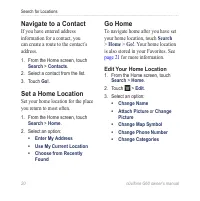
0 nüvifone G60 owner’s manual Search for Locations Navigate to a Contact If you have entered address information for a contact, you can create a route to the contact’s address. 1. From the Home screen, touch Search > Contacts . 2. Select a contact from the list. 3. Touch Go! . Set a Home Location...
Page 29 - Delete Your Home Location; To enter a new home location,; : Local Search is not available; Save Favorite Locations; You can save locations in your; Find Favorite Locations
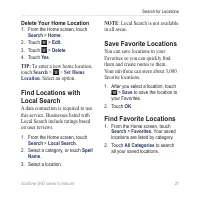
nüvifone G60 owner’s manual Search for Locations Delete Your Home Location 1. From the Home screen, touch Search > Home . 2. Touch > Edit . 3. Touch > Delete . 4. Touch Yes . TiP: To enter a new home location, touch Search > > Set Home Location . Select an option. Find Locations with ...
Page 30 - Clear the Recently Found List; Search the White Pages; retry
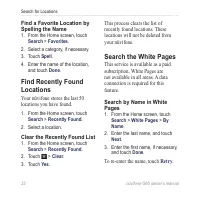
nüvifone G60 owner’s manual Search for Locations Find a Favorite Location by Spelling the Name 1. From the Home screen, touch Search > Favorites . 2. Select a category, if necessary. 3. Touch Spell . 4. Enter the name of the location, and touch Done . Find Recently Found Locations Your nüvifone s...
Page 31 - Find Movie Times; Find Upcoming Events
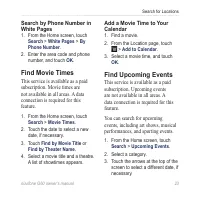
nüvifone G60 owner’s manual Search for Locations Search by Phone Number in White Pages 1. From the Home screen, touch Search > White Pages > By Phone Number . 2. Enter the area code and phone number, and touch OK . Find Movie Times This service is available as a paid subscription. Movie times ...
Page 32 - Find Cities; Navigate with Photos; nOTE; : Photo navigation is not
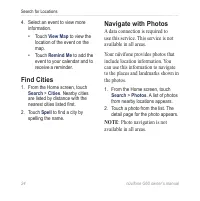
nüvifone G60 owner’s manual Search for Locations 4. Select an event to view more information. Touch View Map to view the location of the event on the map. Touch Remind Me to add the event to your calendar and to receive a reminder. Find Cities 1. From the Home screen, touch Search > Cities . Near...
Page 33 - Find Gas Prices; Enter Coordinates
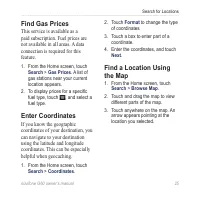
nüvifone G60 owner’s manual Search for Locations Find Gas Prices This service is available as a paid subscription. Fuel prices are not available in all areas. A data connection is required for this feature. 1. From the Home screen, touch Search > Gas Prices . A list of gas stations near your curr...
Page 34 - Tips for Browsing the Map; Plan and Save a Route; add Via Points
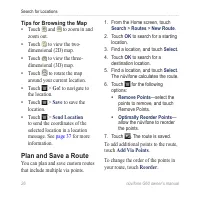
6 nüvifone G60 owner’s manual Search for Locations Tips for Browsing the Map Touch and to zoom in and zoom out. Touch to view the two-dimensional (2D) map. Touch to view the three-dimensional (3D) map. Touch to rotate the map around your current location. Touch > go! to navigate to the location. ...
Page 35 - Follow Your Route; lag marks your destination. If you
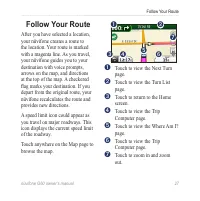
nüvifone G60 owner’s manual Follow Your Route Follow Your Route After you have selected a location, your nüvifone creates a route to the location. Your route is marked with a magenta line. As you travel, your nüvifone guides you to your destination with voice prompts, arrows on the map, and directio...
Page 36 - View the Next Turn Page; You can also view the Next; View the Turn List Page; Show Map
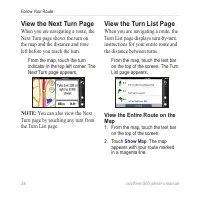
nüvifone G60 owner’s manual Follow Your Route View the Next Turn Page When you are navigating a route, the Next Turn page shows the turn on the map and the distance and time left before you reach the turn. From the map, touch the turn indicator in the top left corner. The Next Turn page appears. nOT...
Page 37 - Reset the Trip Computer
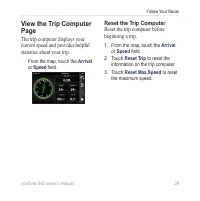
nüvifone G60 owner’s manual Follow Your Route View the Trip Computer Page The trip computer displays your current speed and provides helpful statistics about your trip. From the map, touch the Arrival or Speed ield. Reset the Trip Computer Reset the trip computer before beginning a trip. 1. From the...
Page 38 - Use the Compass; Calibrate the Compass; Take a Detour
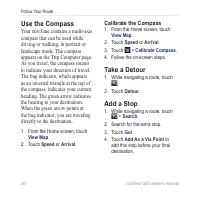
0 nüvifone G60 owner’s manual Follow Your Route Use the Compass Your nüvifone contains a multi-axis compass that can be used while driving or walking, in portrait or landscape mode. The compass appears on the Trip Computer page. As you travel, the compass rotates to indicate your direction of travel...
Page 39 - About Usage Modes; These routes obey trafic laws, such
nüvifone G60 owner’s manual Follow Your Route About Usage Modes There are two usage modes: Automobile and Pedestrian. In Automobile mode, your nüvifone calculates routes for automobiles. These routes obey trafic laws, such as one-way streets. Your nüvifone uses typical automobile speeds when estimat...
Page 40 - the road you are currently traveling.; Understand Trafic on; the route for the shortest time. If a
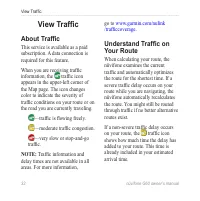
nüvifone G60 owner’s manual View Trafic View Trafic About Trafic This service is available as a paid subscription. A data connection is required for this feature. When you are receiving trafic information, the trafic icon appears in the upper-left corner of the Map page. The icon changes color to in...
Page 41 - Use the Trafic Menu; Show Trafic Map; Avoid Trafic Manually; Trafic On Route; You might still be routed through; Change Trafic Avoidance
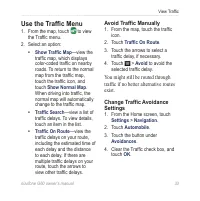
nüvifone G60 owner’s manual View Trafic Use the Trafic Menu 1. From the map, touch to view the Trafic menu. 2. Select an option: Show Trafic Map —view the trafic map, which displays color-coded trafic on nearby roads. To return to the normal map from the trafic map, touch the trafic icon, and touch ...
Page 42 - Work with Contacts; Add a Contact; Edit a Contact
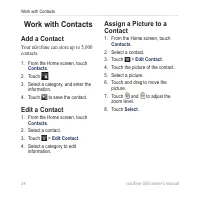
nüvifone G60 owner’s manual Work with Contacts Work with Contacts Add a Contact Your nüvifone can store up to 5,000 contacts. 1. From the Home screen, touch Contacts . 2. Touch . 3. Select a category, and enter the information. 4. Touch to save the contact. Edit a Contact 1. From the Home screen, to...
Page 43 - Delete a Contact; Delete Multiple Contacts; Delete All Contacts
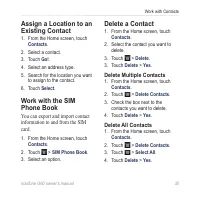
nüvifone G60 owner’s manual Work with Contacts Assign a Location to an Existing Contact 1. From the Home screen, touch Contacts . 2. Select a contact. 3. Touch Go! . 4. Select an address type. 5. Search for the location you want to assign to the contact. 6. Touch Select . Work with the SIM Phone Boo...
Page 44 - Messaging; Send a Text Message; number of unread text messages.
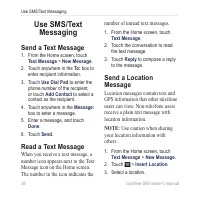
6 nüvifone G60 owner’s manual Use SMS/Text Messaging Use SMS/Text Messaging Send a Text Message 1. From the Home screen, touch Text Message > New Message . 2. Touch anywhere in the To: box to enter recipient information. 3. Touch Use Dial Pad to enter the phone number of the recipient, or touch A...
Page 45 - Delete Text Messages
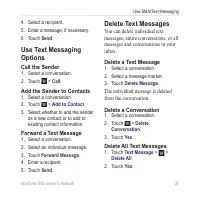
nüvifone G60 owner’s manual Use SMS/Text Messaging 4. Select a recipient. 5. Enter a message, if necessary. 6. Touch Send . Use Text Messaging Options Call the Sender 1. Select a conversation. 2. Touch > Call . Add the Sender to Contacts 1. Select a conversation. 2. Touch > Add to Contact . 3....
Page 46 - Use the Camera; Take a Picture; When you view the picture, touch; View a Picture
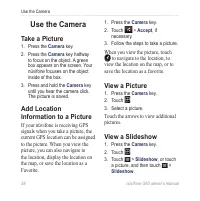
nüvifone G60 owner’s manual Use the Camera Use the Camera Take a Picture 1. Press the Camera key. 2. Press the Camera key halfway to focus on the object. A green box appears on the screen. Your nüvifone focuses on the object inside of the box. 3. Press and hold the Camera key until you hear the came...
Page 47 - Set Your Wallpaper
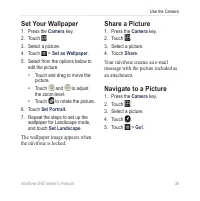
nüvifone G60 owner’s manual Use the Camera Set Your Wallpaper 1. Press the Camera key. 2. Touch . 3. Select a picture. 4. Touch > Set as Wallpaper . 5. Select from the options below to edit the picture. Touch and drag to move the picture. Touch and to adjust the zoom level. Touch to rotate the pi...
Page 48 - Use the Music Player; The music player supports MP3 iles.; Play a Song; Create a Playlist; Playlists are saved as .m3u iles on; Play a Playlist
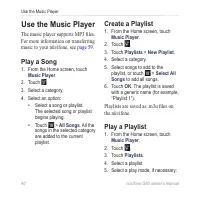
0 nüvifone G60 owner’s manual Use the Music Player Use the Music Player The music player supports MP3 iles. For more information on transferring music to your nüvifone, see page 59 . Play a Song 1. From the Home screen, touch Music Player . 2. Touch . 3. Select a category. 4. Select an option: Selec...
Page 49 - Save the Current Playlist; Edit a Playlist
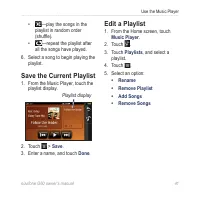
nüvifone G60 owner’s manual Use the Music Player —play the songs in the playlist in random order (shufle). —repeat the playlist after all the songs have played. 6. Select a song to begin playing the playlist. Save the Current Playlist 1. From the Music Player, touch the playlist display. Playlist di...
Page 50 - Browse the Web; Enter a URL; Web Browser; Use the Browser; Tips for Browsing the Web
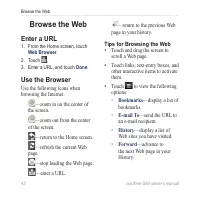
nüvifone G60 owner’s manual Browse the Web Browse the Web Enter a URL 1. From the Home screen, touch Web Browser . 2. Touch . 3. Enter a URL, and touch Done . Use the Browser Use the following icons when browsing the Internet. —zoom in on the center of the screen. —zoom out from the center of the sc...
Page 51 - Save Bookmarks; Clear Your History
nüvifone G60 owner’s manual Browse the Web Set Your Browser Home Page 1. From the Home screen, touch Settings > Applications > Browser . 2. Touch the button under Home Page . 3. Enter a URL, and touch Done Save Bookmarks 1. Navigate to the Web page you want to save. 2. Touch > Bookmarks >...
Page 52 - Your nüvifone can automatically; Send an E-Mail Message
nüvifone G60 owner’s manual Use E-Mail Use E-Mail Your nüvifone can automatically conigure account information for some e-mail accounts. If additional information is required, your nüvifone prompts you to enter the required information. Account information is available from your e-mail account provi...
Page 53 - Check E-Mail Messages
nüvifone G60 owner’s manual Use E-Mail To enter additional recipients, including carbon (cc) and blind carbon (bcc) copies, select one or more of the following options: Touch To: > Add To: to enter another recipient. Touch To: > Add Cc: to enter carbon copy recipients. Touch To: > > Add ...
Page 54 - Delete E-Mail Messages; for the following options:; Set importance; —assign an; Save to Drafts; —save the current
6 nüvifone G60 owner’s manual Use E-Mail Set an Interval to Check E-Mail Messages You can have your nüvifone automatically check for new e-mail messages at intervals. 1. From the Home screen, touch Settings . 2. Touch Applications > E-mail . 3. Select an e-mail account. 4. Touch Edit Account Sett...
Page 55 - Send Later; —keep the message; Change E-Mail Accounts; Search for an E-Mail Message
nüvifone G60 owner’s manual Use E-Mail Send Later —keep the message in the Outbox until the next time the nüvifone is scheduled to check for e-mail. Change E-Mail Accounts 1. From the Home screen, touch E-mail . 2. Touch > Change Folder . 3. Touch Change Account . 4. Select an account, or touch A...
Page 56 - Edit E-Mail Account Settings; Delete an E-Mail Account
nüvifone G60 owner’s manual Use E-Mail Set Your Default E-Mail Account 1. From the Home screen, touch Settings > Applications > E-mail . 2. Touch > Default Account . 3. Select an e-mail account. 4. Touch OK . Edit E-Mail Account Settings 1. From the Home screen, touch Settings > Applicat...
Page 57 - Use caution when sharing; Register; Manual; Automatic
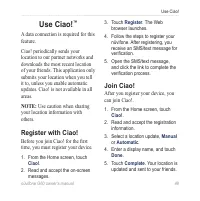
nüvifone G60 owner’s manual Use Ciao! Use Ciao! ™ A data connection is required for this feature. Ciao! periodically sends your location to our partner networks and downloads the most recent location of your friends. This application only submits your location when you tell it to, unless you enable ...
Page 58 - Invite a Friend; View Trusted Friends
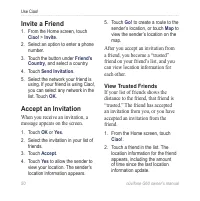
0 nüvifone G60 owner’s manual Use Ciao! Invite a Friend 1. From the Home screen, touch Ciao! > Invite . 2. Select an option to enter a phone number. 3. Touch the button under Friend’s Country , and select a country. 4. Touch Send Invitation . 5. Select the network your friend is using. If your fr...
Page 59 - View Invited Friends; Remove a Friend
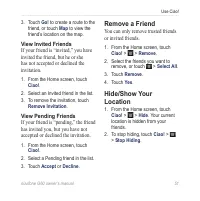
nüvifone G60 owner’s manual Use Ciao! 3. Touch Go! to create a route to the friend, or touch Map to view the friend’s location on the map. View Invited Friends If your friend is “invited,” you have invited the friend, but he or she has not accepted or declined the invitation. 1. From the Home screen...
Page 60 - View My Details
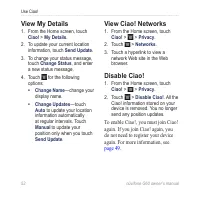
nüvifone G60 owner’s manual Use Ciao! View My Details 1. From the Home screen, touch Ciao! > My Details . 2. To update your current location information, touch Send Update . 3. To change your status message, touch Change Status , and enter a new status message. 4. Touch for the following options:...
Page 61 - View the Weather; : Weather information is not; Weather
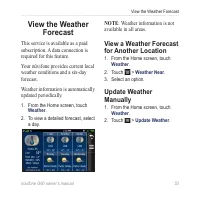
nüvifone G60 owner’s manual View the Weather Forecast View the Weather Forecast This service is available as a paid subscription. A data connection is required for this feature. Your nüvifone provides current local weather conditions and a six-day forecast. Weather information is automatically updat...
Page 62 - Use the Calendar; personal information; View the Calendar
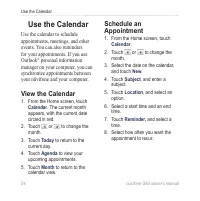
nüvifone G60 owner’s manual Use the Calendar Use the Calendar Use the calendar to schedule appointments, meetings, and other events. You can also reminders for your appointments. If you use Outlook ® personal information manager on your computer, you can synchronize appointments between your nüvifon...
Page 63 - View an Appointment; View Free Time; Delete an Appointment
nüvifone G60 owner’s manual Use the Calendar Touch Repeat , and select an option. Touch Repeat End , and select the date on which you want the appointment to stop recurring. 9. Touch Notes , and enter a note. 10. Touch Save . View an Appointment 1. From the Home screen, touch Calendar . 2. Touch or ...
Page 64 - Connect to Other; Pair with a Device; The irst time you use two devices
6 nüvifone G60 owner’s manual Connect to Other Devices Connect to Other Devices About Bluetooth Technology Bluetooth wireless technology establishes a wireless connection between devices, such as another phone with Bluetooth technology and the nüvifone. To pair and connect, both devices must be turn...
Page 65 - The passkey for the; Connect to a Paired Device; A friendly name identiies your
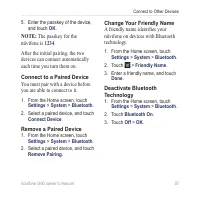
nüvifone G60 owner’s manual Connect to Other Devices 5. Enter the passkey of the device, and touch OK . nOTE: The passkey for the nüvifone is 1234 . After the initial pairing, the two devices can connect automatically each time you turn them on. Connect to a Paired Device You must pair with a device...
Page 66 - Outlook; Tools; Transfer Files; You can transfer iles, such as MP3s; Yes
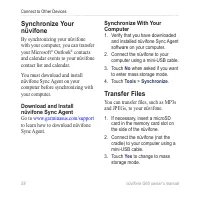
nüvifone G60 owner’s manual Connect to Other Devices Synchronize Your nüvifone By synchronizing your nüvifone with your computer, you can transfer your Microsoft ® Outlook ® contacts and calendar events to your nüvifone contact list and calendar. You must download and install nüvifone Sync Agent on ...
Page 67 - Connect to a Network
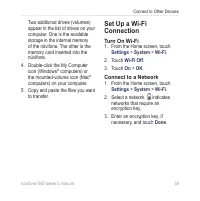
nüvifone G60 owner’s manual Connect to Other Devices Two additional drives (volumes) appear in the list of drives on your computer. One is the available storage in the internal memory of the nüvifone. The other is the memory card inserted into the nüvifone. 4. Double-click the My Computer icon (Wind...
Page 68 - Add a Network; Ignore a Network
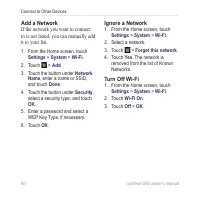
60 nüvifone G60 owner’s manual Connect to Other Devices Add a Network If the network you want to connect to is not listed, you can manually add it to your list. 1. From the Home screen, touch Settings > System > Wi-Fi . 2. Touch > Add . 3. Touch the button under Network Name , enter a name ...
Page 69 - Use the Tools; Use the Calculator; View Different Time Zones; Viewing the time zone of
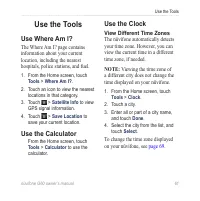
nüvifone G60 owner’s manual 6 Use the Tools Use the Tools Use Where Am I? The Where Am I? page contains information about your current location, including the nearest hospitals, police stations, and fuel. 1. From the Home screen, touch Tools > Where Am I? . 2. Touch an icon to view the nearest lo...
Page 70 - Set an Alarm; Disable an Alarm
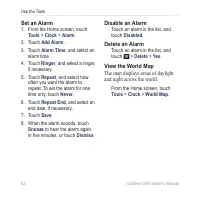
6 nüvifone G60 owner’s manual Use the Tools Set an Alarm 1. From the Home screen, touch Tools > Clock > Alarm . 2. Touch Add Alarm . 3. Touch Alarm Time , and select an alarm time. 4. Touch Ringer , and select a ringer, if necessary. 5. Touch Repeat , and select how often you want the alarm to...
Page 71 - Use the Stop Watch; Check Flight Status
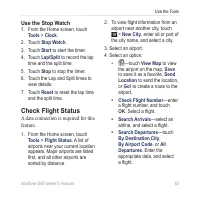
nüvifone G60 owner’s manual 6 Use the Tools Use the Stop Watch 1. From the Home screen, touch Tools > Clock . 2. Touch Stop Watch . 3. Touch Start to start the timer. 4. Touch Lap/Split to record the lap time and the split time. 5. Touch Stop to stop the timer. 6. Touch the Lap and Split times to...
Page 72 - : Flight Status is not available; Use the Converter; Convert Units; : Automatic currency rate
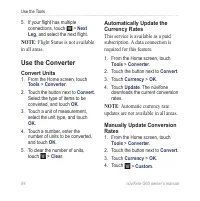
6 nüvifone G60 owner’s manual Use the Tools 5. If your light has multiple connections, touch > Next Leg , and select the next light. nOTE : Flight Status is not available in all areas. Use the Converter Convert Units 1. From the Home screen, touch Tools > Converter . 2. Touch the button next t...
Page 73 - Use Notes; Write a Note; Work with Checklists; Create a Checklist
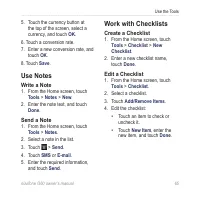
nüvifone G60 owner’s manual 6 Use the Tools 5. Touch the currency button at the top of the screen, select a currency, and touch OK . 6. Touch a conversion rate. 7. Enter a new conversion rate, and touch OK . 8. Touch Save . Use Notes Write a Note 1. From the Home screen, touch Tools > Notes > ...
Page 74 - Use a Checklist
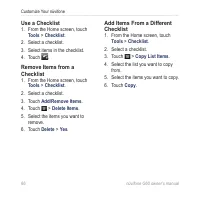
66 nüvifone G60 owner’s manual Customize Your nüvifone Use a Checklist 1. From the Home screen, touch Tools > Checklist . 2. Select a checklist. 3. Select items in the checklist. 4. Touch . Remove Items from a Checklist 1. From the Home screen, touch Tools > Checklist . 2. Select a checklist. ...
Page 75 - Customize Your
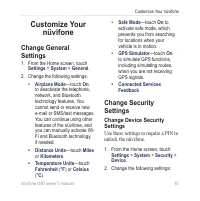
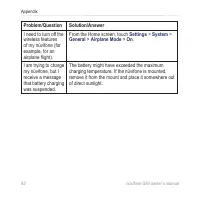
nüvifone G60 owner’s manual 6 Customize Your nüvifone Customize Your nüvifone Change General Settings 1. From the Home screen, touch Settings > System > General . 2. Change the following settings: Airplane Mode —touch On to deactivate the telephone, network, and Bluetooth technology features. ...
Page 77 - Change Audio Settings; Turn On Vibrate
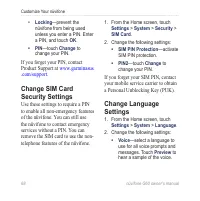
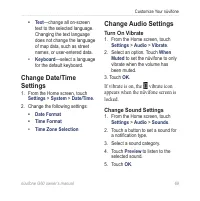
nüvifone G60 owner’s manual 6 Customize Your nüvifone Text —change all on-screen text to the selected language. Changing the text language does not change the language of map data, such as street names, or user-entered data. Keyboard —select a language for the default keyboard. Change Date/Time Sett...
Page 78 - Change Your Ringtone
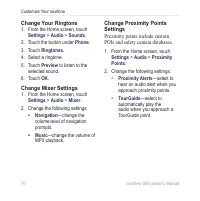
0 nüvifone G60 owner’s manual Customize Your nüvifone Change Your Ringtone 1. From the Home screen, touch Settings > Audio > Sounds . 2. Touch the button under Phone . 3. Touch Ringtones . 4. Select a ringtone. 5. Touch Preview to listen to the selected sound. 6. Touch OK . Change Mixer Settin...
Page 79 - Change Phone Settings
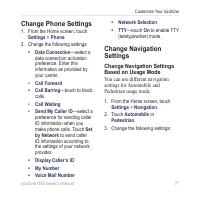
nüvifone G60 owner’s manual Customize Your nüvifone Change Phone Settings 1. From the Home screen, touch Settings > Phone . 2. Change the following settings: Data Connection —select a data connection activation preference. Enter this information as provided by your carrier. Call Forward Call Barr...
Page 80 - Download Safety Cameras
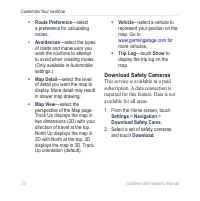
nüvifone G60 owner’s manual Customize Your nüvifone Route Preference —select a preference for calculating routes. Avoidances —select the types of roads and maneuvers you want the nüvifone to attempt to avoid when creating routes. (Only available in Automobile settings.) Map Detail —select the level ...
Page 81 - Change E-Mail Mail Settings; Certiicates; Change E-Mail SMTP Settings
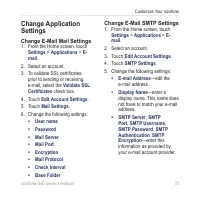
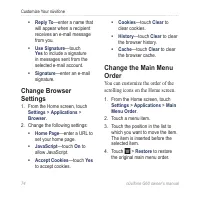
nüvifone G60 owner’s manual Customize Your nüvifone Change Application Settings Change E-Mail Mail Settings 1. From the Home screen, touch Settings > Applications > E- mail . 2. Select an account. 3. To validate SSL certiicates prior to sending or receiving e-mail, select the Validate SSL Cert...
Page 83 - Change Display Settings
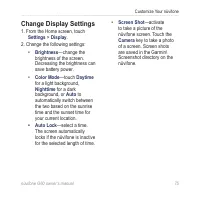
nüvifone G60 owner’s manual Customize Your nüvifone Change Display Settings 1. From the Home screen, touch Settings > Display . 2. Change the following settings: Brightness —change the brightness of the screen. Decreasing the brightness can save battery power. Color Mode —touch Daytime for a ligh...
Page 84 - Restore Settings; Restore Individual Settings; Restore All Settings; Clear All User Data
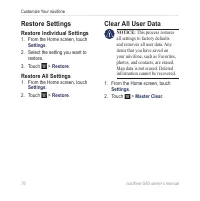
6 nüvifone G60 owner’s manual Customize Your nüvifone Restore Settings Restore Individual Settings 1. From the Home screen, touch Settings . 2. Select the setting you want to restore. 3. Touch > Restore . Restore All Settings 1. From the Home screen, touch Settings . 2. Touch > Restore . Clear...
Page 85 - Appendix; Get Support; Support; Register Your Product; Settings; nüMaps Guarantee; than 60 days after the irst time you; Additional Maps
nüvifone G60 owner’s manual Appendix Appendix Get Support Go to www.garminasus.com and click Support for in-country support information. Register Your Product Register your product at www .garminasus.com/support to help us better support you. Keep the original sales receipt, or a photocopy, in a saf...
Page 86 - Update the Software; Maximize the Battery Life
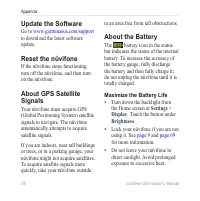
nüvifone G60 owner’s manual Appendix Update the Software Go to www.garminasus.com/support to download the latest software update. Reset the nüvifone If the nüvifone stops functioning, turn off the nüvifone, and then turn on the nüvifone. About GPS Satellite Signals Your nüvifone must acquire GPS (Gl...
Page 87 - Replace the Battery; When replacing the fuse, do
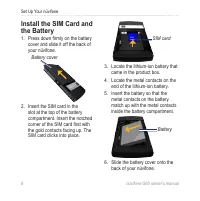
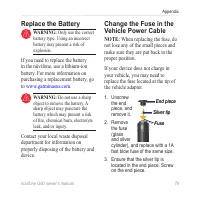
nüvifone G60 owner’s manual Appendix Replace the Battery Warning: Only use the correct battery type. Using an incorrect battery may present a risk of explosion. If you need to replace the battery in the nüvifone, use a lithium-ion battery. For more information on purchasing a replacement battery, go...
Page 88 - The permanent mounting; Remove the SIM Card
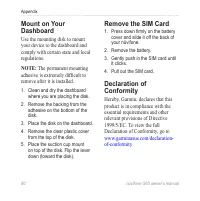
0 nüvifone G60 owner’s manual Appendix Mount on Your Dashboard Use the mounting disk to mount your device to the dashboard and comply with certain state and local regulations. nOTE: The permanent mounting adhesive is extremely dificult to remove after it is installed. 1. Clean and dry the dashboard ...
Page 89 - Troubleshooting
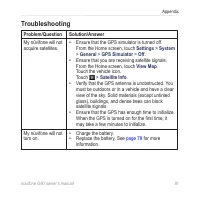
nüvifone G60 owner’s manual Appendix Troubleshooting Problem/Question Solution/Answer My nüvifone will not acquire satellites. Ensure that the GPS simulator is turned off. From the Home screen, touch Settings > System > General > GPS Simulator > Off . Ensure that you are receiving satell...
Page 91 - Speciications; Operating Temperature range:; mAh lithium-ion battery
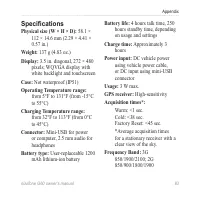
nüvifone G60 owner’s manual Appendix Speciications Physical size (W × H × D): 58.1 × 112 × 14.6 mm (2.29 × 4.41 × 0.57 in.) Weight: 137 g (4.83 oz.) Display: 3.5 in. diagonal, 272 × 480 pixels; WQVGA display with white backlight and touchscreen Case: Not waterproof (IP51) Operating Temperature range...
Page 92 - Frequency Band for na:; Linux
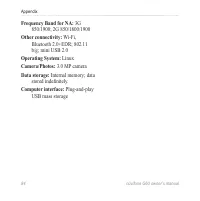
nüvifone G60 owner’s manual Appendix Frequency Band for na: 3G 850/1900; 2G 850/1800/1900 Other connectivity: Wi-Fi, Bluetooth 2.0+EDR; 802.11 b/g; mini USB 2.0 Operating System: Linux Camera/Photos: 3.0 MP camera Data storage: Internal memory; data stored indeinitely. Computer interface: Plug-and-p...
Page 93 - Index; Symbols
Index nüvifone G60 owner’s manual Index Symbols 2D map view 72 3D map view 72 A accessories 7 acquire satellite signals 11 additional maps 77 address 18 airplane mode 67 alarm clock delete 62 disable 62 set 62 alerts for proximity points 70 anti-theft feature 68 appointment delete 55 make 54 navigat...
Page 95 - See
Index nüvifone G60 owner’s manual E e-mail 44–47 change mail settings 73 change SMTP settings 73–74 check new 45 delete 46 send 44–45 send blind carbon copy 45 send carbon copy 45 set importance 46 set interval to check 46 set up 44 emergency assistance 68 F Favorites locations 21 iles transfer 58 i...