Page 2 - IMpORtANt INfORMAtION; fCC COMpLIANCE StAtEMENt; p R E C A U t I O N S A N d N O t I C E S
2 IMpORtANt INfORMAtION pLEASE REAd CAREfULLy BEfORE USINg thIS pROdUCt This product is intended to provide turn by turn instructions to get you to a desired destination. Please make certain that all persons using this navigation system carefully read these precautions and the following instructions...
Page 3 - pOINtS tO OBSERvE fOR SAfE USAgE; W A R N I N g S
pOINtS tO OBSERvE fOR SAfE USAgE Read this manual carefully before using this system. It contains instructions on how to use this product in a safe and effective manner. Alpine cannot be responsible for problems resulting from failure to observe the instructions in this manual.This manual uses vario...
Page 4 - U S E R A g R E E M E N t
4 U S E R A g R E E M E N t In using this pNd-K3 portable Navigation System (hereinafter referred to as “System”), which includes Alpine Electronics, Inc. (“Alpine”) Specifications, Space Machine, Inc. (“Space Machine”) Software and NAvtEQ North America, LLC. (“NAvtEQ”) database, you are bound by th...
Page 5 - t A B L E O f C O N t E N t S
5 PRECAUTIONS AND NOTICES .............................................. 2 Important Information....................................................... 2 WARNINGS .......................................................................... 3 Points to Observe for Safe Usage ..............................
Page 6 - I N t h E B O x; ACCESSORIES
6 I N t h E B O x ACCESSORIES Congratulations and thank you for purchasing the Alpine PND-K3 Portable Navigation System. We hope you enjoy using this exciting product and trust that it will make your driving experience more comfortable, stress-free, and entertaining.The PND-K3 Portable Navigation Sy...
Page 7 - S y S t E M f E A t U R E S; pNd-K3 pORtABLE NAvIgAtION SyStEM
7 S y S t E M f E A t U R E S pNd-K3 pORtABLE NAvIgAtION SyStEM CRAdLE WIth CIgAREttE LIghtER ChARgER pOWER BUttON press and hold for 2 seconds to turn the device on or off Sd/MMC CARd SLOt for music playback (Sd card not included ) ExtERNAL gpS/ANtENNA CONNECtOR RESEt BUttON press and hold for 2 se...
Page 8 - I N S t A L L A t I O N; BEfORE yOU StARt; hOW tO REMOvE thE pNd-K3; I N S T A L L A T I O N; BEFORE YOU START; HOW TO MOUNT THE PND-K3; BEFORE YOU START; I N S T A L L A T I O N; HOW TO MOUNT THE PND-K3
8 I N S t A L L A t I O N BEfORE yOU StARt Before you start, charge the pNd-K3 for at least 3 hours, using the included AC charger. hOW tO MOUNt thE pNd-K3 1 find a spot suitable for the navigation device. Stick the suction cup against the desired mounting location. press the lever to secure the suc...
Page 9 - M A I N M E N U
9 M A I N M E N U gO tO BUttON press this to start entering a destination.See page 13-18. pLAy BUttON press this to go to the music player.See page 33. SEttINgS BUttON press this to change system settings.See page 27-30. hOME BUttON press this to go to a saved home location.See page 23. INfO BUttON ...
Page 10 - M A p f U N C t I O N S; SEttINg thE MAp ORIENtAtION; NORth Up; EStIMAtE tIME dISpLAy
10 M A p f U N C t I O N S SEttINg thE MAp ORIENtAtION touch this icon to switch between North Up , Heading Up and 3D View . NORth Up In north up view, north is always at the top of the display. this makes it easy to determine your current heading with respect to the map. hEAdINg Up In heading-up vi...
Page 11 - gpS StAtUS BAR; BAttERy StAtUS; SWItChINg MAp dISpLAy; ARROW MOdE; tRAffIC BUttON; M A p fU N C t I O N S , CO N t I N U E d
11 gpS StAtUS BAR gpS Signal Strength BAttERy StAtUS this shows status of the battery.(Lightning bolt) indicates that the battery is currently charging. (3 bars) indicates that the battery has more than 60% charge.(2 bars) indicates that the battery has more than 40% charge.(1 bar) indicates that th...
Page 12 - f R O M t h E M A p d I S p L A y; SEttINg A dEStINAtION; fINdINg LOCAL pLACES; SEttINg WAypOINtS
12 f R O M t h E M A p d I S p L A y SEttINg A dEStINAtION 1 touch anywhere on map screen. 2 the vehicle arrow changes to a crosshair cursor. 3 Move the cursor to the new desired street. NOTE: Use Map Zoom button to zoom out the map if the destination is far from the current location. 4 touch the se...
Page 13 - I N p U t A d E S t I N A t I O N
13 I N p U t A d E S t I N A t I O N AddRESS BOOK BUttON Select from saved destinations.See page 17. hIStORy BUttON Select from recent destinations.See page 16. AddRESS BUttON Search by typing an address.See page 14. pLACES BUttON Select places.See page 15-16. COORdINAtES BUttON Set destination usin...
Page 14 - S E t A d E S t I N At I O N By A d d R E S S; fINdINg A dEStINAtION By ENtERINg StREEt NAME fIRSt
14 S E t A d E S t I N At I O N By A d d R E S S there are several ways to set a destination. you can set a destination directly from the map (page 12) or select go to from the main menu. go to Main Menu ➜ go to ➜ Address fINdINg A dEStINAtION By ENtERINg StREEt NAME fIRSt 1 Select by Street . 2 typ...
Page 15 - S E t A d E S t I N A t I O N B y p L A C E; fINdINg A pLACE NEAR yOU OR NEAR yOUR dEStINAtION
15 S E t A d E S t I N A t I O N B y p L A C E you can select from approximately 6 million place locations stored inside your pNd-K3 portable Navigation System.go to Main Menu ➜ go to ➜ places fINdINg A pLACE NEAR yOU OR NEAR yOUR dEStINAtION NOTE: Last 4 names and Last 4 types takes you to a list f...
Page 16 - SEt A dEStINAtION By pLACE, CONtINUEd; fINdINg A pLACE WIthIN CIty vICINIty; S E t A d E S t I N At I O N By h I S tO Ry; dELEtINg ALL hIStORy
16 SEt A dEStINAtION By pLACE, CONtINUEd go to Main Menu ➜ go to ➜ places fINdINg A pLACE WIthIN CIty vICINIty 1 Select Within City vicinity . 2 Select Within a City . NOTE: Last 4 Cities takes you straight to the list of cities you have previously entered. 3 type a city name and select a city. 4 yo...
Page 17 - SEt A dEStINAtION fROM thE AddRESS BOOK; EdItINg AddRESS BOOK; S E t A d E S t I N At I O N By CO O R d I N At E S
17 SEt A dEStINAtION fROM thE AddRESS BOOK go to Main Menu ➜ go to ➜ Address Book 1 Select the desired destination. 2 the Confirm destination Screen appears. touch go! to calculate the route. EdItINg AddRESS BOOK go to Main Menu ➜ go to ➜ Address Book 1 Select the destination you would like to modif...
Page 18 - S E t A d E S t I N At I O N By I N t E R S EC t I O N; fINdINg A dEStINAtION By ENtERINg A StREEt NAME fIRSt
18 S E t A d E S t I N At I O N By I N t E R S EC t I O N go to Main Menu ➜ go to ➜ Intersection fINdINg A dEStINAtION By ENtERINg A StREEt NAME fIRSt 1 Select by Street . 2 type in the first street name. touch OK . the list of applicable street names appears. Select the desired street and input the...
Page 19 - d E S t I N A t I O N O p t I O N S; fINdINg NEARBy pLACES; fINdINg ALtERNAtIvE ROUtES tO thE dEStINAtION
19 d E S t I N A t I O N O p t I O N S the destination Options Menu allows you to find places nearby, find alternative routes to get to your destination, set a destination as your home, save a destination in the address book, and create waypoints. to get to the destination Options Menu, enter your d...
Page 20 - d E S t I N At I O N O p t I O N S , CO N t I N U E d; SAvINg A dEStINAtION INtO thE AddRESS BOOK; SEttINg A WAypOINt dIRECtLy fROM thE MAp
20 d E S t I N At I O N O p t I O N S , CO N t I N U E d to get to the destination Options Menu, enter your desired destination by using the method on pages 13 through 18 in order to get to the Confirm destination screen. Select Options . SAvINg A dEStINAtION INtO thE AddRESS BOOK 1 touch Save to Ad...
Page 21 - d E S t I N A t I O N O p t I O N S , C O N t I N U E d; SEttINg WAypOINtS, CONtINUEd; dELEtINg ALL WAypOINtS
21 d E S t I N A t I O N O p t I O N S , C O N t I N U E d to get to the destination Options Menu, enter your desired destination by using the method on pages 13 through 18 in order to get to the Confirm destination screen. Select Options . SEttINg WAypOINtS, CONtINUEd OptIMIZINg yOUR ROUtE1 touch S...
Page 22 - R O U t E; vIEWINg tURN LISt dURINg gUIdANCE
22 R O U t E vIEWINg tURN LISt dURINg gUIdANCE you can view a list of street names and upcoming turns and streets. Main Menu ➜ Info ➜ Route or directly from the Map ➜ 1 touch view turn List . 2 A list of upcoming streets and turns appears on the screen.to preview a specific point, select a street na...
Page 23 - h O M E; gOINg hOME
23 h O M E you can go home from anywhere once the home Address is set. See page 19 to set a destination as home. gOINg hOME go to Main Menu ➜ home touch go! to calculate the route. NOTE: To find an alternate Route to go Home, see page 22.
Page 24 - B L U E t O O t h; ENABLE BLUEtOOth; AUtO CONNECt
24 B L U E t O O t h Bluetooth enabled mobile phones can be paired to interface with pNd-K3. you can customize this interface using the Bluetooth Setup controls.go to Main Menu ➜ ➜ Bluetooth the Bluetooth Setup menu appears and displays the setup options. 1 Select ‘Bluetooth devices...’. 2 Select ‘d...
Page 25 - M O B I L E p h O N E; pLACINg CALLS; USINg yOUR phONEBOOK
25 M O B I L E p h O N E Most Bluetooth enabled mobile phones can be synchronized to interface with pNd-K3. Once you have paired and synchronized your mobile phone with pNd-K3 (see Setup on page 24) you can place and receive calls in addition to many other convenient functions. Some Bluetooth enable...
Page 26 - M O B I L E p h O N E S E t t I N g S , CO N t I N U E d; RECEIvINg phONE CALLS; CALL OptIONS
26 M O B I L E p h O N E S E t t I N g S , CO N t I N U E d touch Main Menu ➜ USINg yOUR CALL LOgS1 touch Call Logs . 2 touch dialed Calls , Missed Calls or Received Calls . 3 A list of your call history appears. Select the desired contact from the list. 4 Confirmation screen appears with the contac...
Page 27 - S E t t I N g S
27 AUdIO BUttON for audio settings, see page 30. MAp BUttON for map settings, see page 28. dISpLAy BUttON for display settings, see page 28. NAvIgAtION BUttON for navigation settings, see page 29. BLUEtOOth BUttON for Bluetooth settings, see page 24. MSN dIRECt BUttON for MSN direct settings, see pa...
Page 28 - C U S t O M I Z I N g d I S p L A y; C U S t O M I Z I N g M A p
28 C U S t O M I Z I N g d I S p L A y go to Main Menu ➜ ➜ display NOTE: Touch OK to complete the setting. MENU COLOR you can choose from 8 different colors for all menu screens. BRIghtNESS the brightness of the screen can be adjusted. SEttINg dAy/NIght MOdE day - a bright tone screenNight - a dark ...
Page 29 - C U S t O M I Z I N g N A v I g A t I O N t O O L
29 C U S t O M I Z I N g N A v I g A t I O N t O O L go to Main Menu ➜ ➜ Navigation NOTE: Touch OK to complete the setting. ROUtE MEthOd you can change the routing method.See page 22 for details. gUIdANCE MAp you can choose between full map and arrow only in guidance mode. ROUtE BUttON you can choos...
Page 30 - S E t t I N g A U d I O; R E g I O N A L S E t t I N g S
30 S E t t I N g A U d I O go to Main Menu ➜ ➜ Audio NOTE: Touch OK to complete the setting. ChANgINg NAvI MIx vOLUME this allows you to vary the volume of the voice prompts with respect to the music. BUttON SOUNdS this allows you to turn button sounds ON or Off. gUIdANCE pROMpt this allows you to t...
Page 31 - BEfORE USINg MSN-dIRECt; MSN dIRECt SEttINgS
31 M S N d I R E C t S E t t I N g (Only on pNd-K3msn) BEfORE USINg MSN-dIRECt you must subscribe to MSN-direct to enable the feature on the pNd-K3. 1 go to www.msndirect.com/activate to begin activation.2 Make sure to have the product key. to find the product key, go to Main Menu ➜ ➜ MSN ➜ MSN Subs...
Page 32 - I N f O R M A t I O N; v I E W I N g d A S h B O A R d
32 I N f O R M A t I O N go to Main Menu ➜ Info v I E W I N g d A S h B O A R d go to Main Menu ➜ Info ➜ dashboard the odometer displays the route distance and time traveled. Driving Average Average speed. Overall Average Average speed (includes idle time.). Maximum Speed Maximum speed reached. Driv...
Page 33 - v I E W I N g g p S S t A t U S; v I E W I N g S y S t E M I N f O R M A t I O N
33 v I E W I N g g p S S t A t U S this feature allows you to view gpS satellite signal information. you can view the dynamic location information received from satellite, such as, signal strength, compass (direction information), latitude/longitude, approximate altitude, and speed. An explanation o...
Page 34 - M U S I C p L A y E R; MUSIC pLAyER
34 M U S I C p L A y E R MUSIC pLAyER the pNd-K3 is not only a navigation device, it’s also a music player! Choose “play” from the Main Menu, then just place an Sd card with your favorite music into the pNd-K3. It’s that simple! ONCE MUSIC IS pLAyINg, CLICK ANd dRAg tO SKIp tO ANyWhERE IN thE SONg. ...
Page 36 - M S N d I R E C t , C O N t I N U E d
36 M S N d I R E C t , C O N t I N U E d go to Main Menu ➜ vIEWINg NEWS ANd ALERtS News you can read a brief description of latest news. Breaking news appears in red text. vIEWINg StOCKS you can check the latest market activity. you can search and/or add your favorite stock by Market Index or Stock ...
Page 37 - I N C A S E O f d I f f I C U L t y
37 I N C A S E O f d I f f I C U L t y If you encounter a problem, please review the items in the following checklist. this guide will help you isolate the problem if the unit is at fault. Otherwise make sure the rest of your system is properly connected and completely charged. Contact your authoriz...
Page 38 - S p E C I f I C A t I O N S
38 S p E C I f I C A t I O N S Main Unit Size: 123mm x 74mm x 20mm Main Unit Weight: 6.4 oz CPU: SiRf titan GPS: Embedded 20 channel gpS with built-in antenna Internal Storage: Built-in flash memory with pre-loaded Maps of US, Canada, puerto Rico, and the virgin Islands Card Slot: Secure digital (Sd...
Page 39 - I N d E x
39 I N d E x A Accessories 6 Address Book 17 Announcement 10 Audio 30 Button Sounds 30 Changing Navi Mix Volume 30 Guidance Prompt 30 B Battery Status 11 Indicator 10 Before Using This Product 2 Before you Start 8 Bluetooth 24 Auto Answer 24 Auto Connect 24 Enable Bluetooth 24 C Change Route View 10...
Page 40 - L I M I t E d W A R R A N t y
The WTR Logo is a trademark of the Consumer Electronics Association. ALPINE ELECTRONICS OF AMERICA, INC. AND ALPINE OF CANADA INC. (“Alpine”), are dedicated to quality craftsmanship and are pleased to offer this Warranty. We suggest that you read it thoroughly. Should you have any questions, please ...


 Alpine X800D-U
Manual
Alpine X800D-U
Manual
 Alpine INE-W987D
Manual
Alpine INE-W987D
Manual
 Alpine IVA-D511R
Manual
Alpine IVA-D511R
Manual
 Alpine X902D-F
Manual
Alpine X902D-F
Manual
 Alpine X702D-F
Manual
Alpine X702D-F
Manual
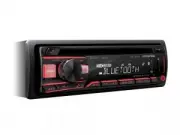 Alpine CDE-203BT
Manual
Alpine CDE-203BT
Manual
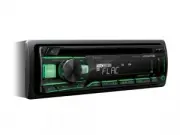 Alpine CDE-201R
Manual
Alpine CDE-201R
Manual
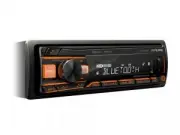 Alpine UTE-200BT
Manual
Alpine UTE-200BT
Manual
 Alpine CDE-100E
Manual
Alpine CDE-100E
Manual
 Alpine CDA-7839
Manual
Alpine CDA-7839
Manual
 Alpine CDA-105
Manual
Alpine CDA-105
Manual
 Alpine PKG-RSE3DVD
Manual
Alpine PKG-RSE3DVD
Manual
 Alpine TME-M790
Manual
Alpine TME-M790
Manual
 Alpine PMD-B100
Manual
Alpine PMD-B100
Manual
 Alpine CDM-7871
Manual
Alpine CDM-7871
Manual
 Alpine MRP-T130
Manual
Alpine MRP-T130
Manual
 Alpine TDA-7547E
Manual
Alpine TDA-7547E
Manual
 Alpine iDA-305
Manual
Alpine iDA-305
Manual
 Alpine MDA-7755
Manual
Alpine MDA-7755
Manual
 Alpine MRV-F307
Manual
Alpine MRV-F307
Manual