Asus RP-AC53 - User Manual
This Quick Guide covers the ASUS RP-AC53 dual-band wireless repeater, focusing on its setup process through WPS or web-based configuration. The document highlights key topics like device placement, LED indicators, and troubleshooting common connectivity issues to optimize signal strength and performance. It also addresses basic network configuration for extending Wi-Fi coverage and bridging Ethernet devices.
Quick Start Guide
RP-AC53
Dual-band Wireless Repeater
E11934
Second Edition
August 2016
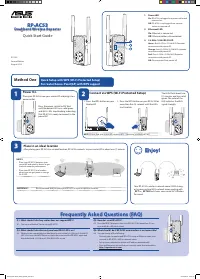
1. Power LED
On
: RP-AC53 is plugged to a power outlet and
powered on.
Off
: RP-AC53 is unplugged from a power
outlet or powered off.
2. Etherenet LED
On:
Ethernet is connected.
Off:
Ethernet cable is disconnected.
3. 2.4 GHz / 5 GHz Wi-Fi LED
Green :
Best 2.4 GHz / 5 GHz Wi-Fi Repeater
connection with parent AP.
Orange:
Good 2.4 GHz / 5 GHz Wi-Fi repeater
connection with parent AP.
Red:
Poor 2.4 GHz / 5 GHz Wi-Fi Repeater
connection with parent AP.
Off:
Disconnected from parent AP.
Quick Setup with WPS (Wi-Fi Protected Setup)
For router/Access Point(AP) with WPS support
3
Place in an ideal location
After placing your RP-AC53 in an ideal location, RP-AC53 connects to your router/AP in about one (1) minute.
NOTES:
• Place your RP-AC53 between your
router/AP and wireless device to get
the best extender performance.
• Place your RP-AC53 in a location
where you can get green or orange
Wi-Fi LED.
IMPORTANT!
We recommend that you place your RP-AC53 in open or spacious location.
Enjoy!
1
2
Frequently Asked Questions (FAQ)
Q1: What should I do if my router does not support WPS?
A1:
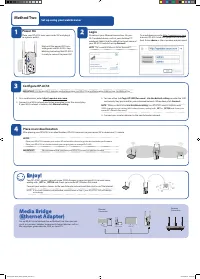
You can use Method Two to set up RP-AC53.
Q2: How do I reset RP-AC53?
A2: Press the RESET button on the side of RP-AC53 for about five (5) sec-
onds until the LEDs blink slowly.
Q2: What should I do when only one band Wi-Fi LED is on?
A2: When you are connecting to a dual-band router but only 2.4 GHz or 5 GHz Wi-Fi
LED is on, press the WPS button on both the router and the RP-AC53 again and
check that both 2.4 GHz and 5 GHz Wi-Fi LEDs are on.
Q4: What should I do if RP-AC53 web interface is not accessible?
A4:
You can do any of the following:
• Connect your computer and RP-AC53 using an Ethernet cable, and
connect to RP-AC53’s SSID or network name.
• Set up your computer to obtain an IP address automatically.
• On a web browser, ensure that you correctly enter the web address
http://repeater.asus.com
Method One
Your RP-AC53’s wireless network name (SSID) chang-
es to your existing Wi-Fi network name, ending with
_RPT
or
_RPT5G
and shares your router/AP’s Wireless
Password.
Power On
Place your RP-AC53 near your router/AP and plug it to a
power outlet.
Press the power switch to ON. Wait
until the power LED turns solid green
and Wi-Fi LEDs stop blinking, indicating
that RP-AC53 is ready to connect to the
parent AP.
Connect via WPS (Wi-Fi Protected Setup)
1. Press the WPS button on your
Router/AP.
2. Press the WPS button on your RP-AC53 for
more than five (5) seconds until the LEDs
start to blink.
NOTE:
Ensure that your router/AP supports WPS. Otherwise, use Method TWO.
The LEDs flash about two
(2) minutes and turn solid
green. The color of the
LED indicates the Wi-Fi
signal strength.
E11934_RP-AC53_QSG_Special_V2.indd 1
2016-08-19 16:20:19
"Loading the manual" means you need to wait until the file loads and becomes available for online reading. Some manuals are very large, and the time they take to appear depends on your internet speed.
Was this manual helpful?
About this manual
- Brand
- Asus
- Model
- RP-AC53
- Document type
- User Manual
- Category
- Wi-Fi Extender
- Language(s)
- English
- Pages
- 2
- File size
- 706.3 KB
- Format
Ask a question
Related manuals
Other Asus appliances
-User-Manual/webp/1.webp) Asus (ME180A) User Manual
Asus (ME180A) User Manual Asus 4G-AC53U Manual
 Asus 7 Manual
 Asus 8G Manual
 Asus 22T1E User Manual
 Asus 24T1E User Manual
 Asus 90OK-S0NB110E0Y,TF600T-B1-GR Manual
 Asus 90YH00Q1 User Manual
 Asus 370 Manual
 Asus 900 Manual
 Asus 990FX User Manual
 Asus 1015E User Manual
 Asus 7700 Manual
 Asus A3E User Manual
 Asus A7 User Manual
 Asus A7A266 User Manual
 Asus A7J User Manual
 Asus A7Jc User Manual
 Asus A7K User Manual
 Asus A7M266 User Manual