Page 2 - Care and safety; Guidelines; driving or operating any type of vehicle.
2 Care and safety Guidelines Road safety comes first. We strongly recommend not to use your device when driving or operating any type of vehicle. This device should only be used in environments with ambient temperatures between 0°C (32°F) and 35°C (95°F).Turn off your device in restricted areas wher...
Page 3 - Proper disposal; according to the instructions.; ZenTalk Fans Forum; Cancer and Reproductive Harm-
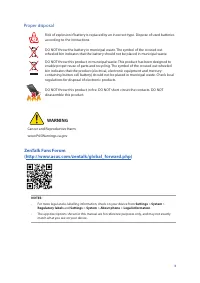
3 Proper disposal Risk of explosion if battery is replaced by an incorrect type. Dispose of used batteries according to the instructions. DO NOT throw the battery in municipal waste. The symbol of the crossed out wheeled bin indicates that the battery should not be placed in municipal waste. DO NOT ...
Page 4 - Contents
4 1 Basics Welcome! .................................................................................................................................................. 7Get your ROG Phone ready! .............................................................................................................
Page 5 - Bluetooth; Travel and Maps
5 Receiving calls ......................................................................................................................................43Other call options ..................................................................................................................................
Page 7 - Explore the intuitive simplicity of ASUS ZenUI!; Camera; of your ROG Phone and its connected external storage devices.
7 Chapter 1: Basics Basics 1 1 Basics Welcome! Explore the intuitive simplicity of ASUS ZenUI! ASUS ZenUI is a charming and intuitive interface exclusively for ROG Phones. It provides you with special apps, which are integrated in or with other apps, to fit your unique individual needs and make your...
Page 8 - Get your ROG Phone ready!; Parts and features; Take a hold of your device and have it running in a jiffy.
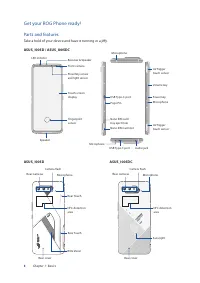
8 Chapter 1: Basics Get your ROG Phone ready! Parts and features Take a hold of your device and have it running in a jiffy. Receiver & Speaker Touch screen display Power key Volume key Rear cameras Camera flash ROG Vision Microphone Audio jack USB Type-C port Microphone Microphone LED indictor P...
Page 9 - AeroActive Cooler features
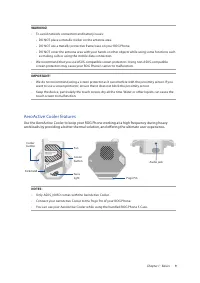
9 Chapter 1: Basics WARNING! • To avoid network connection and battery issues: • DO NOT place a metallic sticker on the antenna area. • DO NOT use a metallic protective frame/case on your ROG Phone. • DO NOT cover the antenna area with your hands or other objects while using some functions such as m...
Page 10 - To install AeroActive Cooler:; your AeroActive Cooler and gently push down your phone.; To use the kickstand of AeroActive Cooler:
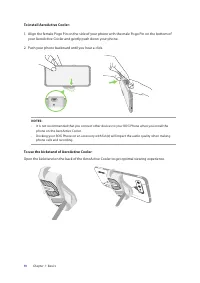
10 Chapter 1: Basics To install AeroActive Cooler: 1. Align the female Pogo Pin on the side of your phone with the male Pogo Pin on the bottom of your AeroActive Cooler and gently push down your phone. 2. Push your phone backward until you hear a click. NOTES: • It is not recommended that you connec...
Page 11 - Gently push the tray back in until it’s securely closed.; Installing a nano SIM card; To install a nano SIM card:
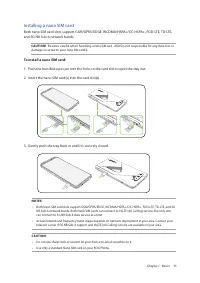
11 Chapter 1: Basics 3. Gently push the tray back in until it’s securely closed. Installing a nano SIM card Both nano SIM card slots support GSM/GPRS/EDGE, WCDMA/HSPA+/DC-HSPA+, FDD-LTE, TD-LTE, and 5G NR Sub-6 network bands. CAUTION! Be extra careful when handling a nano SIM card . ASUS is not resp...
Page 12 - Removing a nano SIM card; To remove a nano SIM card:
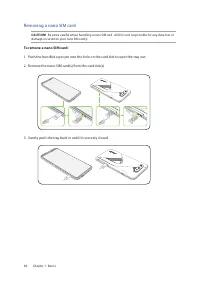
12 Chapter 1: Basics Removing a nano SIM card CAUTION! Be extra careful when handling a nano SIM card . ASUS is not responsible for any data loss or damage incurred to your nano SIM card(s). To remove a nano SIM card: 1. Push the bundled eject pin into the hole on the card slot to eject the tray out...
Page 13 - Charging your ROG Phone; To charge your ROG Phone:; or
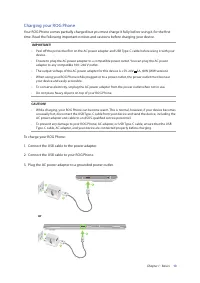
13 Chapter 1: Basics Charging your ROG Phone Your ROG Phone comes partially charged but you must charge it fully before using it for the first time. Read the following important notices and cautions before charging your device. IMPORTANT! • Peel off the protective film on the AC power adapter and US...
Page 14 - AC power adapter from the power outlet.
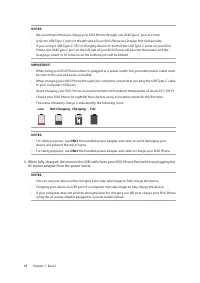
14 Chapter 1: Basics IMPORTANT! • When using your ROG Phone while it is plugged to a power outlet, the grounded power outlet must be near to the unit and easily accessible. • When charging your ROG Phone through your computer, ensure that you plug the USB Type-C cable to your computer’s USB port. • ...
Page 15 - Turning your ROG Phone on or off; Turning your device on; To turn your device off:; Power off; Sleep mode
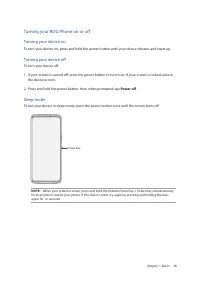
15 Chapter 1: Basics Turning your ROG Phone on or off Turning your device on To turn your device on, press and hold the power button until your device vibrates and starts up. Turning your device off To turn your device off: 1. If your screen is turned off, press the power button to turn it on. If yo...
Page 16 - Starting for the first time; Google Account
16 Chapter 1: Basics Starting for the first time When you turn your ROG Phone on for the first time, Setup Wizard will guide you through the setup process. Follow the onscreen instructions to select your language, set up your mobile network, Wi- Fi and security features, and sync accounts. Use your ...
Page 17 - Using the touchscreen; Launching apps; Do any of the following:; Uninstall
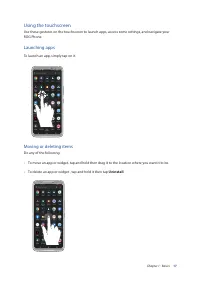
17 Chapter 1: Basics Using the touchscreen Use these gestures on the touchscreen to launch apps, access some settings, and navigate your ROG Phone. Launching apps To launch an app, simply tap on it. Moving or deleting items Do any of the following: • To move an app or widget, tap and hold then drag ...
Page 18 - Moving through pages or screens; Zooming in
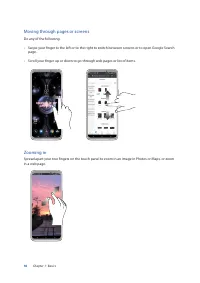
18 Chapter 1: Basics Moving through pages or screens Do any of the following: • Swipe your finger to the left or to the right to switch between screens or to open Google Search page. • Scroll your finger up or down to go through web pages or list of items. Zooming in Spread apart your two fingers on...
Page 19 - Zooming out; zoom out of a web page.
19 Chapter 1: Basics Zooming out Bring together your two fingers on the touch panel to zoom out an image in Photos or Maps, or zoom out of a web page. NOTE: You may not be able to zoom in/out of some web pages as these pages may have been designed specifically to fit your mobile screen.
Page 20 - There’s no place like Home; Zen Home features; Home screen; from people who really matter to you, right from your Home screen.
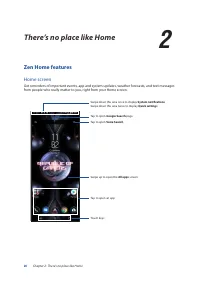
20 Chapter 2: There’s no place like Home There’s no place like Home 2 2 There’s no place like Home Zen Home features Home screen Get reminders of important events, app and system updates, weather forecasts, and text messages from people who really matter to you, right from your Home screen. Swipe do...
Page 21 - Quick settings; Adding features; HOLD AND DRAG TO ADD TILES; Removing features; HOLD AND DRAG TO REARRANGE TILES
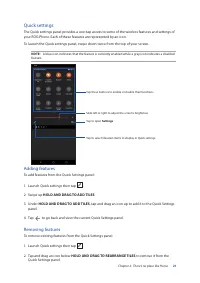
21 Chapter 2: There’s no place like Home Quick settings The Quick settings panel provides a one-tap access to some of the wireless features and settings of your ROG Phone. Each of these features are represented by an icon. To launch the Quick settings panel, swipe down twice from the top of your scr...
Page 22 - Notifications; your ROG Phone. Most of these changes are data and system-related.
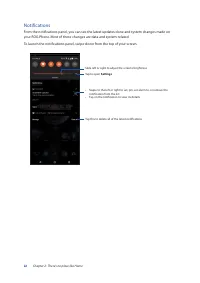
22 Chapter 2: There’s no place like Home Notifications From the notifications panel, you can see the latest updates done and system changes made on your ROG Phone. Most of these changes are data and system-related. To launch the notifications panel, swipe down from the top of your screen. Tap this t...
Page 23 - Personalizing your Home screen; and quickly access or view more apps or widgets on your Home screen.; Adding widgets; Tap and hold an empty area on your Home screen and select; Widgets; Removing widgets; From your Home screen, tap and hold a widget, then drag it to; Remove; on top of your screen.
23 Chapter 2: There’s no place like Home Personalizing your Home screen Stamp your own personality on your Home screen. Select an attractive design as your wallpaper, and add widgets for a quick review of important info. You can also add more pages so you can add and quickly access or view more apps...
Page 24 - animated wallpaper to make your screen come alive.; Applying wallpaper; Wallpapers; Select to set wallpaper to; Lock screen
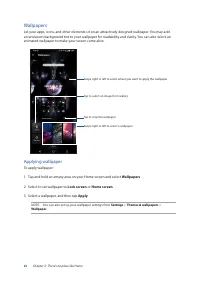
24 Chapter 2: There’s no place like Home Wallpapers Let your apps, icons, and other elements sit on an attractively designed wallpaper. You may add a translucent background tint to your wallpaper for readability and clarity. You can also select an animated wallpaper to make your screen come alive. A...
Page 25 - Editing your Home screen; Setting up your ringtone and alert sounds
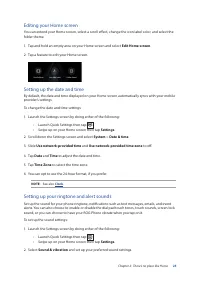
25 Chapter 2: There’s no place like Home Editing your Home screen You can extend your Home screen, select a scroll effect, change the icon label color, and select the folder theme. 1. Tap and hold an empty area on your Home screen and select Edit Home screen . 2. Tap a feature to edit your Home scre...
Page 26 - Lock Screen; Customizing your lock screen; Swipe
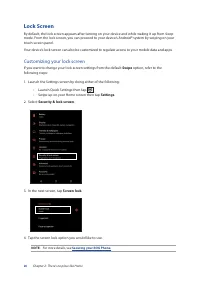
26 Chapter 2: There’s no place like Home Lock Screen By default, the lock screen appears after turning on your device and while waking it up from sleep mode. From the lock screen, you can proceed to your device’s Android® system by swiping on your touch screen panel. Your device’s lock screen can al...
Page 27 - Fingerprint ID sensor; Starting your ROG Phone for the first time; From the Welcome page, follow the on-screen instructions to the
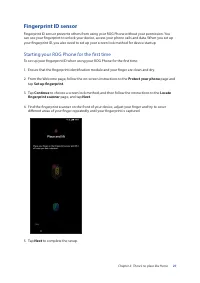
27 Chapter 2: There’s no place like Home Fingerprint ID sensor Fingerprint ID sensor prevents others from using your ROG Phone without your permission. You can use your fingerprint to unlock your device, access your phone calls and data. When you set up your fingerprint ID, you also need to set up y...
Page 28 - Setting up fingerprint ID from Settings
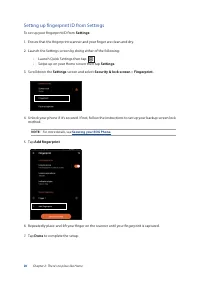
28 Chapter 2: There’s no place like Home Setting up fingerprint ID from Settings To set up your fingerprint ID from Settings : 1. Ensure that the fingerprint scanner and your finger are clean and dry. 2. Launch the Settings screen by doing either of the following: • Launch Quick Settings then tap . ...
Page 29 - Face Unlock; Setting up face unlock from Settings
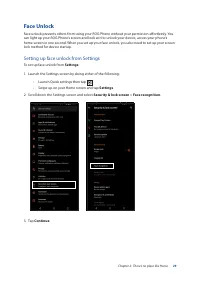
29 Chapter 2: There’s no place like Home Face Unlock Face unlock prevents others from using your ROG Phone without your permission effortlessly. You can light up your ROG Phone’s screen and look at it to unlock your device, access your phone’s home screen in one second. When you set up your face unl...
Page 30 - Next; and follow the instructions to register your face.
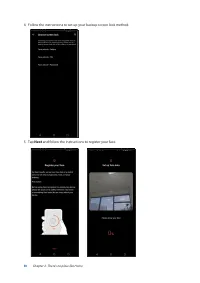
30 Chapter 2: There’s no place like Home 5. Tap Next and follow the instructions to register your face. 4. Follow the instructions to set up your backup screen lock method.
Page 31 - Done; to enable face recognition to unlock your phone.
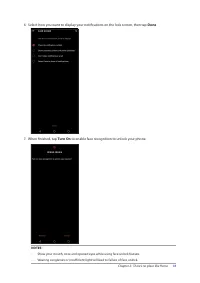
31 Chapter 2: There’s no place like Home 6. Select how you want to display your notifications on the lock screen, then tap Done . NOTES: • Show your mouth, nose and opened eyes while using face unlock feature. • Wearing sunglasses or insufficient light will lead to failure of face unlock. 7. When fi...
Page 32 - browsing history across all your devices. If you don’t have a; Google account; Launching Chrome; From your Home screen, do any of the following to launch Chrome:; Chrome
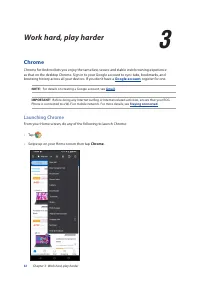
32 Chapter 3: Work hard, play harder Work hard, play harder 3 3 Work hard, play harder Chrome Chrome for Android lets you enjoy the same fast, secure and stable web browsing experience as that on the desktop Chrome. Sign in to your Google account to sync tabs, bookmarks, and browsing history across ...
Page 33 - Sharing pages; Tap to select a way to share the page.; Bookmarking pages; Bookmarks; page you want to view or access.; Clearing the browsing data; Select the browsing data that you want to delete.; Clear data
33 Chapter 3: Work hard, play harder Sharing pages Share interesting pages from your ROG Phone to others via an email account, cloud storage account, Bluetooth, or other ROG Phone apps. 1. Launch Chrome. 2. From a web page, tap > Share... 3. Tap to select a way to share the page. Bookmarking page...
Page 35 - Google Calendar; Creating events
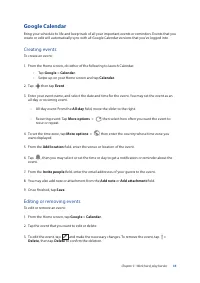
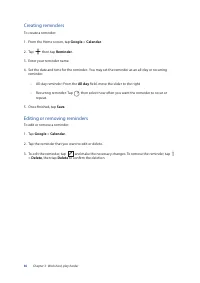
35 Chapter 3: Work hard, play harder Google Calendar Bring your schedule to life and keep track of all your important events or reminders. Events that you create or edit will automatically sync with all Google Calendar versions that you’ve logged into. Creating events To create an event: 1. From the...
Page 37 - To launch File Manager, swipe up on your Home screen then tap; File Manager
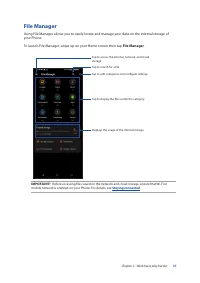
37 Chapter 3: Work hard, play harder File Manager Using File Manager allows you to easily locate and manage your data on the internal storage of your Phone. To launch File Manager, swipe up on your Home screen then tap File Manager . IMPORTANT! Before accessing files saved on the network and cloud s...
Page 38 - To use ASUS Data Transfer:; ASUS Data Transfer
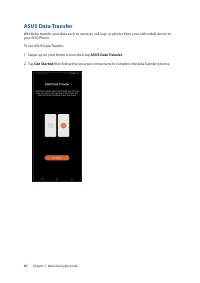
38 Chapter 3: Work hard, play harder ASUS Data Transfer Wirelessly transfer your data such as contacts, call logs, or photos from your old mobile device to your ROG Phone. To use ASUS Data Transfer: 1. Swipe up on your Home screen then tap ASUS Data Transfer . 2. Tap Get Started then follow the onsc...
Page 39 - Keeping in touch; Call in style; Dual SIM feature; Renaming your Nano SIM cards; To change the names of your Nano SIM cards, tap
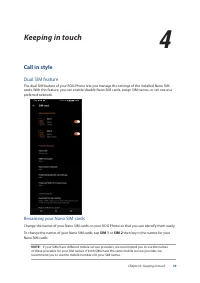
39 Chapter 4: Keeping in touch Keeping in touch 4 4 Keeping in touch Call in style Dual SIM feature The dual SIM feature of your ROG Phone lets you manage the settings of the installed Nano SIM cards. With this feature, you can enable/disable Nano SIM cards, assign SIM names, or set one as a preferr...
Page 40 - Assigning a preferred SIM card; SIM card for voice calls; Voice call; SIM card for SMS messages; SMS messages; SIM card for data service; Data service network
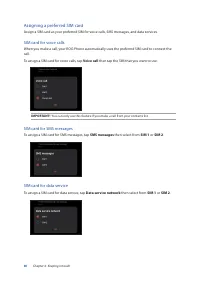
40 Chapter 4: Keeping in touch Assigning a preferred SIM card Assign a SIM card as your preferred SIM for voice calls, SMS messages, and data services. SIM card for voice calls When you make a call, your ROG Phone automatically uses the preferred SIM card to connect the call. To assign a SIM card fo...
Page 41 - Making calls; Launching the Phone app; Phone; Dialing a phone number; Dialing an extension number; Prompting for confirmation of an extension number; Yes
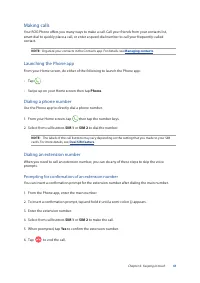
41 Chapter 4: Keeping in touch Making calls Your ROG Phone offers you many ways to make a call. Call your friends from your contacts list, smart dial to quickly place a call, or enter a speed-dial number to call your frequently-called contact. NOTE: Organize your contacts in the Contacts app. For de...
Page 42 - Auto-dialing an extension number; Smart dialing your contacts; Calling from Contacts app
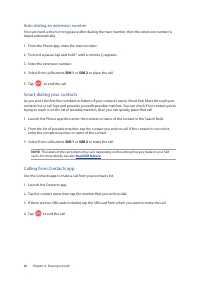
42 Chapter 4: Keeping in touch Auto-dialing an extension number You can insert a short or long pause after dialing the main number, then the extension number is dialed automatically. 1. From the Phone app, enter the main number. 2. To insert a pause, tap and hold * until a comma (,) appears. 3. Ente...
Page 43 - Calling your favorite contacts; Answering calls
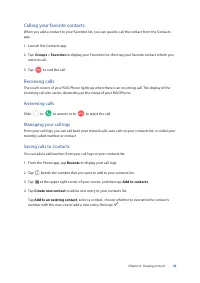
43 Chapter 4: Keeping in touch Calling your favorite contacts When you add a contact to your Favorites list, you can quickly call the contact from the Contacts app. 1. Launch the Contacts app. 2. Tap Groups > Favorites to display your Favorites list, then tap your favorite contact whom you want t...
Page 44 - Redialing your last-called number; Other call options
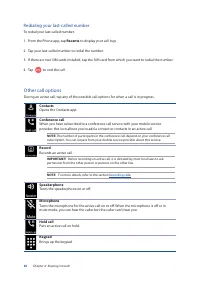
44 Chapter 4: Keeping in touch Redialing your last-called number To redial your last-called number: 1. From the Phone app, tap Recents to display your call logs. 2. Tap your last-called number to redial the number. 3. If there are two SIM cards installed, tap the SIM card from which you want to redi...
Page 45 - Recording calls; to record the call.; Call recording saved; notification to view
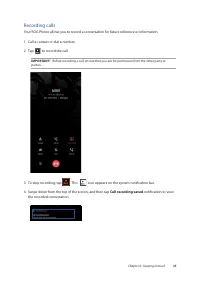
45 Chapter 4: Keeping in touch Recording calls Your ROG Phone allows you to record a conversation for future reference or information. 1. Call a contact or dial a number. 2. Tap to record the call. IMPORTANT! Before recording a call, ensure that you ask for permission from the other party or parties...
Page 46 - Contacts; Contacts Settings; Set up my profile; Add another field
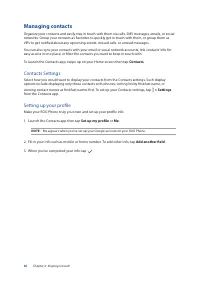
46 Chapter 4: Keeping in touch Managing contacts Organize your contacts and easily stay in touch with them via calls, SMS messages, emails, or social networks. Group your contacts as Favorites to quickly get in touch with them, or group them as VIPs to get notified about any upcoming events, missed ...
Page 47 - Adding contacts; Device; Adding an extension number to a contact number; Pause
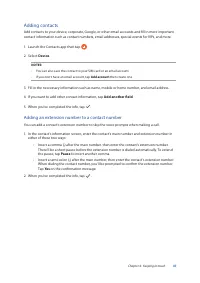
47 Chapter 4: Keeping in touch Adding contacts Add contacts to your device, corporate, Google, or other email accounts and fill in more important contact information such as contact numbers, email addresses, special events for VIPs, and more. 1. Launch the Contacts app then tap . 2. Select Device . ...
Page 48 - Customizing your contact’s profile; Make the changes from the contact’s profile page.; Marking your favorite contacts; Swipe up on your Home screen then tap; Select the contact that you want to mark as a favorite.
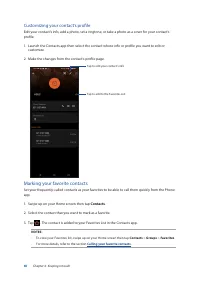
48 Chapter 4: Keeping in touch Customizing your contact’s profile Edit your contact’s info, add a photo, set a ringtone, or take a photo as a cover for your contact’s profile. 1. Launch the Contacts app then select the contact whose info or profile you want to edit or customize. 2. Make the changes ...
Page 49 - Managing your block list; Social networking with your contacts
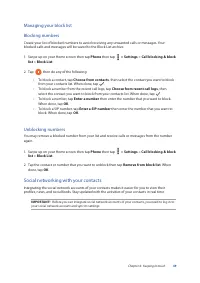
49 Chapter 4: Keeping in touch Managing your block list Blocking numbers Create your list of blocked numbers to avoid receiving any unwanted calls or messages. Your blocked calls and messages will be saved to the Block List archive. 1. Swipe up on your Home screen then tap Phone then tap > Settin...
Page 50 - Syncing your social network account; Send messages and more; Messages; Sending messages; Start chat; Replying to messages
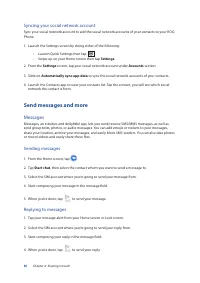
50 Chapter 4: Keeping in touch Syncing your social network account Sync your social network account to add the social network accounts of your contacts to your ROG Phone. 1. Launch the Settings screen by doing either of the following: • Launch Quick Settings then tap . • Swipe up on your Home screen...
Page 51 - Fun and entertainment; Using a headset; Connecting the audio jack; headphone jack adapter.
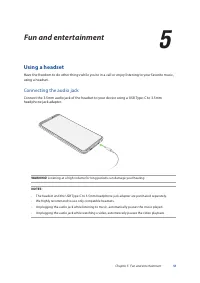
51 Chapter 5: Fun and entertainment Fun and entertainment 5 5 Fun and entertainment Using a headset Have the freedom to do other things while you’re in a call or enjoy listening to your favorite music, using a headset. Connecting the audio jack Connect the 3.5mm audio jack of the headset to your dev...
Page 52 - YT Music; add to your own music library.; Setting up your YT Music; To set up your YT Music:; Google; Tap; SIGN IN; Follow the next instructions to sign in to your account.
52 Chapter 5: Fun and entertainment YT Music With YT Music, you can stream your favorite music, create playlists, or listen to the radio. You can also subscribe to YT Music for unlimited and ad-free access to millions of music files that you can add to your own music library. Setting up your YT Musi...
Page 53 - Your precious moments; Capture moments; Launching the Camera app; below to open the Camera app.; From the lock screen; From the home screen
53 Chapter 6: Your precious moments Your precious moments 6 6 Your precious moments Capture moments Launching the Camera app Capture images and record videos using your ROG Phone’s Camera app. Refer to any of the steps below to open the Camera app. From the lock screen Swipe up to launch the camera ...
Page 54 - Photo Locations; Advanced camera features; Camera home screen
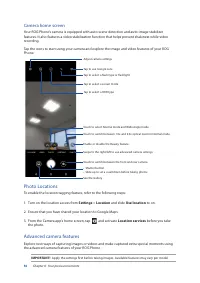
54 Chapter 6: Your precious moments Photo Locations To enable the location tagging feature, refer to the following steps: 1. Turn on the location access from Settings > Location and slide Use location to on. 2. Ensure that you have shared your location to Google Maps. 3. From the Camera app’s hom...
Page 55 - Recording Time lapse videos; Time lapse; Slow motion; Recording slow motion videos; Night; Capturing Night photos; MORE; Panorama; Capturing panoramic photos; PANO
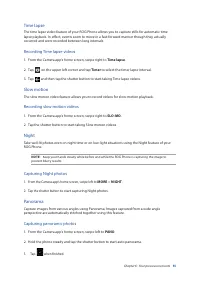
55 Chapter 6: Your precious moments Time lapse The time lapse video feature of your ROG Phone allows you to capture stills for automatic time lapse playback. In effect, events seem to move in a fast-forward manner though they actually occurred and were recorded between long intervals. Recording Time...
Page 56 - Using the Gallery; Viewing the photo location
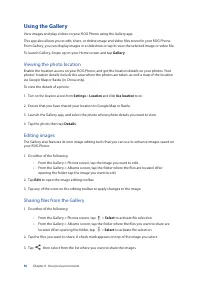
56 Chapter 6: Your precious moments Using the Gallery View images and play videos on your ROG Phone using the Gallery app. This app also allows you to edit, share, or delete image and video files stored in your ROG Phone. From Gallery, you can display images in a slideshow or tap to view the selecte...
Page 57 - Deleting files from the Gallery; • From the Gallery > Photos screen, tap; to activate file selection.; to activate file selection.
57 Chapter 6: Your precious moments Deleting files from the Gallery 1. Do either of the following: • From the Gallery > Photos screen, tap > Select to activate file selection. • From the Gallery > Albums screen, tap the folder where the files you want to delete are located. After opening th...
Page 58 - Mobile network; Enabling the mobile network
58 Chapter 7: Staying connected Staying connected 7 7 Staying connected Mobile network When there’s no available Wi-Fi network that you can connect to, you can enable your mobile network’s data access for Internet connection. Enabling the mobile network 1. Do either of the following to launch the Se...
Page 59 - Connecting to a Wi-Fi network; Bluetooth®; Enabling Bluetooth®
59 Chapter 7: Staying connected Connecting to a Wi-Fi network 1. On the Settings screen, tap Network & internet > Wi-Fi to display all detected Wi-Fi networks. 2. Tap a network name to connect to it. For a secured network, you may be prompted to key in a password or other security credentials...
Page 60 - Pairing your ROG Phone to a Bluetooth® device
60 Chapter 7: Staying connected Pairing your ROG Phone to a Bluetooth® device Before using the Bluetooth feature of your ROG Phone in full scale, you have to pair it first with the Bluetooth device. The ROG Phone automatically stores the pairing connection of the Bluetooth device. 1. On the Settings...
Page 61 - Tethering; • Launch Quick Settings then tap
61 Chapter 7: Staying connected Tethering When Wi-Fi service is not available, you can use your ROG Phone as a modem or turn it into a Wi-Fi hotspot to get Internet access on your laptop, tablet, and other mobile devices. IMPORTANT! Most mobile service providers may require a data plan for you to be...
Page 62 - Bluetooth Tethering; Enable Bluetooth on your ROG Phone and the other device.; USB Tethering; Connect your ROG Phone to another device with a USB cable.
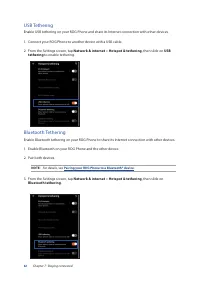
62 Chapter 7: Staying connected Bluetooth Tethering Enable Bluetooth tethering on your ROG Phone to share its Internet connection with other devices. 1. Enable Bluetooth on your ROG Phone and the other device. 2. Pair both devices. NOTE: For details, see Pairing your ROG Phone to a Bluetooth® device...
Page 63 - Weather; Launching the Weather app
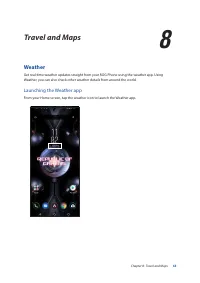
63 Chapter 8: Travel and Maps Travel and Maps 8 8 Travel and Maps Weather Get real-time weather updates straight from your ROG Phone using the weather app. Using Weather, you can also check other weather details from around the world. Launching the Weather app From your Home screen, tap the weather ...
Page 64 - Weather home screen
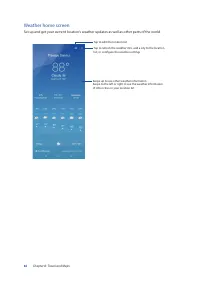
64 Chapter 8: Travel and Maps Weather home screen Set up and get your current location’s weather updates as well as other parts of the world. Tap to edit the location list Tap to refresh the weather info, add a city to the location list, or configure the weather settings Swipe up to see other weathe...
Page 65 - Launching Clock; Alarm clock; Alarms
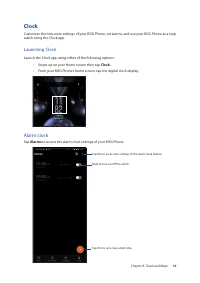
65 Chapter 8: Travel and Maps Clock Customize the time zone settings of your ROG Phone, set alarms, and use your ROG Phone as a stop watch using the Clock app. Launching Clock Launch the Clock app using either of the following options: • Swipe up on your Home screen then tap Clock . • From your ROG ...
Page 66 - Stopwatch; to use your ROG Phone as a stopwatch.; World clock; World Clock; to access the world clock settings of your ROG Phone.
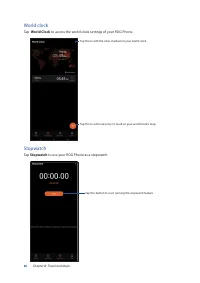
66 Chapter 8: Travel and Maps Stopwatch Tap Stopwatch to use your ROG Phone as a stopwatch. Tap this button to start running the stopwatch feature World clock Tap World Clock to access the world clock settings of your ROG Phone. Tap this to edit the cities marked on your world clock Tap this to add ...
Page 67 - Setting the timer; Timer; to access the timer feature of your ROG Phone.
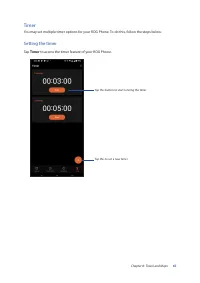
67 Chapter 8: Travel and Maps Timer You may set multiple timer options for your ROG Phone. To do this, follow the steps below: Setting the timer Tap Timer to access the timer feature of your ROG Phone. Tap this button to start running the timer Tap this to set a new timer
Page 68 - Zen Everywhere; Special Zen Tools; Calculate using your ROG Phone by enabling the Calculator app.; Launching Calculator; Launch Calculator using either of the following options:; Calculator; started with your computations.; Calculator screen
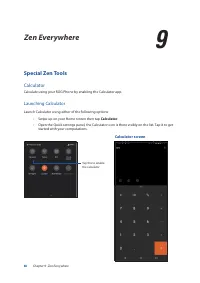
68 Chapter 9: Zen Everywhere Zen Everywhere 9 9 Zen Everywhere Special Zen Tools Calculator Calculate using your ROG Phone by enabling the Calculator app. Launching Calculator Launch Calculator using either of the following options: • Swipe up on your Home screen then tap Calculator . • Open the Qui...
Page 69 - Launching Sound Recorder; To launch Sound Recorder, swipe up on your Home screen then tap; Sound Recorder
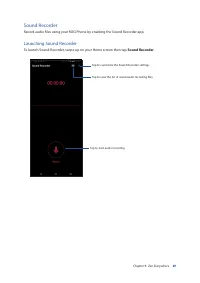
69 Chapter 9: Zen Everywhere Sound Recorder Record audio files using your ROG Phone by enabling the Sound Recorder app. Launching Sound Recorder To launch Sound Recorder, swipe up on your Home screen then tap Sound Recorder . Tap to start audio recording Tap to customize the Sound Recorder settings ...
Page 70 - Pausing a recording; To view your recording list, tap
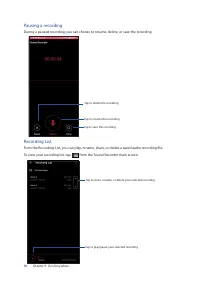
70 Chapter 9: Zen Everywhere Pausing a recording During a paused recording, you can choose to resume, delete, or save the recording. Recording List From the Recording List, you can play, rename, share, or delete a saved audio recording file. To view your recording list, tap from the Sound Recorder m...
Page 71 - Mobile Manager; device performance, manage the phone power, and storage usage.
71 Chapter 9: Zen Everywhere Mobile Manager Mobile Manager provides an integrated interface for several apps that are designed to optimize device performance, manage the phone power, and storage usage. To launch Mobile Manager, swipe up on your Home screen then tap Settings > Advanced > Mobile...
Page 72 - Updating your system; Storage; Maintain your Zen
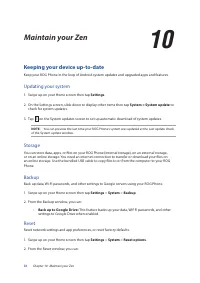
72 Chapter 10: Maintain your Zen Keeping your device up-to-date Keep your ROG Phone in the loop of Android system updates and upgraded apps and features. Updating your system 1. Swipe up on your Home screen then tap Settings . 2. On the Settings screen, slide down to display other items then tap Sys...
Page 73 - Unlocking your screen; Unlock screen options
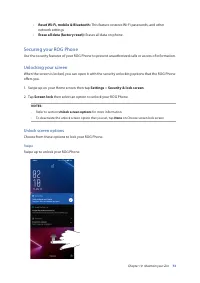
73 Chapter 10: Maintain your Zen • Reset Wi-Fi, mobile & Bluetooth: This feature restores Wi-Fi passwords, and other network settings. • Erase all data (factory reset): Erases all data on phone. Securing your ROG Phone Use the security features of your ROG Phone to prevent unauthorized calls or ...
Page 74 - PIN; Pattern
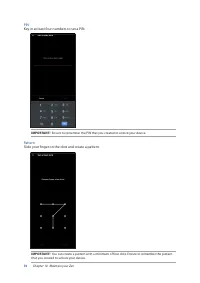
74 Chapter 10: Maintain your Zen PIN Key in at least four numbers to set a PIN. IMPORTANT! Ensure to remember the PIN that you created to unlock your device. Pattern Slide your finger on the dots and create a pattern. IMPORTANT! You can create a pattern with a minimum of four dots. Ensure to remembe...
Page 75 - Password; Key in at least four characters to create a password.; Setting your ROG Phone identity; To display your ROG Phone’s identity:; On the Settings screen, slide down to display other items then tap; System
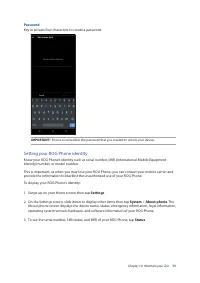
75 Chapter 10: Maintain your Zen Password Key in at least four characters to create a password. IMPORTANT! Ensure to remember the password that you created to unlock your device. Setting your ROG Phone identity Know your ROG Phone’s identity such as serial number, IMEI (International Mobile Equipmen...
Page 76 - Safety information; ROG Phone care; The battery
76 Appendix Appendix Safety information CAUTION! Use of controls or adjustments or performance of procedures other than those specified herein may result in hazardous radiation exposure. ROG Phone care • Use your ROG Phone in an environment with ambient temperatures between 0 °C (32 °F) and 35 °C (9...
Page 77 - The charger; • Use only the charger supplied with your ROG Phone.; Caution; • Do not short-circuit the battery terminals with metal items.; Operator access with a tool
77 • To avoid fire or burns, do not disassemble, bend, crush, or puncture the battery. NOTES: • Risk of explosion if battery is replaced by an incorrect type.• Dispose of used battery according to the instructions. The charger • Use only the charger supplied with your ROG Phone. • Never pull the cha...
Page 78 - EU Radio Equipment Directive Compliance; Simplified EU Declaration of Conformity; RF Output Table
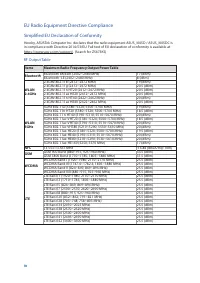
78 EU Radio Equipment Directive Compliance Simplified EU Declaration of Conformity Hereby, ASUSTek Computer Inc. declares that the radio equipment ASUS_I005D / ASUS_I005DC is in compliance with Directive 2014/53/EU. Full text of EU declaration of conformity is available at https://www.asus.com/suppo...
Page 79 - Items; Low Blue Light Certification
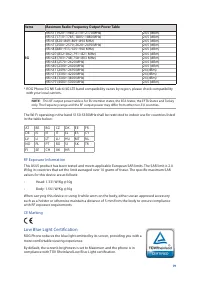
79 The Wi-Fi operating in the band 5150-5350MHz shall be restricted to indoor use for countries listed in the table below: AT BE BG CZ DK EE FR DE IS IE IT EL ES CY LV LI LT LU HU MT NL NO PL PT RO SI SK TR FI SE CH UK HR RF Exposure Information This ASUS product has been tested and meets applicable...
Page 80 - Alleviation of Eye Strain; Using GPS (Global Positioning System) on your ROG Phone; Prevention of Hearing Loss
80 Alleviation of Eye Strain To alleviate eye strain: • Take frequent breaks when using your ROG Phone (at least one 10-minute break every half an hour). • Regularly focus on distant objects to relax your eyes. • Do eye exercises often including: (1) Look up and down without moving your head (2) Mov...
Page 81 - Coating notice; Green ASUS notice; Authorised representative in Europe:; 電波障害自主規制について
81 Coating notice IMPORTANT ! To provide electrical insulation and maintain electrical safety, a coating is applied to insulate the device except on the areas where the I/O ports are located. Green ASUS notice ASUS is devoted to creating environment-friendly products and packaging to safeguard consu...
Page 82 - Index
Index A Advanced camera features 55 AeroActive Cooler 9 ASUS Phone 8 - charging 13 - nano SIM card 11 - parts and features 8 - turning on/off 15 B Backup and reset 72 Beauty - see also Advanced camera features 55 Block list 49 - blocking 49 - unblocking 49 Bluetooth 59 - enabling 59 - pairing 60 - u...