Page 2 - Essentio; ASUS Desktop PC; User Manual
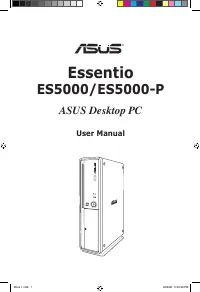
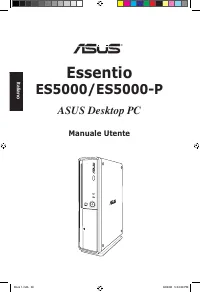
Essentio ES5000/ES5000-P ASUS Desktop PC User Manual ® Book 1.indb 1 9/4/08 5:03:48 PM
Page 3 - English
English Copyright © 2008 ASUSTeK COMPUTER INC. All Rights Reserved. No part of this manual, including the products and software described in it, may be reproduced, transmitted, transcribed, stored in a retrieval system, or translated into any language in any form or by any means, except documentatio...
Page 4 - ASUS contact information; ASUSTeK COMPUTER INC.; Technical Support
3 English ASUS contact information ASUSTeK COMPUTER INC. Address 15 Li-Te Road, Peitou, Taipei, Taiwan 1159 Telephone +886--894-3447 Fax +886--890-7798 E-mail [email protected] Web site www.asus.com.tw Technical Support Telephone +86-1-3849911 Online support support.asus.com ASUS COMPUTER INTERNATIO...
Page 5 - Notices; Federal Communications Commission Statement; Canadian Department of Communications Statement
4 English Notices Federal Communications Commission Statement This device complies with Part 15 of the FCC Rules. Operation is subject to the following two conditions:• This device may not cause harmful interference, and• This device must accept any interference received including interference that ...
Page 6 - Safety information; Electrical safety; CAUTION; CLASS 1 LASER PRODUCT
5 English Safety information Electrical safety • To prevent electrical shock hazard, disconnect the power cable from the electrical outlet before relocating the system. • When adding or removing any devices to or from the system, contact a qualified service technician or your retailer for help. Ensu...
Page 7 - General precautions
6 English General precautions Before using the ASUS Essentio ES5000/ES5000-P Desktop PC, carefully read the general precautions below. Improper operation could lead to personal injury or damage to the product.• Before using the product, ensure that all components are correctly installed and all cabl...
Page 8 - About this guide; How this guide is organized; Audience
7 English About this guide How this guide is organized This guide contains the following parts: 1. Chapter 1: System introduction This chapter gives a general description of ASUS Essentio ES5000/ES5000-P Desktop PC. The chapter lists the system features, including introduction on the front and rear ...
Page 9 - Optional Documentation
8 English Conventions used in this guide To ensure that you perform certain tasks properly, take note of the following symbols used throughout this guide. WARNING: Information to prevent injury to yourself when trying to complete a task. CAUTION: Information to prevent damage to the components when ...
Page 10 - System package contents
9 English System package contents Check your Essentio ES5000/ES5000-P system package for the following items. Standard items 1. ASUS Essentio ES5000/ES5000-P Desktop PC with • ASUS Desktop PC x 1 • Foot stand x 1 • Mouse x 1 • Keyboard x 1 . Cables • AC power cord x 1 3. Accessories • AC power adapt...
Page 12 - Chapter 1; System introduction
Chapter 1 System introduction This chapter gives a general description of the desktop PC. The chapter lists the system features including introduction on the front and rear panels. Book 1.indb 11 9/4/08 5:03:55 PM
Page 13 - Front panel; Close; Optical disk eject button
1 Chapter 1: System introduction English 1.1 Front panel The ASUS Essentio ES5000/ES5000-P Desktop PC includes an ASUS motherboard, a power supply unit, a front panel, and a rear panel. All of these components are integrated in a system casing elaborately designed by ASUS.The illustrations below sho...
Page 14 - Rear panel
13 ASUS Essentio ES5000/ES5000-P English 1.2 Rear panel The system rear panel includes the power input port and several I/O ports that allow convenient connection of devices.The illustration below shows the rear panel and the components on it. 1. Air vents. These vents allow air ventilation. 3 1 2 5...
Page 15 - . This port is for a High-Definition Multimedia Interface; LAN port LED indications
14 Chapter 1: System introduction English Audio 2, 4, or 6-channel configuration Port Headset 2-channel 4-channel 6-channel Light Blue Line In Rear Speaker Out Rear Speaker Out Lime Line Out Front Speaker Out Front Speaker Out Pink Mic In Mic In Bass/Center 5. Kensington ® lock port . This port allo...
Page 16 - Placement options; Horizontal placement; Vertical placement
15 ASUS Essentio ES5000/ES5000-P English 1.3 Placement options 1.3.1 Horizontal placement Place your desktop PC horizontally. 1.3.2 Vertical placement Install the foot stand supplied in the system package. Place your desktop PC vertically. To install the foot stand:1. Locate the screw hole on the bo...
Page 17 - Connecting to the keyboard and the; Connecting to other peripheral devices
16 Chapter 1: System introduction English 1.4 Connecting to the keyboard and the mouse The ASUS Essentio ES5000/ES5000-P Desktop PC is equipped with a PS/ keyboard and a USB mouse. Connect the PS/ keyboard to the PS/ keyboard port at the rear panel. Connect the USB mouse to a USB port either at the ...
Page 18 - Chapter 2; Getting started
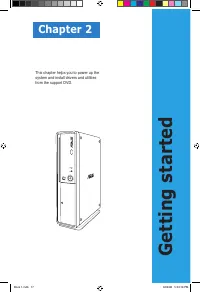
Chapter 2 Getting started This chapter helps you to power up the system and install drivers and utilities from the support DVD. Book 1.indb 17 9/4/08 5:04:16 PM
Page 19 - Installing an operating system; Powering your system
18 Chapter : Getting started English 2.1 Installing an operating system This motherboard supports Windows ® XP / Vista operating systems (OS). Always install the latest OS version and the corresponding updates to maximize the features of your hardware. When you start the system for the first time, t...
Page 20 - Running the Support DVD; Drivers; Support DVD information
ASUS Essentio ES5000/ES5000-P 19 English If Autorun is NOT enabled on your computer, browse the contents of the Support DVD to locate the file ASSETUP.EXE from the BIN folder. Double-click the ASSETUP.EXE to run the DVD. Click an item to install 2.3.1 Running the Support DVD Place the Support DVD in...
Page 22 - Utilities; ASUS InstAll - Installation Wizard for Utilities; ASUS Update
ASUS Essentio ES5000/ES5000-P 1 English 2.3.3 Utilities menu The Utilities menu shows the applications and other software that the motherboard supports. Tap an item from the screen to install. ASUS InstAll - Installation Wizard for Utilities Installs all of the utilities through the Installation Wiz...
Page 23 - Contact
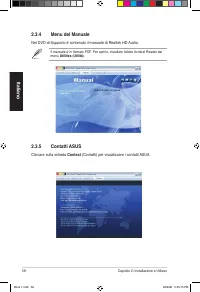
Chapter : Getting started English 2.3.4 Manuals menu The Support DVD includes the manual of Realtek HD Audio. The manual is in PDF format. To open it, install the Adobe Acrobat Reader from the Utilities menu. 2.3.5 ASUS contact information Click the Contact tab to display the ASUS contact informatio...
Page 24 - Browse this DVD; Motherboard Info
ASUS Essentio ES5000/ES5000-P 3 English 2.3.6 Other information The icons on the top right corner of the screen give additional information on the motherboard and the contents of the Support DVD. Click an icon to display the specified information. Browse this DVD Displays the Support DVD contents in...
Page 25 - Technical support Form; Filelist
4 Chapter : Getting started English Technical support Form Displays the ASUS Technical Support Request Form that you have to fill out when requesting technical support. Filelist Displays the contents of the Support DVD and a brief description of each in text format. Book 1.indb 4 9/4/08 5:04:4 PM
Page 26 - ASUS AI Manager; Installing AI Manager; Launching AI Manager
ASUS Essentio ES5000/ES5000-P 5 English 2.4 ASUS AI Manager ASUS AI Manager allows you to launch AI Disk, AI Security, and AI Probe easily. 2.4.1 Installing AI Manager To install AI Manager on your computer:1. Place the Support DVD into the optical drive. The DVD automatically displays the Drivers m...
Page 27 - AI Disk; Apply
6 Chapter : Getting started English Click to switch between a full-screen AI Manager window and the Quick bar.Click to keep AI Manager in the taskbar.Click to close AI Manager. 2.4.4 Main Launch AI Disk, AI Security, or AI Probe from the Main menu. Click the small triangle to open or close the Main ...
Page 28 - AI Security; OK
ASUS Essentio ES5000/ES5000-P 7 English AI Security AI Security allows you to set passwords to lock your removable storage devices such as a USB flash disk and a CD/DVD disk, which ensures more security for your data.To lock a device: 1. If you are using AI Security for the first time, key in a pass...
Page 29 - Change Password; AI Probe
8 Chapter : Getting started English 6. Key in your password, then click OK . The device you selected cannot be accessed without the password. To unlock a device:1. Deselect the device you locked, then click Apply . . Key in your password, then click OK . To change your password, click Change Passwor...
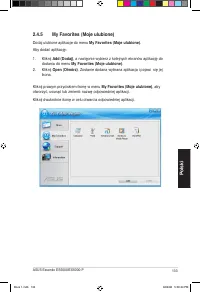
Page 30 - My Favorites; My Favorites
ASUS Essentio ES5000/ES5000-P 9 English 2.4.5 My favorites Add your favorite applications to the My Favorites menu. To add an application:1. Click Add and then select from the succeeding screen the application you want to add to the My Favorites menu. . Click Open . The application you selected is a...
Page 31 - Support; Information
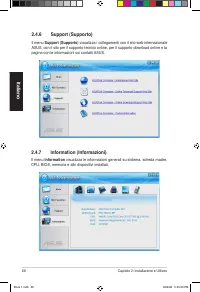
30 Chapter : Getting started English 2.4.6 Support The Support menu displays links to the ASUS international website, online technical support website, online download support website, and contact information website. 2.4.7 Information The Information menu displays the general information of your sy...
Page 32 - Recovering a Windows; Loading the initial OS default settings
ASUS Essentio ES5000/ES5000-P 31 English 2.6 Recovery CD (optional) The ASUS PC Recovery CD assists you in reinstalling the OS and restoring it to its original working state. Before using the recovery CD, copy your data files to a USB flash disk or to a network drive and make note of any customized ...
Page 33 - Enter
3 Chapter : Getting started English The ASUS PC Recovery CD is for ASUS Desktop PC only. DO NOT use it on other systems. Visit the ASUS website at www.asus.com for any updates. 2.6.2 Recovering a Windows ® Vista OS To recover a Windows Vista OS:1. Turn on your ASUS Desktop PC and press F8 when the A...
Page 35 - To install the device driver:; Cancel; Using the indoor antenna
34 Chapter : Getting started English Installing the device driver To install the device driver: 1. Connect the Easy DVB-T Tuner to the USB port of your desktop PC or laptop. . Your computer system automatically detects the connected device. Click Cancel from the pop-up message. Using the indoor ante...
Page 36 - Install the Tuner Driver
ASUS Essentio ES5000/ES5000-P 35 English 3. Insert the bundled support CD into the optical drive. When the setup screen appears, click Install the Tuner Driver . 4. Follow the Installation Wizard to complete the installation process. A progress bar or the driver installing message pops up to indicat...
Page 37 - Italiano; Manuale Utente
Italiano Essentio ES5000/ES5000-P ASUS Desktop PC Manuale Utente ® Book 1.indb 36 9/4/08 5:04:39 PM
Page 39 - Condizioni e Limiti di Copertura
38 Italiano Condizioni e Limiti di Copertura della Garanzia sul Prodotto Le condizioni di garanzia variano a seconda del tipo di prodotto e sono specificatamente indicate nel Certificato di Garanzia allegato, cui si fa espresso rinvio.Inoltre la presente garanzia non è valida in caso di danni o dife...
Page 40 - Licenza Software
39 Italiano Licenza Software I prodotti ASUS possono essere corredati da software, secondo la tipologia del prodotto. I software, abbinati ai prodotti, sono in versione “OEM”: il software OEM viene concesso in licenza all’ utente finale, come parte integrante del prodotto; ciò significa che non può ...
Page 41 - Contatti ASUS; Supporto Tecnico
40 Italiano Contatti ASUS ASUSTeK COMPUTER INC. Indirizzo 15 Li-Te Road, Peitou, Taipei, Taiwan 11259 Telefono +886--894-3447 Fax +886--890-7798 E-mail [email protected] Sito Web www.asus.com.tw Supporto Tecnico Telefono +86-1-3849911 Supporto Online support.asus.com ASUS COMPUTER INTERNATIONAL (Ame...
Page 42 - Comunicazioni
41 Italiano Comunicazioni Federal Communications Commission Statement This device complies with Part 15 of the FCC Rules. Operation is subject to the following two conditions:• This device may not cause harmful interference, and• This device must accept any interference received including interferen...
Page 43 - Informazioni in materia di Sicurezza; Sicurezza Elettrica; ATTENZIONE; PRODOTTO LASER DI CLASSE 1
4 Italiano Informazioni in materia di Sicurezza Sicurezza Elettrica • Prima di spostare il sistema, scollegare il cavo di alimentazione dalla presa elettrica, per evitare il rischio di scosse elettriche. • Durante l’ aggiunta o la rimozione di periferiche al o dal sistema, contattare un tecnico qual...
Page 44 - Precauzioni Generali
43 Italiano Precauzioni Generali Prima di utilizzare ASUS Essentio ES5000/ES5000-P Desktop PC, leggere attentamente le precauzini generali indicate di seguito. Un utilizzo non corretto potrebbe causare lesioni fisiche o danneggiare il prodotto. • Prima di utilizzare il prodotto, assicurarsi che tutt...
Page 45 - Informazioni sul Manuale; Come è organizzato il manuale; Capitolo 2: Installazione e Utilizzo
44 Italiano Informazioni sul Manuale Come è organizzato il manuale Il manuale è suddiviso nelle seguenti parti: 1. Capitolo 1: Introduzione del Sistema Questo capitolo fornisce una descrizione generale del desktop PC ASUS Essentio ES5000/ES5000-P Desktop PC e delle caratteristiche del sistema, compr...
Page 46 - Documentazione Opzionale
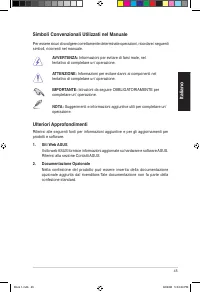
45 Italiano Simboli Convenzionali Utilizzati nel Manuale Per essere sicuri di svolgere correttamente determinate operazioni, ricordare i seguenti simboli, ricorrenti nel manuale. AVVERTENZA: Informazioni per evitare di farsi male, nel tentativo di completare un’ operazione. ATTENZIONE: Informazioni ...
Page 47 - Contenuto della Confezione del Sistema
46 Italiano Contenuto della Confezione del Sistema Controllare che nella confezione del sistema Essentio ES5000/ES5000-P siano contenuti i seguenti articoli: Articoli Standard 1. ASUS Essentio ES5000/ES5000-P Desktop PC con • ASUS Desktop PC x 1 • Piedistallo x 1 • Mouse x 1 • Tastiera x 1 . Cavi • ...
Page 48 - Capitolo 1; Introduzione; del; Sistema
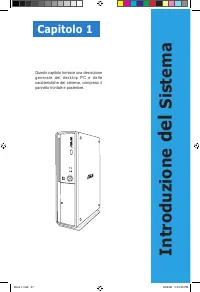
Capitolo 1 Introduzione del Sistema Questo capitolo fornisce una descrizione g e n e r a l e d e l d e s k t o p P C e d e l l e caratteristiche del sistema, compreso il pannello frontale e posteriore. Book 1.indb 47 9/4/08 5:04:45 PM
Page 49 - Pannello Frontale; Chiuso; Pulsante di Espulsione del Disco Ottico; Pulsante di Accensione
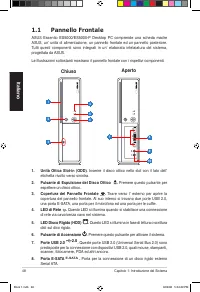
48 Capitolo 1: Introduzione del Sistema Italiano 1.1 Pannello Frontale ASUS Essentio ES5000/ES5000-P Desktop PC comprende una scheda madre ASUS, un’ unità di alimentazione, un pannello frontale ed un pannello posteriore. Tutti questi componenti sono integrati in un’ elaborata intelaiatura del sistem...
Page 50 - Pannello Posteriore
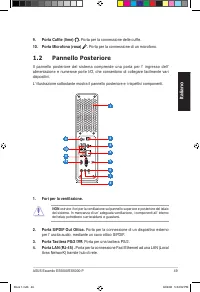
49 ASUS Essentio ES5000/ES5000-P Italiano 1.2 Pannello Posteriore Il pannello posteriore del sistema comprende una porta per l’ ingresso dell’ alimentazione e numerose porte I/O, che consentono di collegare facilmente vari dispositivi. L’ illustrazione sottostante mostra il pannello posteriore e i r...
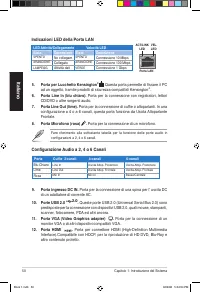
Page 51 - Configurazione Audio a 2, 4 o 6 Canali; Porta per Lucchetto Kensington; . Porta per connettore HDMI (High-Definition Multimedia; Indicazioni LED della Porta LAN
50 Capitolo 1: Introduzione del Sistema Italiano Configurazione Audio a 2, 4 o 6 Canali Porta Cuffie 2-canali 4-canali 6-canali Blu Chiaro Line In Uscita Altop. Posteriore Uscita Altop. Posteriore Lime Line Out Uscita Altop. Frontale Uscita Altop. Frontale Rosa Mic In Mic In Basso/Centrale 5. Porta ...
Page 52 - Opzioni di Posizionamento; Posizionamento Orizzontale; Posizionamento Verticale
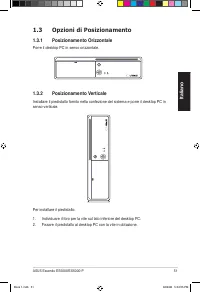
51 ASUS Essentio ES5000/ES5000-P Italiano 1.3 Opzioni di Posizionamento 1.3.1 Posizionamento Orizzontale Porre il desktop PC in senso orizzontale. 1.3.2 Posizionamento Verticale Installare il piedistallo fornito nella confezione del sistema e porre il desktop PC in senso verticale. Per installare il...
Page 53 - Connessione con Tastiera e Mouse
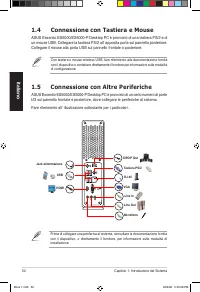
5 Capitolo 1: Introduzione del Sistema Italiano 1.4 Connessione con Tastiera e Mouse ASUS Essentio ES5000/ES5000-P Desktop PC è provvisto di una tastiera PS/2 e di un mouse USB. Collegare la tastiera PS/ all’ apposita porta sul pannello posteriore. Collegare il mouse alla porta USB sul pannello fron...
Page 54 - Capitolo 2; Installazione e Utilizzo
Capitolo 2 Installazione e Utilizzo Questo capitolo illustra le modalità di accensione del sistema e di installazione di driver e utilità dal DVD di Supporto. Book 1.indb 53 9/4/08 5:05:09 PM
Page 55 - Installazione di un Sistema Operativo; NO; Accensione del Sistema
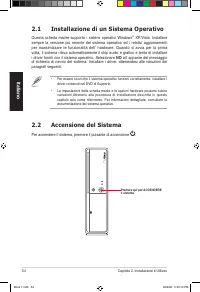
54 Capitolo 2: Installazione e Utilizzo Italiano 2.1 Installazione di un Sistema Operativo Questa scheda madre supporta i sistemi operativi Windows ® XP/Vista. Installare sempre la versione più recente del sistema operativo ed i relativi aggiornamenti per massimizzare le funzionalità dell’ hardware....
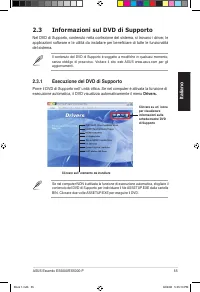
Page 56 - Esecuzione del DVD di Supporto; Informazioni sul DVD di Supporto
ASUS Essentio ES5000/ES5000-P 55 Italiano Se nel computer NON è attivata la funzione di esecuzione automatica, sfogliare il contenuto del DVD di Supporto per individuare il file ASSETUP.EXE dalla cartella BIN. Cliccare due volte ASSETUP.EXE per eseguire il DVD. Cliccare sull’ elemento da installare ...
Page 60 - Esplorazione del Contenuto del DVD; Informazioni sulla Scheda Madre
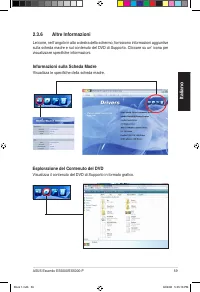
ASUS Essentio ES5000/ES5000-P 59 Italiano 2.3.6 Altre Informazioni Le icone, nell’ angolo in alto a destra dello schermo, forniscono informazioni aggiuntive sulla scheda madre e sul contenuto del DVD di Supporto. Cliccare su un’ icona per visualizzare specifiche informazioni. Esplorazione del Conten...
Page 61 - Scheda per Supporto Tecnico
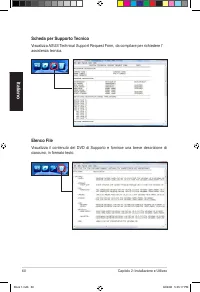
60 Capitolo 2: Installazione e Utilizzo Italiano Scheda per Supporto Tecnico Visualizza ASUS Technical Support Request Form, da compilare per richiedere l’ assistenza tecnica. Elenco File Visualizza il contenuto del DVD di Supporto e fornisce una breve descrizione di ciascuno, in formato testo. Book...
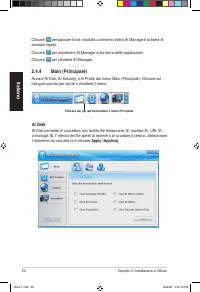
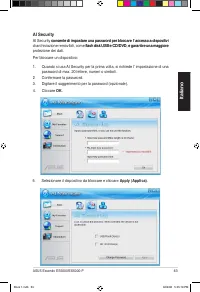
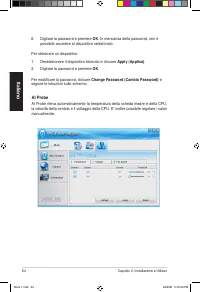
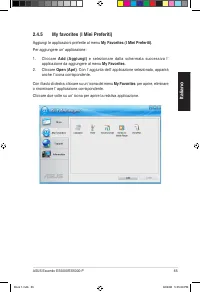
Page 62 - Installazione di AI Manager; Avvio di AI Manager; Start > Tutti i Programmi; Barra di Accesso Rapido AI Manager
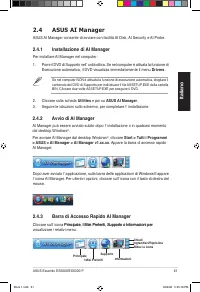
ASUS Essentio ES5000/ES5000-P 61 Italiano 2.4 ASUS AI Manager ASUS AI Manager consente di avviare con facilità AI Disk, AI Security e AI Probe. 2.4.1 Installazione di AI Manager Per installare AI Manager nel computer: 1. Porre il DVD di Supporto nell’ unità ottica. Se nel computer è attivata la funz...
Page 68 - Ripristino del Sistema Operativo Windows; Caricamento Impostazioni Predefinite
ASUS Essentio ES5000/ES5000-P 67 Italiano 2.6 CD di Ripristino (Opzionale) ASUS PC Recovery CD assiste nella reistallazione del sistema operativo e lo riporta allo stato operativo originario. Prima di utilizzare il CD di Ripristino, copiare i file dati su un flash disk USB o su un disco di rete e tr...
Page 70 - Tramite Antenna Esterna
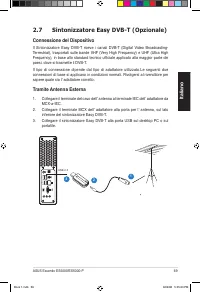
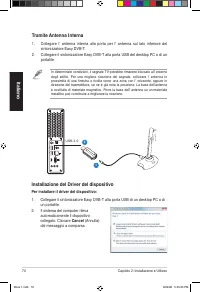
ASUS Essentio ES5000/ES5000-P 69 Italiano 2.7 Sintonizzatore Easy DVB-T (Opzionale) Connessione del Dispositivo Il Sintonizzatore Easy DVB-T riceve i canali DVB-T (Digital Video Broadcasting- Terrestrial), trasportati sulle bande VHF (Very High Frequency) e UHF (Ultra High Frequency), in base allo s...
Page 71 - Per installare il driver del dispositivo:; Tramite Antenna Interna
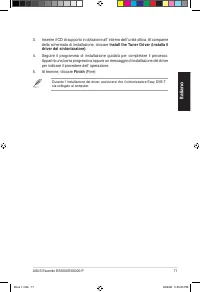
70 Capitolo 2: Installazione e Utilizzo Italiano Installazione del Driver del dispositivo Per installare il driver del dispositivo: 1. Collegare il sintonizzatore Easy DVB-T alla porta USB di un desktop PC o di un portatile. . Il sistema del computer rileva automaticamente il dispositivo collegato. ...
Page 72 - Install the Tuner Driver (Installa il; Finish
ASUS Essentio ES5000/ES5000-P 71 Italiano 3. Inserire il CD di supporto in dotazione all’ interno dell’ unità ottica. Al comparire della schermata di installazione, cliccare Install the Tuner Driver (Installa il driver del sintonizzatore) . 4. Seguire il programma di installazione guidata per comple...
Page 73 - Português; Manual do utilizador
Português Essentio ES5000/ES5000-P ASUS Desktop PC Manual do utilizador ® Book 1.indb 7 9/4/08 5:05:6 PM
Page 75 - Informação de Contactos ASUS; Assistência técnica
74 Português Informação de Contactos ASUS ASUSTeK COMPUTER INC. Endereço 15 Li-Te Road, Peitou, Taipei, Taiwan 1159 Telefone +886--894-3447 Fax +886--890-7798 E-mail [email protected] Site Web www.asus.com.tw Assistência técnica Telefone +86-1-3849911 Assistência online support.asus.com ASUS COMPUTE...
Page 77 - Informação de Segurança; Segurança eléctrica; PRODUTO LASER CLASSE 1
76 Português Informação de Segurança Segurança eléctrica • Para evitar o perigo de electrocussão, desligue o cabo de alimentação da saída eléctrica, antes de mudar o sistema de lugar. • Quando adicionar ou remover quaisquer dispositivos ao/do sistema, contacte um técnico de serviço qualificado ou o ...
Page 78 - Precauções gerais
77 Português Precauções gerais Antes de utilizar o PC de Secretária ASUS Essentio ES5000/ES5000-P, leia cuidadosamente as precauções gerais descritas abaixo. O funcionamento impróprio pode causar lesões pessoais ou danos no produto. • Antes de utilizar o produto, certifique-se de que todos os compon...
Page 79 - Sobre este guia; Como este guia é organizado; Público
78 Português Sobre este guia Como este guia é organizado Este guia contém as seguintes partes: 1. Capítulo 1: Introdução ao sistema Este capítulo dá uma descrição geral do ASUS Essentio PC de Secretária ES5000/ES5000-P. O capítulo enuncia as funcionalidades do sistema, incluindo a introdução aos pai...
Page 80 - Onde encontrar mais informação; Documentação Opcional
79 Português Convenções usadas neste guia Para se certificar de que executa devidamente certas tarefas, anote os seguintes símbolos utilizados ao longo deste guia. AVISO: Informação que se destina a evitar que sofra lesões ao tentar concluir uma tarefa. CUIDADO: Informação que se destina a evitar qu...
Page 81 - Conteúdos do pacote de sistema
80 Português Conteúdos do pacote de sistema Verifique se o seu pacote de sistema Essentio ES5000/ES5000-P contém os seguintes itens. Itens standard 1. PC de Secretária ASUS Essentio ES5000/ES5000-P com • 1 PC de Secretária ASUS • 1 Suporte • 1 Rato • 1 Teclado . Cabos • 1 Cabo de alimentação AC 3. A...
Page 82 - Capítulo 1; Introdução ao sistema
Capítulo 1 Introdução ao sistema Este capítulo dá uma descrição geral do PC de Secretária. O capítulo enuncia as funcionalidades do sistema, incluindo a introdução aos painéis frontal e traseiro. Book 1.indb 81 9/4/08 5:05:3 PM
Page 83 - Painel frontal; Fechar; Botão de ejectar o disco óptico
8 Capítulo 1: Introdução ao sistema Português 1.1 Painel frontal O PC de Secretária ASUS Essentio ES5000/ES5000-P inclui uma motherboard ASUS, uma unidade de alimentação eléctrica, um painel frontal e um painel traseiro. Todos estes componentes estão integrados num invólucro de sistema desenhado de ...
Page 84 - Painel traseiro
83 ASUS Essentio ES5000/ES5000-P Português 1.2 Painel traseiro O painel traseiro do sistema inclui a porta de entrada de energia e várias portas de entrada/saída que permitem a ligação conveniente de dispositivos.A ilustração abaixo mostra o painel traseiro e seus componentes. 1. Saídas de ar. Estas...
Page 85 - Configuração áudio de 2, 4 ou 6 canais; Porta de bloqueio Kensington; . Esta porta é para o conector de um Interface Multimédia; Indicações LED da porta LAN
84 Capítulo 1: Introdução ao sistema Português Configuração áudio de 2, 4 ou 6 canais Porta Auscultadores 2 canais 4 canais 6 canais Azul Claro Entrada de Linha Saída de Altifalante Traseiro Saída de Altifalante Traseiro Verde limão Saída de Linha Saída de Altifalante Frontal Saída de Altifalante Fr...
Page 86 - Opções de colocação; Colocação horizontal; Colocação vertical
85 ASUS Essentio ES5000/ES5000-P Português 1.3 Opções de colocação 1.3.1 Colocação horizontal Coloque o seu PC de Secretária na horizontal. 1.3.2 Colocação vertical Instale o suporte fornecido no pacote de sistema. Coloque o seu PC de Secretária na vertical. Para instalar o suporte: 1. Localize o or...
Page 87 - Ligar ao teclado e ao rato
86 Capítulo 1: Introdução ao sistema Português 1.4 Ligar ao teclado e ao rato O PC de Secretária ASUS Essentio ES5000/ES5000-P está equipado com um teclado PS/2 e um rato USB. Ligue o teclado PS/2 à porta do mesmo, situada no painel traseiro. Ligue o rato USB à porta USB, no painel traseiro ou no fr...
Page 88 - Capítulo 2; Primeiros passos
Capítulo 2 Primeiros passos Este capítulo ajuda-o a ligar o sistema e instalar controladores e utilitários a partir do CD de Apoio. Book 1.indb 87 9/4/08 5:05:51 PM
Page 89 - Instalar um sistema operativo; Ligar o seu sistema
88 Capítulo : Primeiros passos Português 2.1 Instalar um sistema operativo Esta motherboard suporta os sistemas operativos (SO) Windows ® XP / Vista. Instale sempre a última versão de SO e as actualizações correspondentes, para maximizar as funcionalidades do seu hardware. Quando arranca o sistema p...
Page 90 - Executar o DVD de Apoio; Informação do DVD de Apoio
ASUS Essentio ES5000/ES5000-P 89 Português Se o Autorun (Execução automática) NÃO estiver activado no seu computador, pesquise nos conteúdos do DVD de Apoio para localizar o ficheiro ASSETUP. EXE a partir da pasta BIN. Dê um duplo clique em ASSETUP.EXE para executar o DVD. Clique num item para insta...
Page 92 - ASUS InstAll - Assistente de Instalação para Utilitários
ASUS Essentio ES5000/ES5000-P 91 Português 2.3.3 Menu Utilitários O menu Utilities (Utilitários) mostra as aplicações e outro software que a motherboard suporte. No menu, toque num item para instalar. ASUS InstAll - Assistente de Instalação para Utilitários Instala todos os utilitários através do As...
Page 94 - Pesquisar neste DVD; Informações sobre a motherboard
ASUS Essentio ES5000/ES5000-P 93 Português 2.3.6 Outras informações Os ícones no canto superior direito fornecem informação adicional sobre a motherboard e os conteúdos do DVD de Apoio. Clique num ícone para mostrar a informação especificada. Pesquisar neste DVD Mostra os conteúdos do DVD de Apoio e...
Page 95 - Formulário de assistência técnica; Lista de ficheiros
94 Capítulo : Primeiros passos Português Formulário de assistência técnica Mostra o Formulário de Pedido de Assistência Técnica da ASUS, o qual terá de preencher quando solicitar assistência técnica. Lista de ficheiros Mostra os conteúdos do DVD de Apoio e uma breve descrição de cada um, em formato ...
Page 96 - ASUS AI
ASUS Essentio ES5000/ES5000-P 95 Português 2.4 ASUS AI Manager (Gestor AI ASUS) O ASUS AI Manager (Gestor AI ASUS) permite-lhe executar facilmente o AI Disk (Disco AI), o AI Security (Segurança AI) e o AI Probe (Teste AI). 2.4.1 Instalar o AI Manager (Gestor AI) Para instalar o AI Manager (Gestor AI...
Page 100 - My Favorites (Os Meus
ASUS Essentio ES5000/ES5000-P 99 Português 2.4.5 Os Meus Favoritos Adicione as suas aplicações preferidas ao menu My Favorites (Os Meus Favoritos) . Para adicionar uma aplicação:1. Clique em Add (Adicionar) e depois seleccione a partir do ecrã seguinte a aplicação que quer adicionar ao menu My Favor...
Page 101 - Informações
100 Capítulo : Primeiros passos Português 2.4.6 Assistência O menu Support (Assistência) mostra hiperligações para o site internacional da ASUS, para o site de assistência técnica online, para o site de assistência a downloads online e para o site de informações de contacto. 2.4.7 Informações O menu...
Page 102 - Recuperar um SO Windows; Recover system to a partition (Recuperar sistema para uma; Carregar as definições originais iniciais do
ASUS Essentio ES5000/ES5000-P 101 Português 2.6 CD de Recuperação (opcional) O CD de Recuperação do PC ASUS ajuda-o a reinstalar o SO e a restaurá-lo para o seu estado de funcionamento original. Antes de utilizar o CD de Recuperação, copie os seus ficheiros de dados para uma memória portátil USB ou ...
Page 104 - Usar uma antena exterior
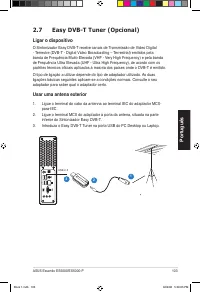
ASUS Essentio ES5000/ES5000-P 103 Português 2.7 Easy DVB-T Tuner (Opcional) Ligar o dispositivo O Sintonizador Easy DVB-T recebe canais de Transmissão de Vídeo Digital - Terrestre (DVB-T - Digital Video Broadcasting – Terrestrial) emitidos pela banda de Frequência Muito Elevada (VHF - Very High Freq...
Page 105 - Para instalar o controlador do dispositivo:; Usar a antena interior
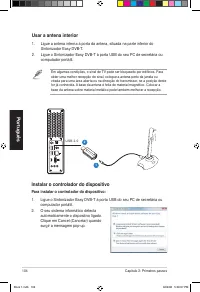
104 Capítulo : Primeiros passos Português Instalar o controlador do dispositivo Para instalar o controlador do dispositivo: 1. Ligue o Sintonizador Easy DVB-T à porta USB do seu PC de secretária ou computador portátil. . O seu sistema informático detecta automaticamente o dispositivo ligado. Clique ...
Page 106 - “Install the Tuner Driver
ASUS Essentio ES5000/ES5000-P 105 Português 3. Introduza o CD auxiliar incluído na unidade de disco óptico. Quando aparecer o ecrã de configuração, clique em “Install the Tuner Driver (Instalar o Controlador do Sintonizador)”. 4. Siga o Assistente de Instalação para concluir o processo de instalação...
Page 107 - Polski
Polski Essentio ES5000/ES5000-P ASUS Desktop PC Podręcznik użytkownika ® Book 1.indb 106 9/4/08 5:06:09 PM
Page 109 - Informacje kontaktowe ASUS; Pomoc techniczna
108 Polski Informacje kontaktowe ASUS ASUSTeK COMPUTER INC. Adres 15 Li-Te Road, Peitou, Taipei, Taiwan 1159 Telefon +886--894-3447 Faks +886--890-7798 E-mail [email protected] Strona sieci web www.asus.com.tw Pomoc techniczna Telefon +86-1-3849911 Pomoc online support.asus.com ASUS COMPUTER INTERNA...
Page 111 - Informacje związane z bezpieczeństwem; Bezpieczeństwo elektryczne; PRZESTROGA
110 Polski Informacje związane z bezpieczeństwem Bezpieczeństwo elektryczne • Aby zapobiec porażeniu prądem elektrycznym, przed przeniesieniem systemu należy odłączyć kabel zasilający od gniazda elektrycznego. • Podczas dodawania lub usuwania urządze� do lub z systemu w celu uzyskania pomocy należy ...
Page 112 - Ogólne środki ostrożności
111 Polski Ogólne środki ostrożności Przed użyciem komputera desktop PC ASUS Essentio ES5000/ES5000-P należy uważnie przeczytać ogólne, opisane poniżej środki ostrożności. Nieprawidłowe działanie może spowodować ciała osobiste lub uszkodzenie produktu.• Przed użyciem tego produktu należy upewnić się...
Page 113 - O tym podręczniku; Sposób organizacji podręcznika
11 Polski O tym podręczniku Sposób organizacji podręcznika Ten podręcznik zawiera następujące części: 1. Rozdział 1: Wprowadzenie do systemu Ten rozdział podaje ogólny opis ASUS Essentio Komputer desktop PC S5000/ES5000-P. Ten rozdział wymienia funkcje systemu, włącznie z omówieniem paneli przednich...
Page 114 - Strony sieci web ASUS
113 Polski Konwencje stosowane w tej instrukcji Aby upewnić się, że określone działania wykonywane są prawidłowo należy uważać na następujące symbole, znajdujące się w tym podręczniku. OSTRZEŻENIE: Informacja o możliwości odniesienia obraże� podczas wykonywania zadania. PRZESTROGA: Informacja o możl...
Page 115 - Zawartość opakowania z systemem; następujące elementy.
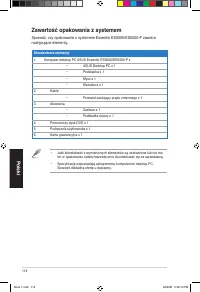
114 Polski Zawartość opakowania z systemem Sprawdź, czy opakowanie z systemem Essentio ES5000/ES5000-P zawiera następujące elementy. Standardowe elementy 1. Komputer dekstop PC ASUS Essentio ES5000/ES5000-P z • ASUS Desktop PC x 1 • Podstawka x 1 • Mysz x 1 • Klawiatura x 1 . Kable • Przewód zasilaj...
Page 116 - Rozdział 1; Wprowadzenie do systemu
Rozdział 1 Wprowadzenie do systemu Ten rozdział podaje ogólny opis komputera desktop PC. Ten rozdział wymienia funkcje systemu, włącznie z omówieniem paneli przednich i tylnych. Book 1.indb 115 9/4/08 5:06:15 PM
Page 117 - Panel przedni; Zamknij; Przycisk wysuwania dysku optycznego
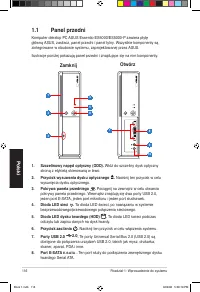
116 Rozdział 1: Wprowadzenie do systemu Polski 1.1 Panel przedni Komputer dekstop PC ASUS Essentio ES5000/ES5000-P zawiera płytę główną ASUS, zasilacz, panel przedni i panel tylny. Wszystkie komponenty są zintegrowane w obudowie systemu, zaprojektowanej przez ASUS.Ilustracje poniżej pokazują panel p...
Page 118 - Panel tylny; . Ten port służy do podłączenia
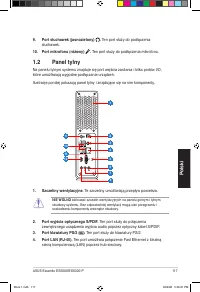
117 ASUS Essentio ES5000/ES5000-P Polski 1.2 Panel tylny Na panelu tylnym systemu znajduje się port wejścia zasilania i kilka portów I/O, które umożliwiają wygodne podłączanie urządze�.Ilustracje poniżej pokazują panel tylny i znajdujące się na nim komponenty. 1. Szczeliny wentylacyjne. Te szczeliny...
Page 119 - Port blokady Kensington; . Ten port służy do podłączenia mikrofonu.; Wskazania LED portu LAN
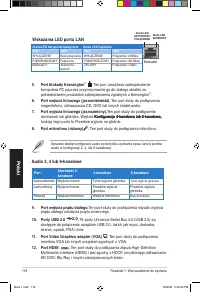
118 Rozdział 1: Wprowadzenie do systemu Polski Audio 2, 4 lub 6-kanałowe Port Słuchawki 2- kanałowe 4-kanałowe 6-kanałowe Jasnoniebieski Wejście liniowe Tylne wyjście głośnika Tylne wyjście głośnika Jasnozielony Wyjście liniowe Przednie wyjście głośnika Przednie wyjście głośnika Różowy Wejście mikro...
Page 120 - Opcje ustawienia; Ustawienie poziome; Ustawienie pionowe
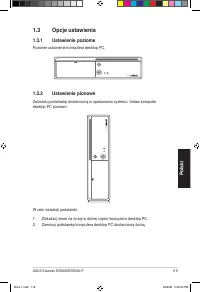
119 ASUS Essentio ES5000/ES5000-P Polski 1.3 Opcje ustawienia 1.3.1 Ustawienie poziome Poziome ustawienie komputera desktop PC. 1.3.2 Ustawienie pionowe Zainstaluj podstawkę dostarczoną w opakowaniu systemu. Ustaw komputer desktop PC pionowo. W celu instalacji podstawki: 1. Zlokalizuj otwór na śrubę...
Page 121 - Podłączenie klawiatury i myszy
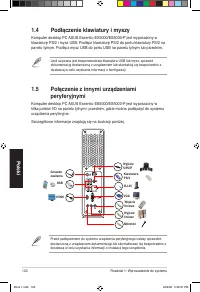
10 Rozdział 1: Wprowadzenie do systemu Polski 1.4 Podłączenie klawiatury i myszy Komputer desktop PC ASUS Essentio ES5000/ES5000-P jest wyposażony w klawiaturę PS/2 i mysz USB. Podłącz klawiaturę PS/2 do portu klawiatury PS/2 na panelu tylnym. Podłącz mysz USB do portu USB na panelu tylnym lub przed...
Page 122 - Rozdział 2; Na początek
Rozdział 2 Na początek Ten rozdział pomaga we włączeniu zasilania systemu i instalacji sterowników oraz narzędzi z pomocniczego dysku DVD. Book 1.indb 11 9/4/08 5:06:3 PM
Page 123 - Instalacja systemu operacyjnego; Włączanie zasilania systemu
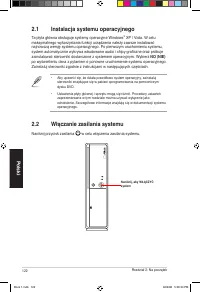
1 Rozdział 2: Na początek Polski 2.1 Instalacja systemu operacyjnego Ta płyta główna obsługuje systemy operacyjne Windows ® XP / Vista. W celu maksymalnego wykorzystania funkcji urządzenia należy zawsze instalować najnowszą wersję systemu operacyjnego. Po pierwszym uruchomieniu systemu, system autom...
Page 124 - Informacje pomocniczego dysku DVD
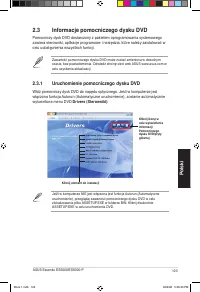
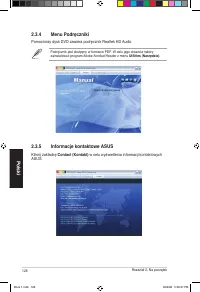
ASUS Essentio ES5000/ES5000-P 13 Polski Jeśli w komputerze NIE jest włączona jest funkcja Autorun (Automatyczne uruchomienie), przeglądaj zawartość pomocniczego dysku DVD w celu zlokalizowania pliku ASSETUP.EXE w folderze BIN. Kliknij dwukrotnie ASSETUP.EXE w celu uruchomienia DVD. Kliknij element d...
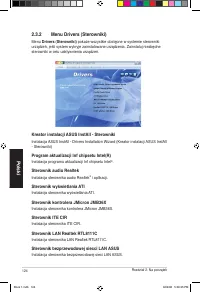
Page 126 - Kreator instalcji ASUS InstAll
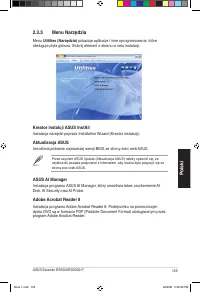
ASUS Essentio ES5000/ES5000-P 15 Polski 2.3.3 Menu Narzędzia Menu Utilities (Narzędzia) pokazuje aplikacje i inne oprogramowanie, które obsługuje płyta główna. Stuknij element z ekranu w celu instalacji. Kreator instalcji ASUS InstAll Instalacja narzędzi poprzez Installation Wizard (Kreator instalac...
Page 128 - Browse this DVD (Przeglądaj ten dysk DVD)
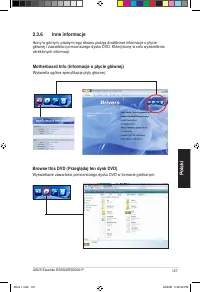
ASUS Essentio ES5000/ES5000-P 17 Polski 2.3.6 Inne informacje Ikony w górnym, prawym rogu ekranu podają dodatkowe informacje o płycie głównej i zawartości pomocniczego dysku DVD. Kliknij ikonę w celu wyświetlenia określonych informacji. Browse this DVD (Przeglądaj ten dysk DVD) Wyświetlanie zawartoś...
Page 129 - Technical support Form (Formularz pomocy technicznej)
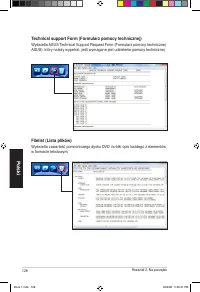
18 Rozdział 2: Na początek Polski Technical support Form (Formularz pomocy technicznej) Wyświetla ASUS Technical Support Request Form (Formularz pomocy technicznej ASUS), który należy wypełnić, jeśli wymagane jest udzielenie pomocy technicznej. Filelist (Lista plików) Wyświetla zawartość pomocniczeg...
Page 130 - Instalacja AI Manager; Uruchamianie AI Manager; Start > All Programs; Pasek szybkiego dostępu AI Manager
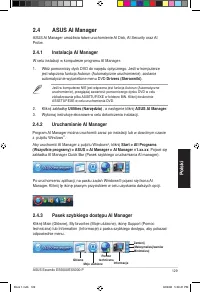
ASUS Essentio ES5000/ES5000-P 19 Polski 2.4 ASUS AI Manager ASUS AI Manager umożliwia łatwe uruchomienie AI Disk, AI Security oraz AI Probe. 2.4.1 Instalacja AI Manager W celu instalacji w komputerze programu AI Manager:1. Włóż pomocniczy dysk DVD do napędu optycznego. Jeśli w komputerze jest włączo...
Page 131 - Główne
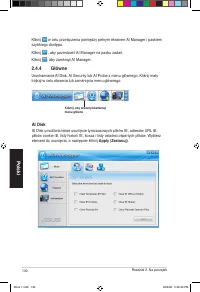
130 Rozdział 2: Na początek Polski Kliknij w celu przełączenia pomiędzy pełnym ekranem AI Manager i paskiem szybkiego dostępu. Kliknij , aby pozostawić AI Manager na pasku zada�. Kliknij , aby zamknąć AI Manager. 2.4.4 Główne Uruchamianie AI Disk, AI Security lub AI Probe z menu głównego. Kliknij ma...
Page 135 - Informacje
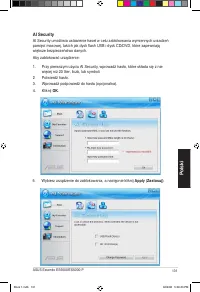
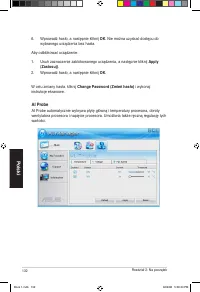
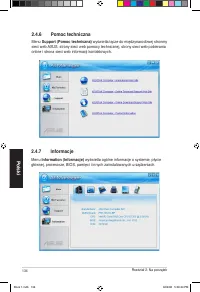
134 Rozdział 2: Na początek Polski 2.4.6 Pomoc techniczna Menu Support (Pomoc techniczna) wyświetla łącze do międzynarodowej stronmy sieci web ASUS, strony sieci web pomocy technicznej, strony sieci web pobierania online i strona sieci web informacji kontaktowych. 2.4.7 Informacje Menu Information (...
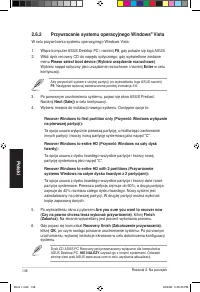
Page 136 - Przywracanie systemu operacyjnego Windows; Recover system to a partition (Przywróć system na; Recovery system to entire HD (Przywróć system na całym; Yes; Ładowanie początkowych ustawień
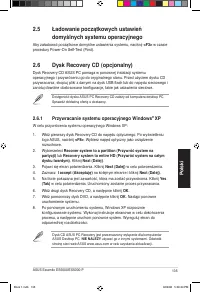
ASUS Essentio ES5000/ES5000-P 135 Polski 2.6 Dysk Recovery CD (opcjonalny) Dysk Recovery CD ASUS PC pomaga w ponownej instalacji systemu operacyjnego i przywróceniu go do oryginalnego stanu. Przed użyciem dysku CD przywracania, skopiuj pliki z danymi na dysk USB flash lub do napędu sieciowego i zano...
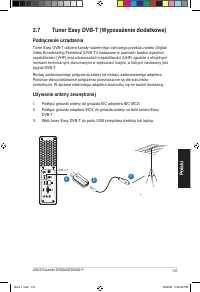
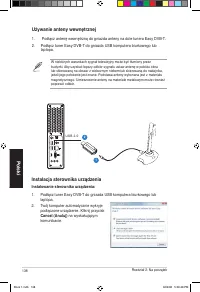
Page 139 - Instalowanie sterownika urządzenia:; Używanie anteny wewnętrznej
138 Rozdział 2: Na początek Polski Instalacja sterownika urządzenia Instalowanie sterownika urządzenia: 1. Podłącz tuner Easy DVB-T do gniazda USB komputera biurkowego lub laptopa. 2. Twój komputer automatycznie wykryje podłączone urządzenie. Kliknij przycisk Cancel (Anuluj) na wyskakującym komunika...
Page 140 - Install the Tuner Driver (Zainstaluj sterownik
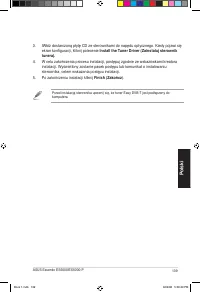
ASUS Essentio ES5000/ES5000-P 139 Polski 3. IWłóż dostarczoną płytę CD ze sterownikami do napędu optycznego. Kiedy pojawi się ekran konfiguracji, kliknij polecenie Install the Tuner Driver (Zainstaluj sterownik tunera). 4. W celu zako�czenia procesu instalacji, postępuj zgodnie ze wskazówkami kreato...
Page 141 - Česky; Stolní počítač ASUS; Uživatelská příručka
Česky Essentio ES5000/ES5000-P Stolní počítač ASUS Uživatelská příručka ® Book 1.indb 140 9/4/08 5:06:50 PM
Page 143 - Kontaktní informace ASUS; Technická podpora
14 Česky Kontaktní informace ASUS ASUSTeK COMPUTER INC. Adresa 15 Li-Te Road, Peitou, Taipei, Taiwan 1159 Telefon +886--894-3447 Fax +886--890-7798 E-mail [email protected] Web www.asus.com.tw Technická podpora Telefon +86-1-3849911 Online podpora support.asus.com ASUS COMPUTER INTERNATIONAL (Amerik...
Page 145 - Bezpečnostní zásady; Elektrická bezpečnost
144 Česky Bezpečnostní zásady Elektrická bezpečnost • Aby se zabránilo úrazu elektrickým proudem, před přemísťováním systému odpojte napájecí kabel z elektrické zásuvky. • Při přidávání nebo odebírání zařízení do nebo ze systému, požádejte o pomoc kvalifikovaného servisního technika nebo prodejce. P...
Page 146 - Obecná bezpečnostní opatření
145 Česky Obecná bezpečnostní opatření Než začnete používat stolní PC ASUS Essentio ES5000/ES5000-P, pečlivě si přečtěte níže uvedená obecná bezpečnostní opatření. Nevhodné použití může vést k poranění nebo poškození výrobku.• Před použitím výrobku zkontrolujte, zda jsou všechny součástky správně na...
Page 147 - O této příručce; Jak je tato příručka uspořádána; Komu je určena
146 Česky O této příručce Jak je tato příručka uspořádána Tato příručka obsahuje následující části: 1. Kapitola 1: Představení systému Tato kapitola poskytuje obecný popis stolního počítače ASUS Essentio ES5000/ES5000-P. Tato kapitola obsahuje seznam vlastností systému, včetně představení jeho předn...
Page 148 - Kde najít další informace; Volitelná dokumentace
147 Česky Konvence, použité v této příručce Abyste provedli určité úkoly správně, všimněte si následujících symbolů, používaných v této příručce. VAROVÁNÍ: Informace, které zabrání vašemu zranění, když se snažíte dokončit úkol. VÝSTRAHA: Informace, které zabrání poškození součástek, když se snažíte ...
Page 149 - Obsah systémového balení
148 Česky Obsah systémového balení Zkontrolujte, zda vaše systémové balení Essentio ES5000/ES5000-P obsahuje následující položky. Standardní položky 1. Stolní počítač ASUS Essentio ES5000/ES5000-P a • Stolní počítač ASUS x 1 • Stojan x 1 • Myš x 1 • Klávesnice x 1 . Kabely • Napájecí kabel x 1 3. Př...
Page 150 - Kapitola 1; Představení systému
Kapitola 1 Představení systému Tato kapitola poskytuje obecný popis stolního počítače. Tato kapitola obsahuje seznam vlastností systému, včetně představení jeho předního a zadního panelu (stěny). Book 1.indb 149 9/4/08 5:06:56 PM
Page 151 - Přední panel; Zavřít; Tlačítko pro vysunutí optického disku; LED indikátor pevného disku; Tlačítko napájení
150 Kapitola 1: Představení systému Česky 1.1 Přední panel Stolní počítač ASUS Essentio ES5000/ES5000-P obsahuje základní desku ASUS, napájecí zdroj, přední panel a zadní panel. Všechny tyto součástky jsou integrovány ve skříni, pečlivě navržené firmou ASUS.Níže uvedené obrázky zobrazují přední pane...
Page 152 - Zadní panel; . Tento port slouží k připojení sluchátek.
151 ASUS Essentio ES5000/ES5000-P Česky 1.2 Zadní panel Systémový zadní panel obsahuje vstupní port napájení a několik I/O portů, které umožňují pohodlné připojení zařízení.Níže uvedené obrázky zobrazují zadní panel a součástky na něm. 1. Ventilační otvory. Tyto otvory umožňují ventilaci vzduchem 3 ...
Page 153 - Audio v konfiguraci 2, 4 nebo 6 kanálů; Port pro zámek Kensington; . Tento port slouží k připojení mikrofonu.; . Tento port připojuje monitor VGA nebo jiná zařízení; Co zobrazuje LED indikátor LAN
15 Kapitola 1: Představení systému Česky Audio v konfiguraci 2, 4 nebo 6 kanálů PoPortrt Sluchátka 2 kanály 4 kanály 6 kanálů Světle modrý Line In Výstup pro zadní repro Výstup pro zadní repro Citrónově žlutý Line Out Výstup pro přední reproduktory Výstup pro přední reproduktory Růžový Vstup mikrofo...
Page 154 - Možnosti umístění; Vodorovné umístění; Svislé umístění
153 ASUS Essentio ES5000/ES5000-P Česky 1.3 Možnosti umístění 1.3.1 Vodorovné umístění Položte svůj stolní počítač vodorovně. 1.3.2 Svislé umístění Nainstalujte podstavec, dodaný v systémovém balení. Položte svůj stolní počítač svisle. Jak instalovat stojan: 1. Najděte otvor pro šroub na spodní stra...
Page 155 - Připojení klávesnice a myši; Připojení ostatních periferních zařízení
154 Kapitola 1: Představení systému Česky 1.4 Připojení klávesnice a myši Stolní počítač ASUS Essentio ES5000/ES5000-P se dodává s PS/2 klávesnicí a USB myší. Připojte PS/2 klávesnici do portu pro PS/2 klávesnici na zadním panelu. Připojte USB myš k USB portu na zadním nebo předním panelu. 1.5 Připo...
Page 156 - Kapitola 2; Začínáme
Kapitola 2 Začínáme Tato kapitola vám pomůže se zapnutím systému a s instalaci ovladačů a nástrojů z podpůrného DVD. Book 1.indb 155 9/4/08 5:07:1 PM
Page 157 - Instalace operačního systému; Jak zapnout váš systém
156 Kapitola 2: Začínáme Česky 2.1 Instalace operačního systému Tato základní deska podporuje operační systémy (OS) Windows® XP / Vista. Vždy nainstalujte nejnovější verzi OS a příslušné aktualizace, abyste maximalizovali funkce vašeho hardwaru. Když systém poprvé spustíte, systém automaticky deteku...
Page 158 - Informace o Podpůrném DVD
ASUS Essentio ES5000/ES5000-P 157 Česky Pokud na vašem počítači NENÍ povoleno automatické spouštění, projděte obsah Podpůrného DVD, až najdete soubor ASSETUP.EXE ve složce BIN. Spusťte DVD poklepáním na ASSETUP.EXE. Klepnutím na ikonu provedete instalaci 2.3.1 Spuštění Podpůrného DVD Vložte Podpůrné...
Page 160 - ASUS InstAll – Instalační průvodce pro Nástroje
ASUS Essentio ES5000/ES5000-P 159 Česky 2.3.3 Nabídka Nástroje Nabídka Utilities (Nástroje) zobrazuje aplikace a ostatní software, který základní deska podporuje. Klepnutím na položku na obrazovce spustíte instalaci. ASUS InstAll – Instalační průvodce pro Nástroje Instaluje všechny nástroje pomocí I...
Page 162 - Procházet toto DVD; Info o základní desce
ASUS Essentio ES5000/ES5000-P 161 Česky 2.3.6 Jiné informace Ikony vpravo nahoře na obrazovce vám poskytnou další informace o základní desce a obsahu Podpůrného DVD. Klepnutím na dané ikoně zobrazíte konkrétní informace. Procházet toto DVD Zobrazí obsah Podpůrného DVD v grafickém formátu. Info o zák...
Page 163 - Formulář pro technickou podporu
16 Kapitola 2: Začínáme Česky Formulář pro technickou podporu Zobrazí žádanku o technickou podporu ASUS, kterou musíte vyplnit, když žádáte o technickou podporu. Seznam souborů Zobrazí obsah Podpůrného DVD a stručný popis každé položky v textovém formátu. Book 1.indb 16 9/4/08 5:07: PM
Page 164 - Instalace aplikace AI Manager; Jak spustit aplikaci AI Manager; Rychlá lišta aplikace AI Manager
ASUS Essentio ES5000/ES5000-P 163 Česky 2.4 ASUS AI Manager ASUS AI Manager vám umožňuje snadno spustit AI Disk, AI Security, a AI Probe. 2.4.1 Instalace aplikace AI Manager Jak nainstalovat aplikaci AI Manager do vašeho počítače.1. Vložte Podpůrné DVD do optické jednotky. DVD automaticky zobrazí na...
Page 169 - Informace
168 Kapitola 2: Začínáme Česky 2.4.6 Podpora Nabídka Support (Podpora) zobrazuje odkazy na mezinárodní web firmy ASUS, web online technické podpory, web podpory online stahování, a web s kontaktními informacemi. 2.4.7 Informace Nabídka Information (Informace) zobrazuje obecné informace o vašem systé...
Page 170 - Jak obnovit OS Windows; Recover system to a partition (Obnovit systém do oddílu); Recovery system to entire HD (Obnovit systém na celý pevný disk); Načtení výchozích implicitních nastavení OS
ASUS Essentio ES5000/ES5000-P 169 Česky 2.6 Obnovovací CD (volitelné) Obnovovací CD počítače ASUS vám pomůže s reinstalací operačního systému a s jeho vrácením do původního, funkčního stavu. Než použijete Obnovovací CD, zkopírujte své datové soubory na USB flash disk nebo na síťový disk a poznačte s...
Page 173 - Pokyny pro instalaci ovladače zařízení:; Používání vnitřní antény
17 Kapitola 2: Začínáme Česky Instalace ovladače zařízení Pokyny pro instalaci ovladače zařízení: 1. Připojte tuner Easy DVB-T k portu USB stolního počítače nebo notebooku. 2. Počítačový systém automaticky rozpozná připojené zařízení. V místním okně klepněte na tlačítko Cancel (Storno) . Používání v...
Page 174 - Install the Tuner Driver (Instalovat ovladač
ASUS Essentio ES5000/ES5000-P 173 Česky 3. Vložte dodaný podpůrný disk CD do optické jednotky. Po zobrazení instalační obrazovky klepněte na položku Install the Tuner Driver (Instalovat ovladač tuneru) . 4. Podle pokynů průvodce instalací dokončete instalaci. Instalace je zobrazena indikátorem průbě...