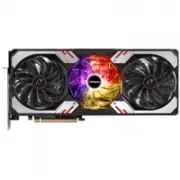
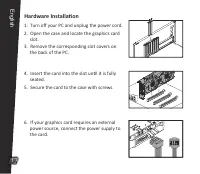
Page 3 - Hardware Installaion; the back of the PC.; English
Hardware Installaion 1. Turn off your PC and unplug the power cord.2. Open the case and locate the graphics card slot. 3. Remove the corresponding slot covers on the back of the PC. 4. Insert the card into the slot unil it is fully seated.5. Secure the card to the case with screws. 6. If your graphic...
Page 4 - Driver Installaion; Insert the support CD into your opical drive.
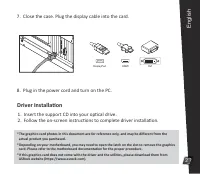
Driver Installaion 1. Insert the support CD into your opical drive. 2. Follow the on-screen instrucions to complete driver installaion. *The graphics card photos in this document are for reference only, and may be different from the actual product you purchased.*Depending on your motherboard, you may...
Page 5 - Hardwareinstallaion; Öffnen Sie das Gehäuse und suchen Sie; Deutsch
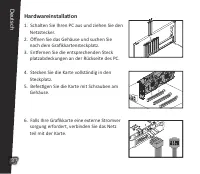
Hardwareinstallaion 1. Schalten Sie Ihren PC aus und ziehen Sie den Netzstecker. 2. Öffnen Sie das Gehäuse und suchen Sie nach dem Grafikkartensteckplatz.3. Enfernen Sie die entsprechenden Steck platzabdeckungen an der Rückseite des PC. 4. Stecken Sie die Karte vollständig in den Steckplatz.5. Befesig...
Page 6 - Treiberinstallaion; Schließen Sie den Netzstecker an und schalten Sie den PC ein.
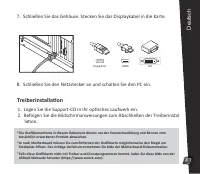
Treiberinstallaion 1. Legen Sie die Support-CD in Ihr opisches Laufwerk ein. 2. Befolgen Sie die Bildschirmanweisungen zum Abschließen der Treiberinstal laion. *Die Grafikkartenfotos in diesem Dokument dienen nur der Veranschaulichung und können vom tatsächlich erworbenen Produkt abweichen.*Je nach M...
Page 7 - Français
Page 8 - Installaion du pilote
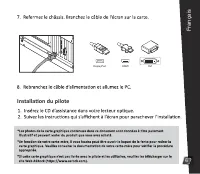
Installaion du pilote 6 Français DisplayPort DVI HDMI
Page 9 - Installazione dell'hardware; Aprire il case e individuare l'alloggio della; Italiano
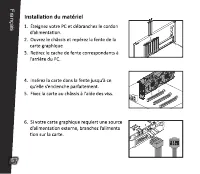
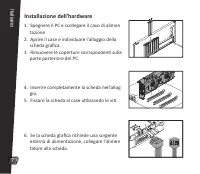
Installazione dell'hardware 1. Spegnere il PC e scollegare il cavo di alimen tazione . 2. Aprire il case e individuare l'alloggio della scheda grafica.3. Rimuovere le coperture corrispondeni sulla parte posteriore del PC. 4. Inserire completamente la scheda nell'allog gio. 5. Fissare la scheda al cas...
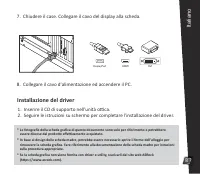
Page 10 - Installazione del driver; Chiudere il case. Collegare il cavo del display alla scheda.
Installazione del driver 1. Inserire il CD di supporto nell'unità oica. 2. Seguire le istruzioni su schermo per completare l'installazione del driver. * Le fotografie della scheda grafica di questo documento sono solo per riferimento e potrebbero essere diverse dal prodoto effeivamente acquistato.* In ...
Page 11 - Instalación del hardware; Abra la carcasa y localice la ranura de la; Español
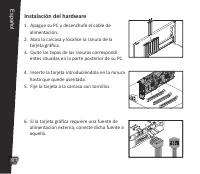
Instalación del hardware 1. Apague su PC y desenchufe el cable de alimentación. 2. Abra la carcasa y localice la ranura de la tarjeta gráfica. 3. Quite las tapas de las ranuras correspondi entes situadas en la parte posterior de su PC. 4. Inserte la tarjeta introduciéndola en la ranura hasta que qued...
Page 12 - Instalación del controlador; Inserte el CD de soporte en la unidad ópica.
Instalación del controlador 1. Inserte el CD de soporte en la unidad ópica. 2. Siga las instrucciones de la pantalla para completar la instalación del controlador. * Las fotos de la tarjeta gráfica de este documento son solo para referencia y pueden ser diferentes al producto real adquirido.* Dependi...
Page 13 - Установка аппаратуры; Выключите питание ПК и отключите шнур; Ру
Установка аппаратуры 1. Выключите питание ПК и отключите шнур питания от электросети.2. Откройте корпус и найдите разъем для подключения видеокарты.3. Снимите крышки с соответствующего разъема на задней панели ПК. 4. Вставьте видеокарту в разъем до упора.5. Прикрепите видеокарту к корпусу винтами. 6...
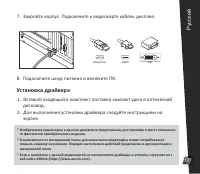
Page 14 - Установка драйвера; Для выполнения установки драйвера следуйте инструкциям на
Установка драйвера 1. Вставьте входящий в комплект поставки компакт-диск в оптический дисковод. 2. Для выполнения установки драйвера следуйте инструкциям на экране. * Изображения видеокарты в данном документе представлены для примера и могут отличаться от фактически приобретенного изделия.* В зависи...
Page 15 - Instalação do Hardware; Abra a caixa e localize o slot da placa gráfica.; Português
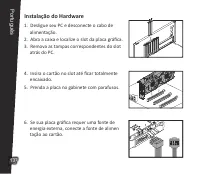
Instalação do Hardware 1. Desligue seu PC e desconecte o cabo de alimentação. 2. Abra a caixa e localize o slot da placa gráfica. 3. Remova as tampas correspondentes do slot atrás do PC. 4. Insira o cartão no slot até ficar totalmente encaixado. 5. Prenda a placa no gabinete com parafusos. 6. Se sua p...
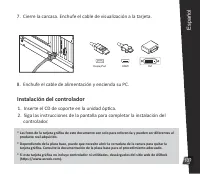
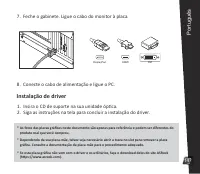
Page 16 - Instalação de driver; Insira o CD de suporte na sua unidade ópica.; Conecte o cabo de alimentação e ligue o PC.
Instalação de driver 1. Insira o CD de suporte na sua unidade ópica. 2. Siga as instruções na tela para concluir a instalação do driver. * As fotos das placas gráficas neste documento são apenas para referência e podem ser diferentes do produto real que você comprou. * Dependendo da sua placa-mãe, ta...
Page 17 - Instalacja sprzętu; Wyłącz komputer i wyjmij z gniazda wtyczkę; Polski
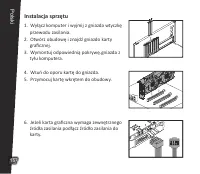
Instalacja sprzętu 1. Wyłącz komputer i wyjmij z gniazda wtyczkę przewodu zasilania.2. Otwórz obudowę i znajdź gniazdo karty graficznej. 3. Wymontuj odpowiednią pokrywę.gniazda z tyłu komputera. 4. Wsuń do oporu kartę do gniazda.5. Przymocuj kartę wkrętem do obudowy. 6. Jeżeli karta graficzna wymaga z...
Page 18 - Instalacja sterownika; Włóż płytę CD z oprogramowaniem do napędu optycznego.
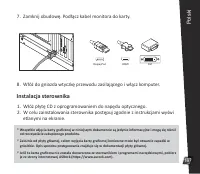
Instalacja sterownika 1. Włóż płytę CD z oprogramowaniem do napędu optycznego. 2. W celu zainstalowania sterownika postępuj zgodnie z instrukcjami wyświ etlanymi na ekranie. * Wszystkie zdjęcia karty graficznej w niniejszym dokumencie są jedynie informacyjne i mogą się różnić od rzeczywiście zakupion...
Page 19 - 하드웨어 설치; 한 국 어
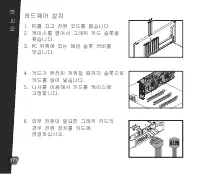
하드웨어 설치 1. PC를 끄고 전원 코드를 뽑습니다.2. 케이스를 열어서 그래픽 카드 슬롯을 찾습니다.3. PC 뒤쪽에 있는 해당 슬롯 커버를 벗깁니다. 4. 카드가 완전히 끼워질 때까지 슬롯으로 카드를 밀어 넣습니다.5. 나사를 이용해서 카드를 케이스에 고정합니다. 6. 외부 전원이 필요한 그래픽 카드의 경우 전원 장치를 카드에 연결하십시오. 한 국 어 17
Page 20 - 드라이버 설치
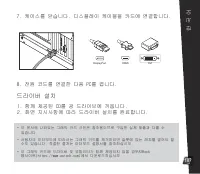
드라이버 설치 1. 함께 제공된 CD를 광 드라이브에 끼웁니다.2. 화면 지시사항에 따라 드라이버 설치를 완료합니다. * 이 문서에 나와있는 그래픽 카드 사진은 참조용이므로 구입한 실제 제품과 다를 수 있습니다. * 사용자의 마더보드에 따라서는 그래픽 카드를 제거하려면 슬롯에 있는 래치를 열어야 할 수도 있습니다. 적절한 절차는 마더보드 설명서를 참조하십시오. * 이 그래픽 카드에 드라이버 및 유틸리티가 함께 제공되지 않을 경우ASRock 웹사이트(https://www.asrock.com)에서 다운로드하십시오. 7. 케이스를 닫습니...
Page 21 - ハードウェアの取り付け; 日本語
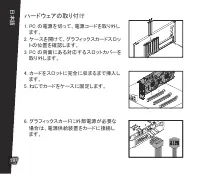
ハードウェアの取り付け 1. PC の電源を切って、電源コードを取り外し ます。2. ケースを開けて、グラフィックスカードスロッ トの位置を確認します。3. PC の背面にある対応するスロットカバーを 取り外します。 4. カードをスロットに完全に収まるまで挿入し ます。5. ねじでカードをケースに固定します。 6. グラフィックスカードに外部電源が必要な 場合は、電源供給装置をカードに接続し ます。 日本語 19
Page 22 - ドライバのインストール; ケースを閉じます。ディスプレイケーブルをカードに差し込みます。
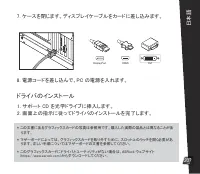
ドライバのインストール 1. サポート CD を光学ドライブに挿入します。2. 画面上の指示に従ってドライバのインストールを完了します。 * この文書にあるグラフィックスカードの写真は参照用です。購入した実際の製品とは異なることがあ ります。 * マザーボードによっては、グラフィックスカードを取り外すために、スロット上のラッチを開く必要があ ります。正しい手順についてはマザーボードの文書を参照してください。 * このグラフィックスカードにドライバとユーティリティがない場合は、ASRock ウェブサイト (https://www.asrock.com)からダウンロードしてください。 7. ケース...
Page 23 - 硬件安装; 简体中文
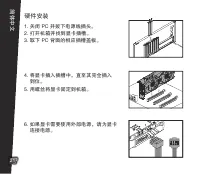
硬件安装 1. 关闭 PC 并拔下电源线插头。2. 打开机箱并找到显卡插槽。3. 取下 PC 背面的相应插槽盖板。 4. 将显卡插入插槽中,直至其完全插入 到位。5. 用螺丝将显卡固定到机箱。 6. 如果显卡需要使用外部电源,请为显卡 连接电源。 简体中文 21
Page 24 - 驱动程序安装
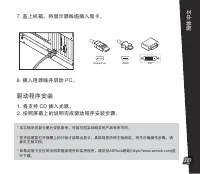
驱动程序安装 1. 将支持 CD 插入光驱。2. 按照屏幕上的说明完成驱动程序安装步骤。 * 本文档中的显卡图片仅供参考,可能与您实际购买的产品有所不同。 * 您可能需要打开插槽上的闩锁才能取出显卡,具体视您所用主板而定。有关正确操作步骤,请 参见主板文档。 * 如果此显卡交付时未附带驱动程序和实用程序,请访问ASRock网站(https://www.asrock.com)进 行下载。 7. 盖上机箱。将显示器线缆插入显卡。 8. 插入电源线并启动 PC。 22 简体中文 DisplayPort DVI HDMI
Page 25 - 硬體安裝; 源至顯示卡。; 繁體中文
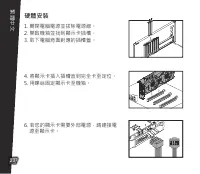
硬體安裝 1. 關閉電腦電源並拔除電源線。2. 開啟機箱並找到顯示卡插槽。3. 取下電腦背面對應的插槽蓋。 4. 將顯示卡插入插槽直到完全卡至定位。5. 用螺絲固定顯示卡至機箱。 6. 若您的顯示卡需要外部電源,請連接電 源至顯示卡。 繁體中文 23
Page 26 - 驅動程式安裝
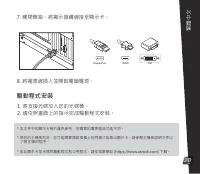
驅動程式安裝 1. 將支援光碟放入您的光碟機。2. 請依照畫面上的指示完成驅動程式安裝。 * 本文件中的顯示卡相片僅供參考,您購買的實際產品可能不同。 * 視您的主機板而定,您可能需要開啟插槽上的閂鎖才能取出顯示卡。請參閱主機板說明文件以 了解正確的程序。 * 若此顯示卡並未隨附驅動程式和公用程式,請從華擎網站 (https://www.asrock.com) 下載。 7. 關閉機箱。將顯示器纜線接至顯示卡。 8. 將電源線插入並開啟電腦電源。 24 繁體中文 DisplayPort DVI HDMI
Page 27 - Pemasangan Perangkat Keras; Bahasa Indonesia
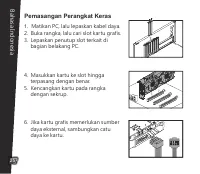
Pemasangan Perangkat Keras 1. Matikan PC, lalu lepaskan kabel daya. 2. Buka rangka, lalu cari slot kartu grafis.3. Lepaskan penutup slot terkait di bagian belakang PC. 4. Masukkan kartu ke slot hingga terpasang dengan benar.5. Kencangkan kartu pada rangka dengan sekrup. 6. Jika kartu grafis memerluk...
Page 28 - Penginstalan Driver
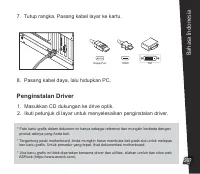
Penginstalan Driver 1. Masukkan CD dukungan ke drive optik.2. Ikuti petunjuk di layar untuk menyelesaikan penginstalan driver. * Foto kartu grafis dalam dokumen ini hanya sebagai referensi dan mungkin berbeda dengan produk aslinya yang Anda beli. * Tergantung pada motherboard, Anda mungkin harus mem...
Page 29 - EU Declaraion of Conformity
EU Declaraion of Conformity For the following equipment: Graphics Card (Product Name) Graphics Card Series / ASRock (Model Designaion / Trade Name) ASRock Incorporaion (Manufacturer Name) 2F., No.37, Sec. 2, Jhongyang S. Rd., Beitou District, Taipei City 112, Taiwan (R.O.C.) (Manufacturer Address) E...
Page 31 - DECLARATION OF CONFORMITY
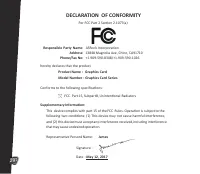
DECLARATION OF CONFORMITY Per FCC Part 2 Sec i on 2.1077(a) R e sponsib le P ar ty Na m e: ASRock Incorporaion Address: 13848 Magnolia Ave, Chino, CA91710 +1-909-590-8308/+1-909-590-1026 Phone/Fax No: hereby declares that the product Product Name : Graphics Card Model Number : Graphics Card Series C...